Once you have uploaded a patient's pathology report to their patient record you will be able to use Lumielle the SimpleClinic AI Scribe, to read the document, extract the test results and record them directly into the patient record.
On this page:
- Helpful Links
- Upload the patient file
- Record and view the patient pathology results
- Print Test summary
Helpful Links
Upload the patient file
Step 1. First you will need to upload the patients pathology report to the patient record, click here for these steps.
Record and view the patient pathology results
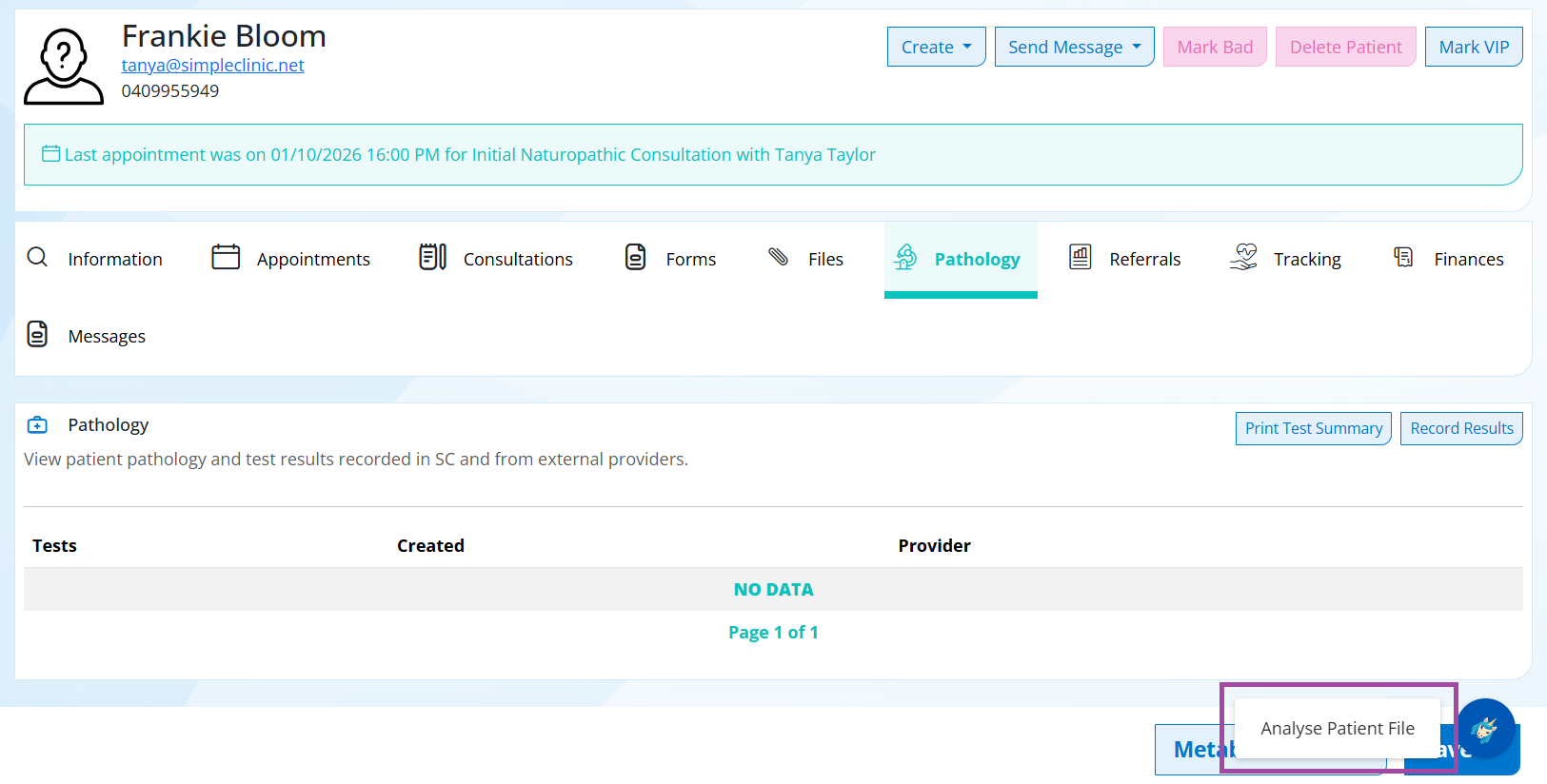
Step 2. Once the patients pathology is saved under the patient files tab -> Select the Lumielle icon at the bottom right hand corner of the Patient record -> Click Analyse Patient File.
Step 3.
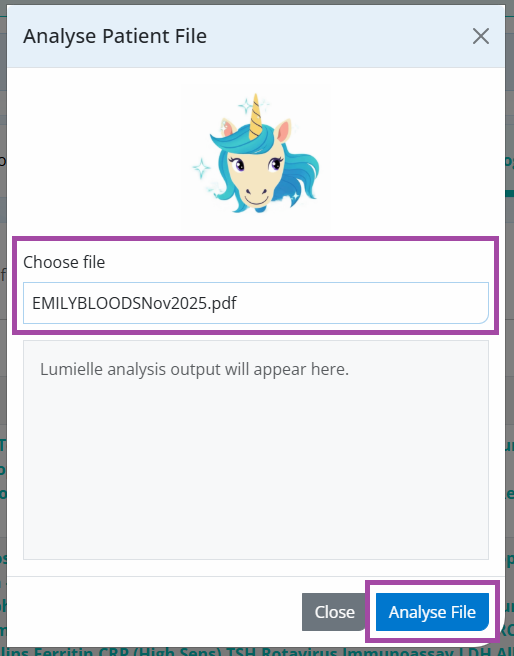
Select the correct File in the Choose File Field (this is selecting from the files uploaded in the patient files tab) -> click Analyse File.
Lumielle will read and record the most recent test result from the pathology report.
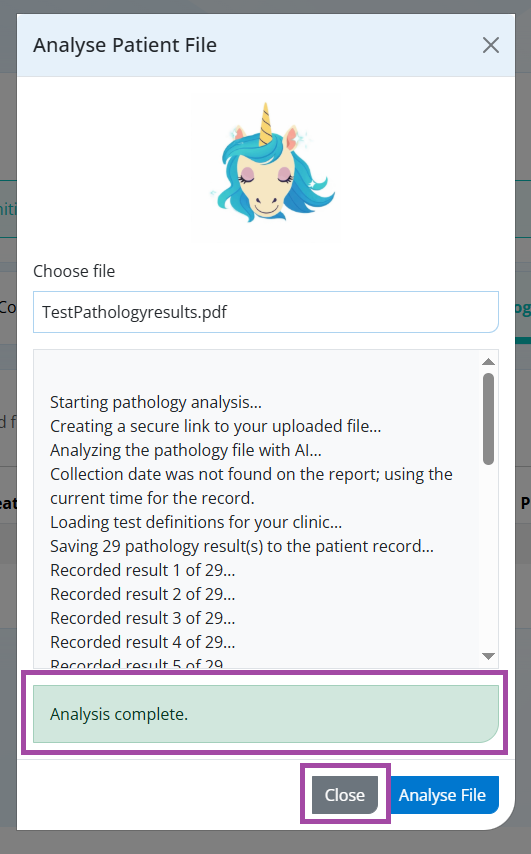
Step 3. Once you can see 'Analysis complete' -> Click Close.
Step 4. The following menu options are available:
Created: Will show the date the pathology test was completed
Provider: SC will be the provider when results have been uploaded manually. i-screen will be the provider if the results are from your i-screen integration. Click here for more on i-screen referrals.
Delete Batch: This will delete the pathology results from the patient record. Note: This is NOT recoverable.
View: Select View to see the most recent test results on the pathology report.
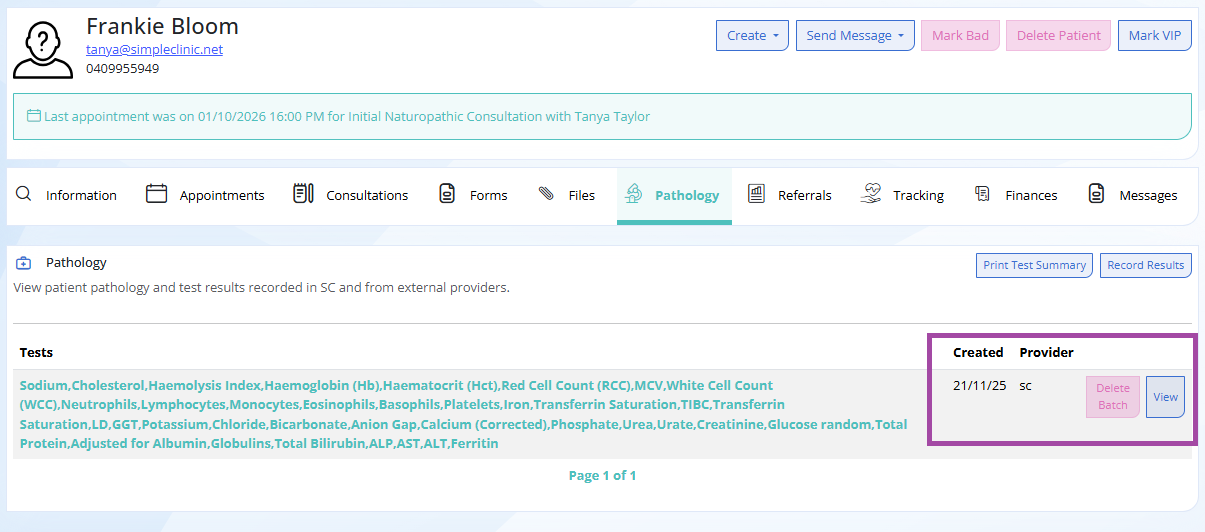
Select View.
You can delete individual test results from a batch using the delete icon from the right hand side panel. Note: This is result will NOT be recoverable.
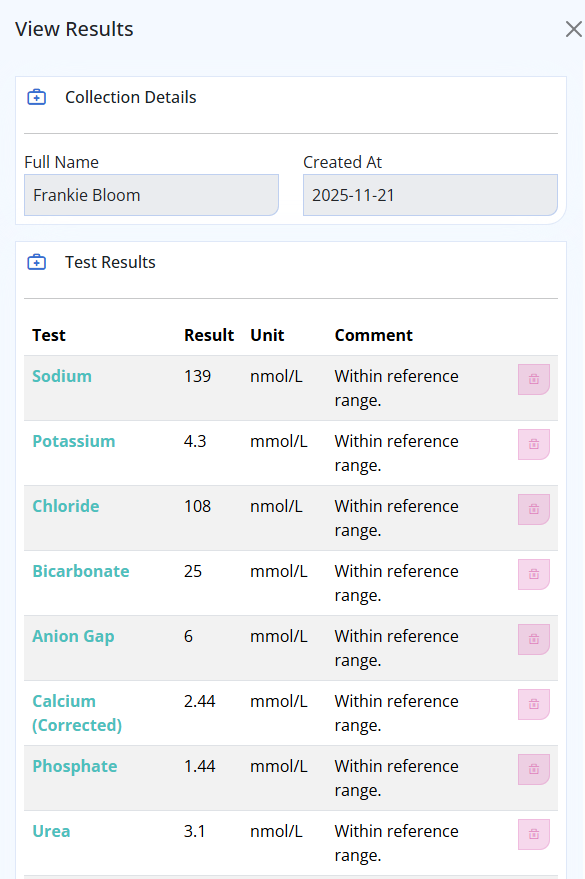
Print a Test Summary report
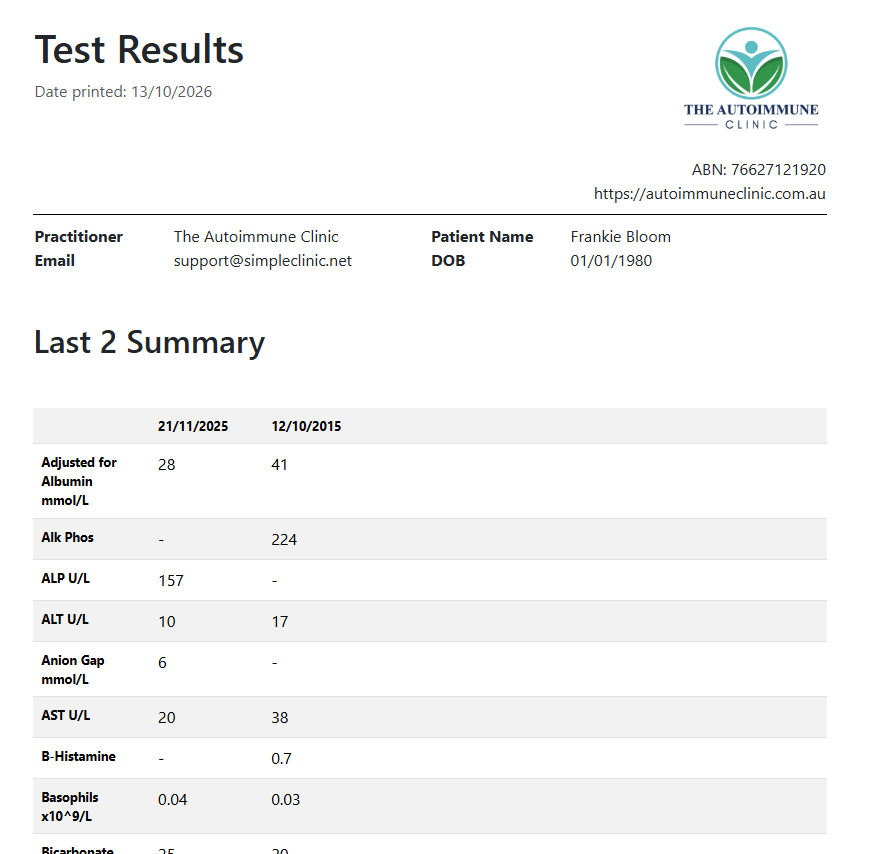
Step 5. To Print a Test Summary of the patient's pathology select -> Print Test summary.