
What sets our AI scribe apart from the others, is that you'll also have access to the original audio recording, the word-for-word transcript, and the AI-generated summary, which is populated into your chosen Appointment Type.
This means you don’t need to take notes during the consultation, while still having the ability to review the full recording or transcript at any time if you’d like more detail beyond the summary.
During your consultation, our platform will record the audio and generate a transcript. This transcript is then processed by our built-in AI scribe and organised into the custom fields used in your treatment note.
The content generated in each section depends on the custom fields configured in your appointment type, allowing information to be grouped into the relevant parts of the treatment note.
There are two different process depending on whether your patient is in person or online via SC meet. For Online SC Meet Consultations click here.
On this page:
- Important Information
- AI Scribe Overview
- In Person transcription
- Costs
- Demonstration Video
Important Information
- The default Notes and Next Actions fields must be enabled for the AI Scribe to work. To check go to Content --> Custom Fields.
- There are two different process depending on whether your patient is in person or online via SC meet. For Online SC Meet Consultations click here.
- Lumielle must be connected first and the license agreement accepted.
- Ensure you are using the most up to date version of Chrome as your browser, or Lumielle will not be able to record.
- If you have additional custom fields in your appointment type, AI will attempt to populate them automatically.
- Ensure your device is not set to automatically go to sleep mode or the recording will stop.
- Limit having multiple tabs open whilst recording. The way background tabs are handled can vary between browsers and operating systems, and in some cases the browser may reduce or reclaim resources from inactive tabs, which can cause the recording to stop.
- Existing comments in the notes, next actions or custom fields from before a treatment note transcript will be preserved.
Helpful Links
AI Scribe Overview
Step 1. Open the patient record --> Create --> Treatment Note --> Select your Appointment Type.
Step 2. From within the Treatment Note -> select the Lumielle icon in the bottom right hand corner of the screen --> click on Transcribe Treatment Note.

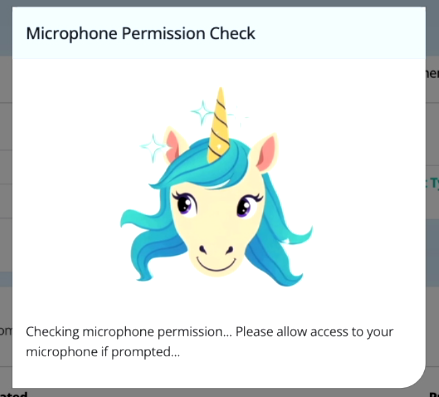
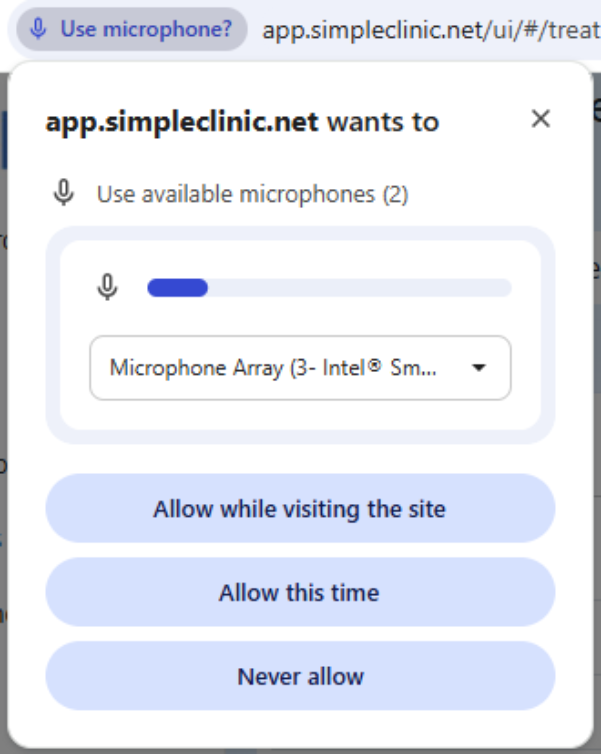
Step 3. Lumielle will need to get permission to use your devices microphone.
The permission window will depend on your device. Select 'Allow while visiting the site' to save this setting for next time.
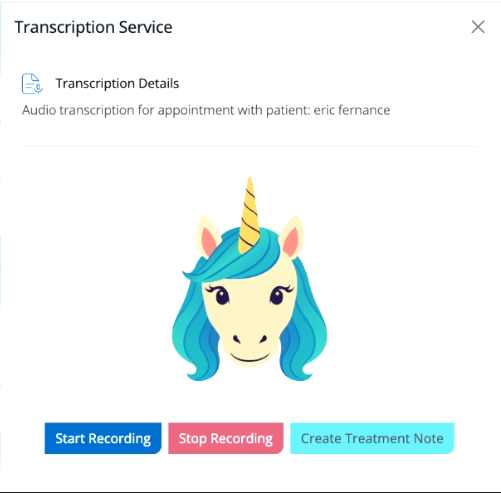
Step 4. Ask your patient if they agree to you recording the consultation.
Once you are ready to record your consultation --> Select Start Recording
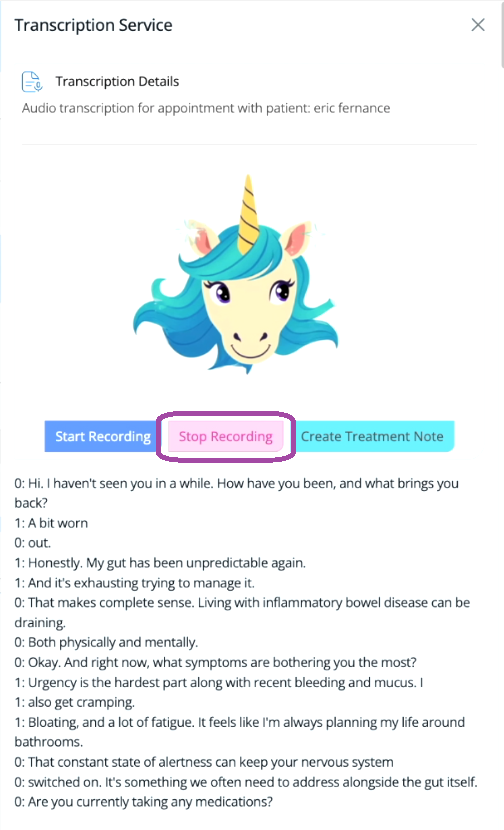
Step 5. As you begin your consultation Lumielle will begin capturing your consultation in real time. Your transcription will appear on the side panel under Lumielle, as per the below screenshot.
Be specific and detailed with your wording and terminology for the best output. Use words like ‘Our goals’, 'My Recommendations', ‘Next Actions’, "I will prescribe you with ', 'I will refer you to pathology testing' and any information regarding tests or recommendations you want to provide the patient.
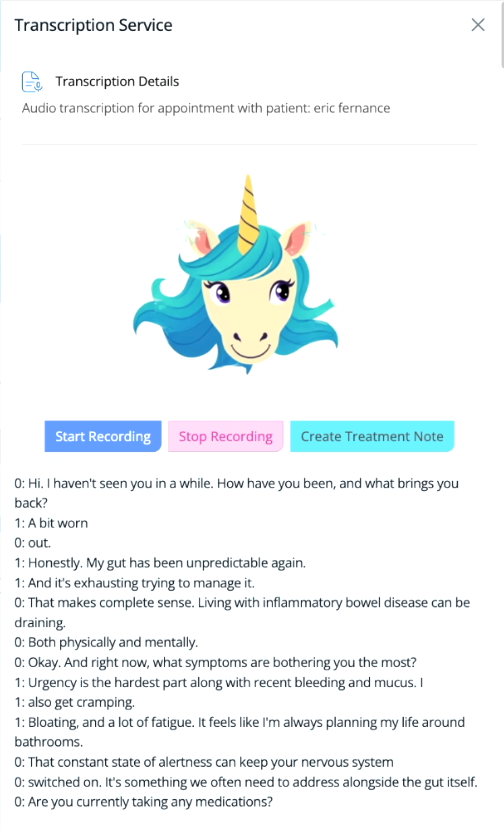
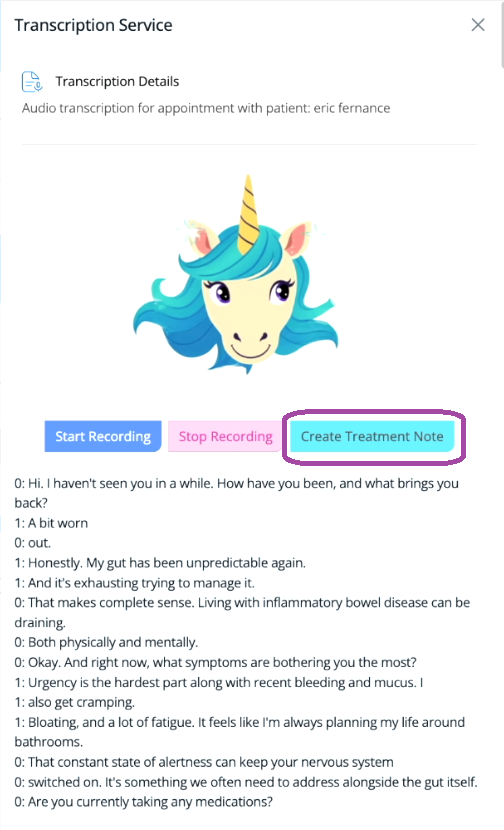
Step 6. Once you have finished your consultation, scroll back to the top --> Select Stop Recording --> then immediately (before closing the side panel) click on Create Treatment Note.
Step 7. Lumielle will now summarise your treatment note transcription. You will see the below notification as confirmation.
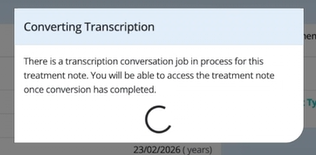
Processing time depends on consultation length. For example, a short consultation may take around 15–30 seconds, while longer consultations may take up to around a minute to convert.
Step 8. If you remain on the Treatment Note page, once ready (within 15-60sec) your AI treatment note summary will appear.
Please note, for security, your treatment note will be locked. Select 'Unlock Treatment Note' to review and edit your treatment note summary.
Please note: as AI is non-deterministic (a process, algorithm, or a system who's outcomes are unpredictable or varied), it’s important to review edit and format your treatment notes before finalising them.
Make sure all information is accurate, clinically valid, and correctly organised within the relevant custom fields.

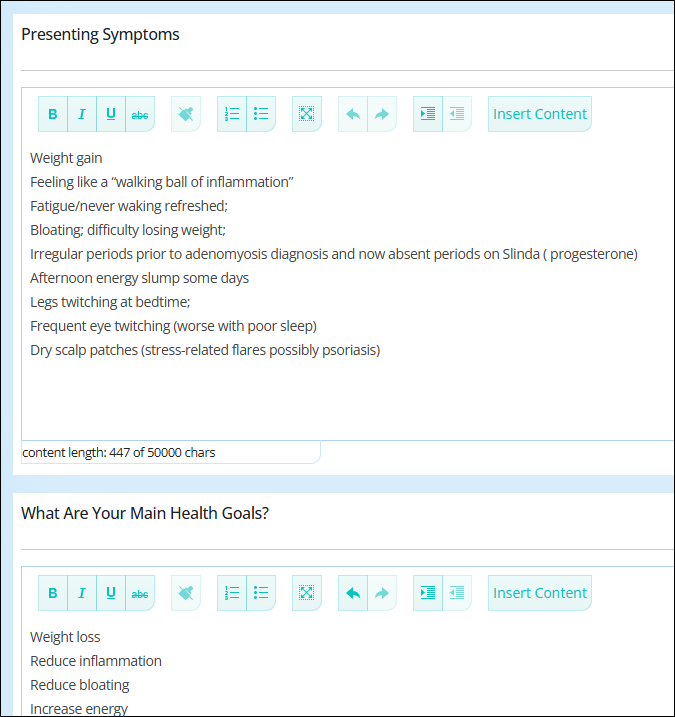
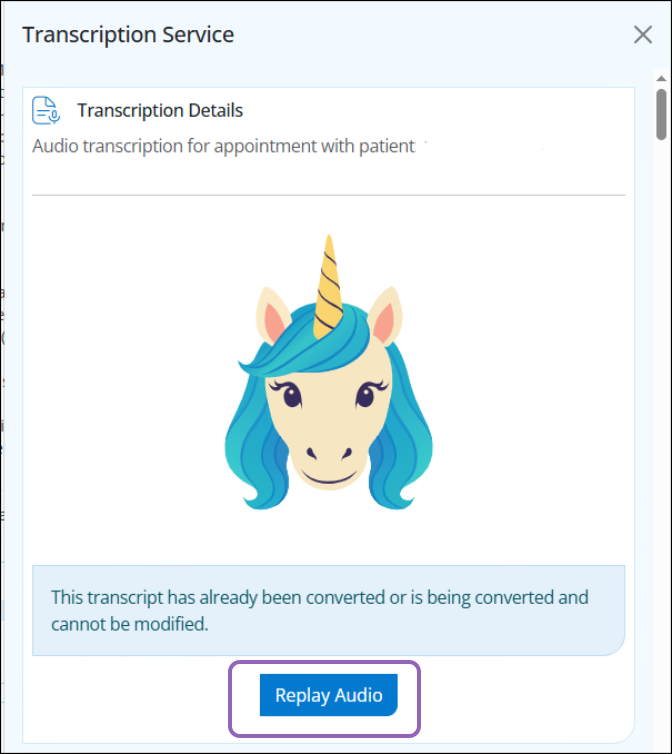
To view the full word-for-word transcription --> select 'View Transcription' from the bottom of the Treatment Note page.

To listen to the audio -->click on the Lumielle icon --> click on Transcribe Treatment Note
Costs and Billing
Pricing is usage-based and calculated according to the number of tokens used to generate the treatment notes.
Your final invoice will be based on the actual token usage and transcript duration, converted to AUD and inclusive of GST. ( as we prepay tokens in USD)
Estimated Cost: ~ $0.07 AUD per minute
On average, this equates to approximately 7 cents per minute to transcribe your consultation word for word and with AI (Lumielle) then summarising the transcript into your chosen Appointment Type under treatment notes.
Example:
A 60-minute consultation would cost approximately $4.20 AUD (incl. GST), subject to token usage and exchange rate variations.
Billing
Initially, usage will be billed in arrears, similar to SMS charges, and invoiced at the start of each month.
In the future, this will transition to a prepaid model, where tokens or account credit can be purchased in advance.
For any further questions please email support@simpleclinic.net