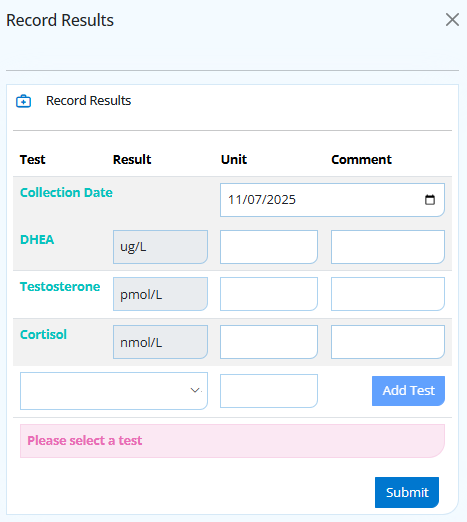
There are many pathology tests and markers which can be used to record results against patients! SimpleClinic includes a lot of basic or standard tests, but you can add more test markers.
SimpleClinic allows you to select a number of regularly-used test markers to be "default" tests that will be added automatically to each patient's treatment note. Custom Tests can be selected to be one of the "default" test markers if required.
On this page:
- Add Custom Tests
- Set Custom Reference Ranges
- Merge Tests
- Set Default Tests
Helpful Links
- How to upload patient files
- To manually record patient pathology results see here
- Patient pathology import and analysis with Lumielle
Add Custom Tests
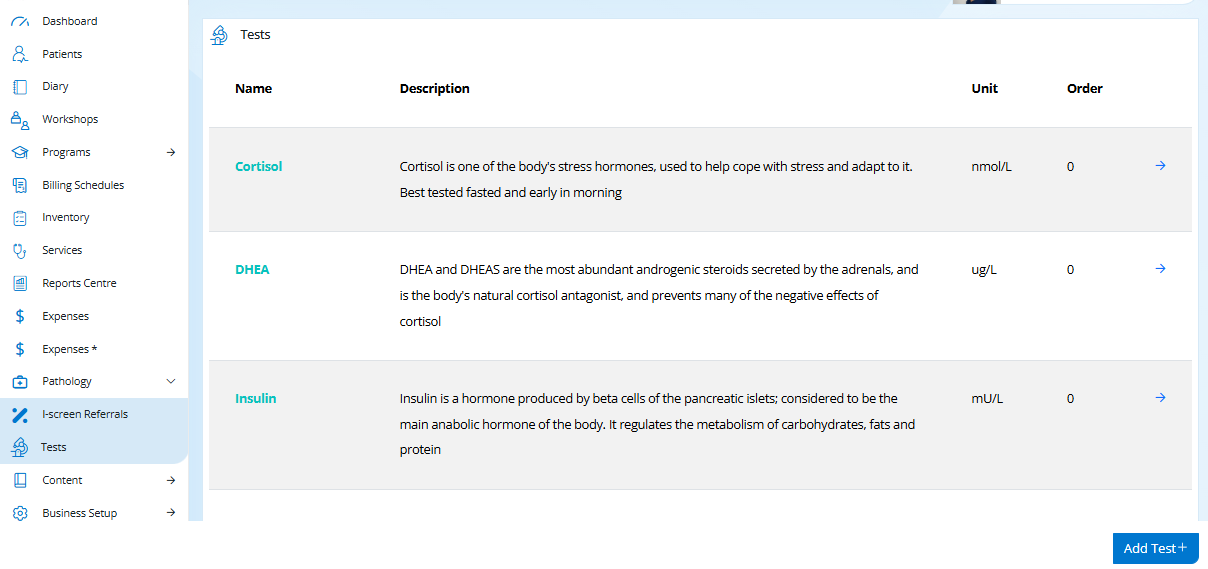
Step 1. From the main SimpleClinic menu -> select Pathology -> Tests -> the list of custom tests will be displayed.
Step 2. Select the Add Test button
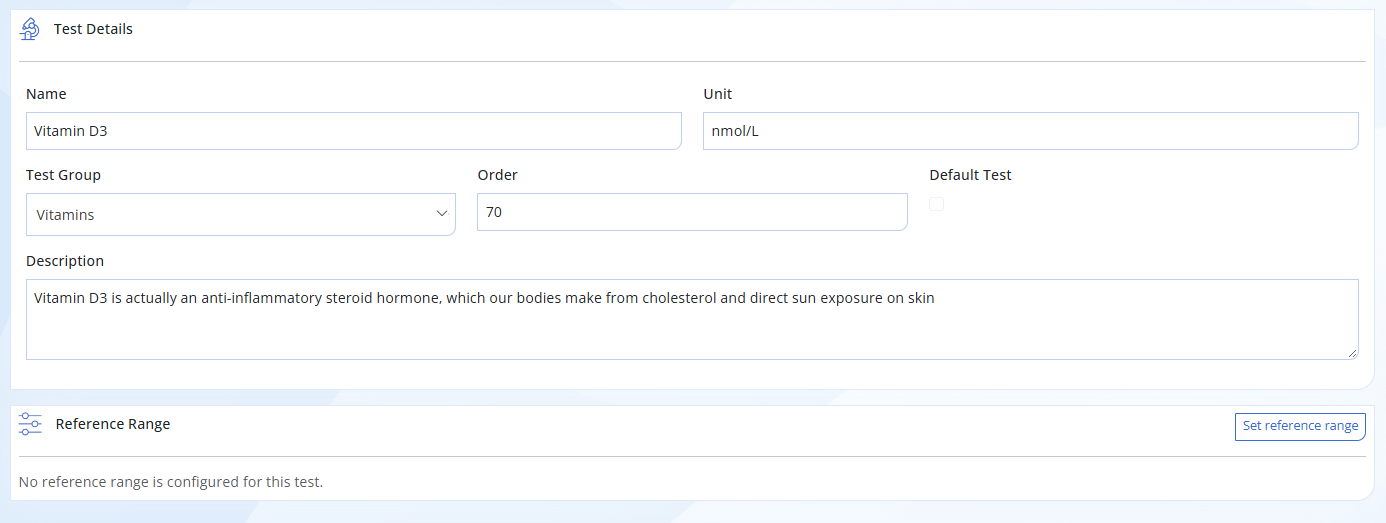
Step 3. Complete all fields -> select 'Make Default' button at the bottom right if you want this to be a default test -> select Save Test
NB - once a test result for a Custom Test has been added to more than one patient, that custom test cannot be deleted!
- Name - the name of the individual marker
- Unit - an optional unit of measurement of the test marker, such as mmol/L, %, cm, etc
- Test Group - a generalised name that the test marker can be grouped into with other similar tests, such as "blood lipids", "female hormones", "vitamins" etc. Any new test markers which are analysed by Lumielle will be automatically added to the group 'Lumielle'. Read this article for more about Lumielle Pathology Analysis.
- Order - The order number defines where the test will sit in your list of tests. e.g. order number 0 will sit at the top of the list.
- Default Test - Indicates if this test is set as one of your default tests. Default tests are included in all patients pathology test list when you manually record pathology results.
- Description - Add a description about this pathology marker.
Set Custom Reference Ranges
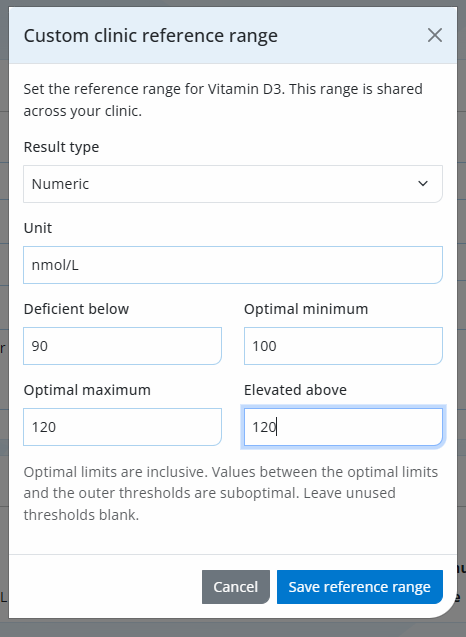
Step 4. Select Set reference range to enter your own custom reference ranges.
- Result type - Select if the result will be numerical, or a categorical result (e.g. positive / negative)
- Unit - enter the unit measurement
- Deficient below - enter the amount which will indicate if a deficiency has been recorded
- Optimal minimum - enter the minimum amount of your preferred optimal range
- Optimal maximum - enter the maximum amount of your preferred optimal range
- Elevated above - enter the amount which will indicate if the result is elevated above optimal
- Save reference range.
Merge Tests
As you enter custom tests or use Lumielle Pathology Analysis to record results, the same pathology tests may appear in your test list under different names.
These can be created by Lumielle during report analysis based on differences between laboratory naming, different unit measurement, or even due to the quality of pathology scanned causing miss-spellings. the same pathology tests may appear in your test list under different names. You can merge duplicate tests, provided they use the same unit of measurement.
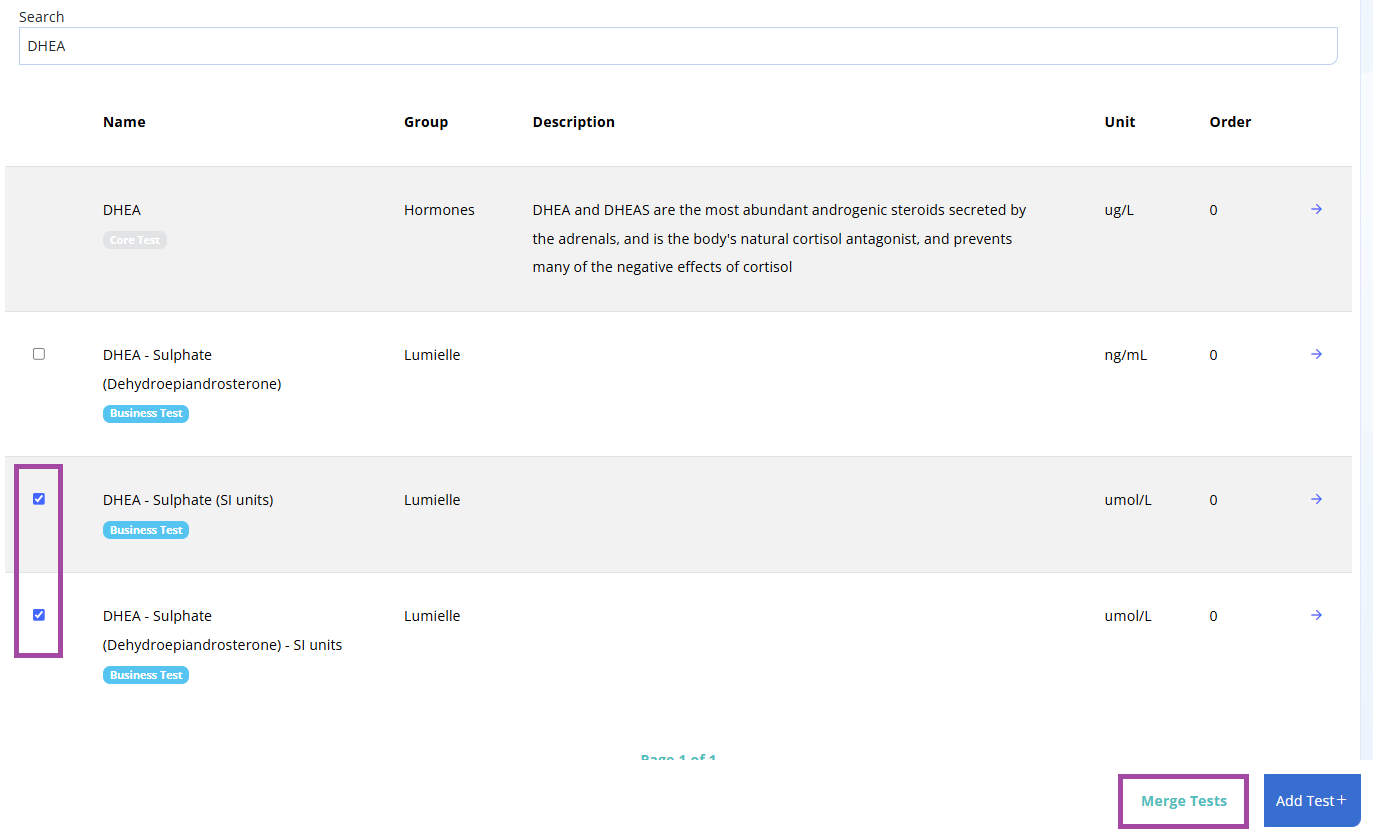
To Merge tests -> select the tests to be combined -> select Merge Tests
- Tests merged must have the same unit of measurement
- Core tests cannot be merged, only Business added tests (added manually or via Lumielle)
- If Lumielle finds a new test name it will be recorded again
Set Default Tests
SimpleClinic allows you to select a number of regularly-used test markers to be "default" tests that will be added automatically to each patient's treatment note. Custom Tests can be selected to be one of the "default" test markers if required.
You can set a test as a default when creating it, as above, or you can modify the default setting on existing tests.
Step 4. From the main SimpleClinic menu -> select Pathology -> Tests -> the list of custom tests will be displayed -> select the test you wish to change using the arrow.
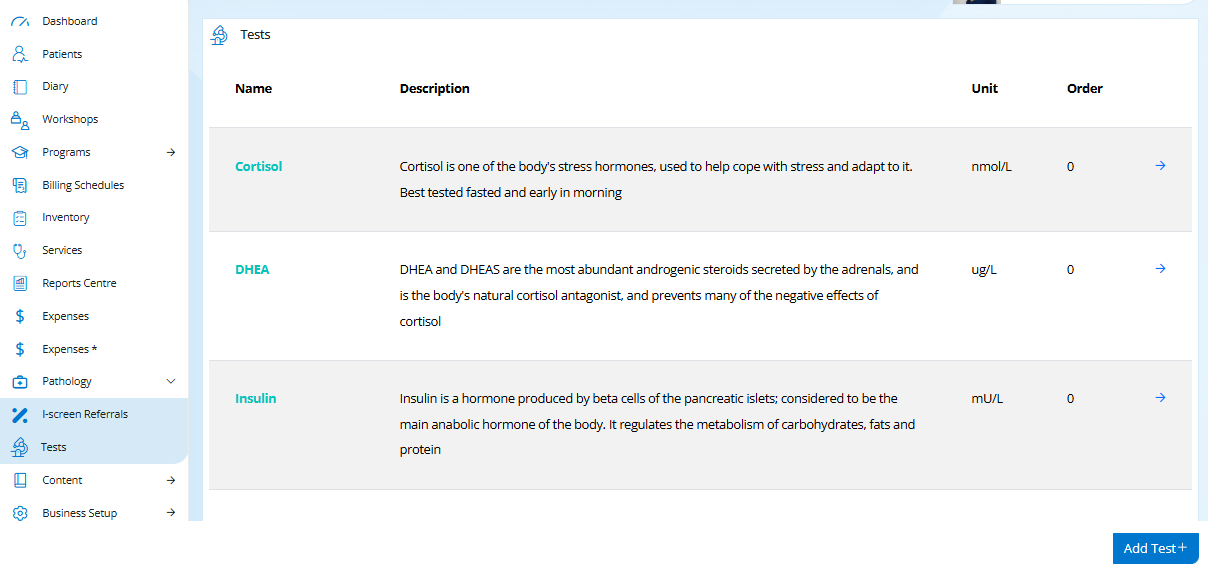
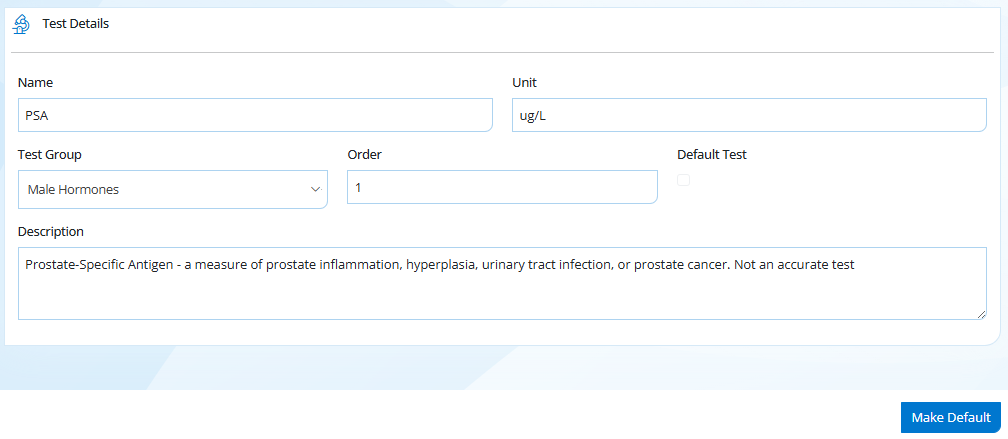
Step 5. Select the 'Make Default' button on tests to set them as default.
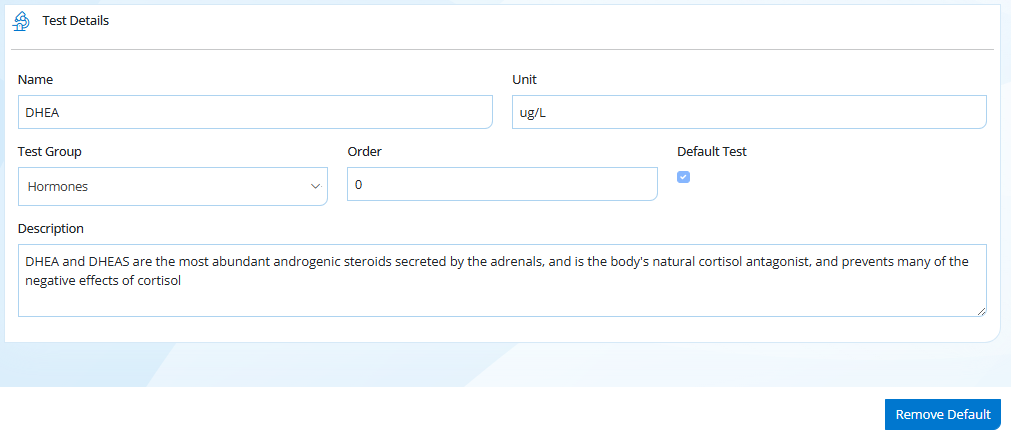
Step 6. Select the 'Remove Default' button on tests to remove the default setting.
Step 7. To easily see which Tests are currently set as default -> go to a patient record -> select the Pathology tab -> select 'Record Results' -> this will show the default tests already set as below.
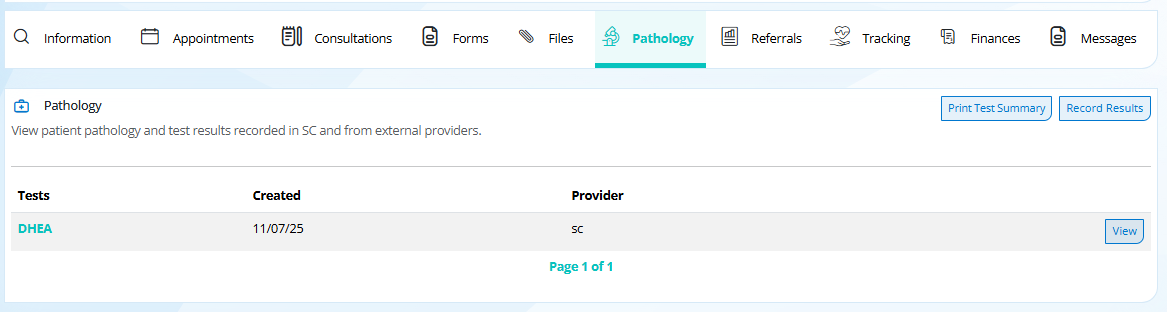
Default Tests will show as below, more test results can be added from the above Tests menu. See Steps 1-3 if the result you need is not listed to add it.