You can manually record pathology or other test results for patients! This can be useful to record and compare test results to earlier or previous results. This feature is also useful for recording and tracking body measurements for weight loss clients.
You can define default tests to appear on ALL patient records and add custom tests that are NOT in the list, instructions on how to do so can be found here.
On this page:
- Helpful Links
- Record results
- View results
- Print Test summary
Helpful Links
- How to upload patient files
- To use Lumielle AI to record and analyse your patients pathology for you, refer to this article.
- Customise your default tests and pathology reference ranges
Record results
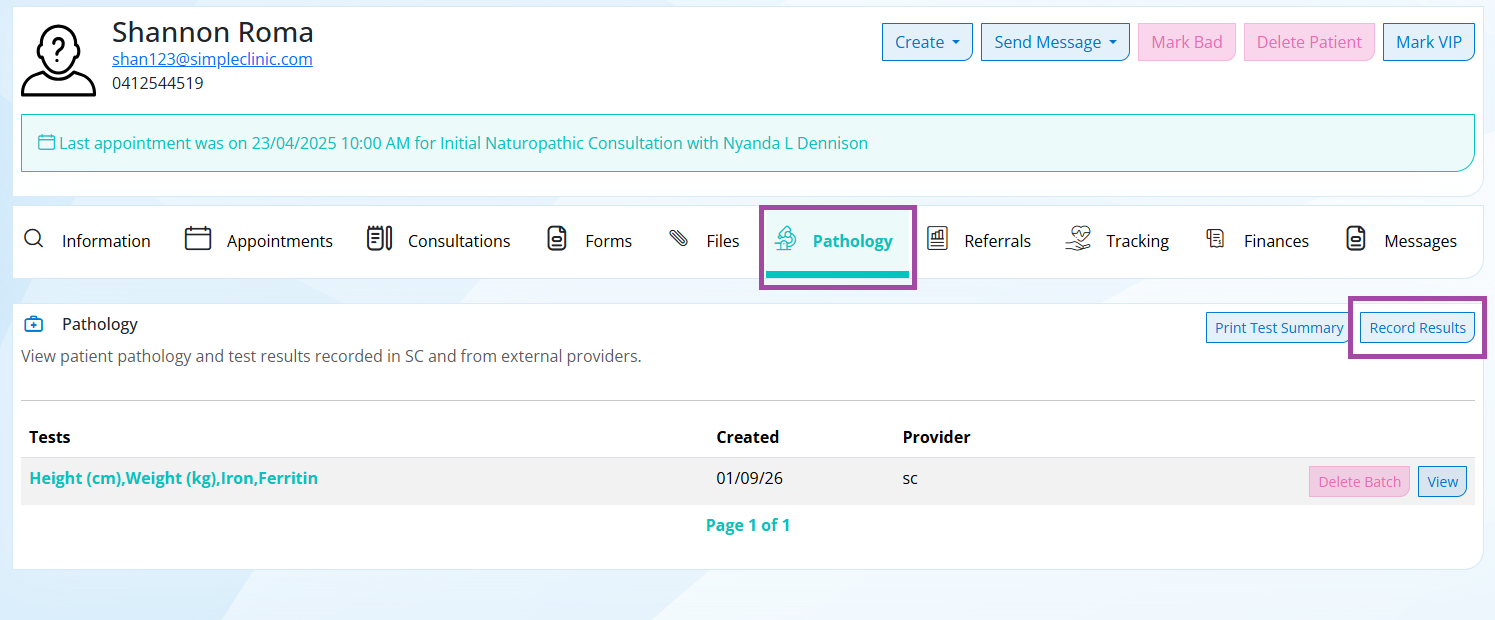
Step 1. Go to Patients -> select a patient record -> select the Pathology tab -> select Record Results -> + Add New -> Update the Collection date -> Enter Tests and results -> select Submit
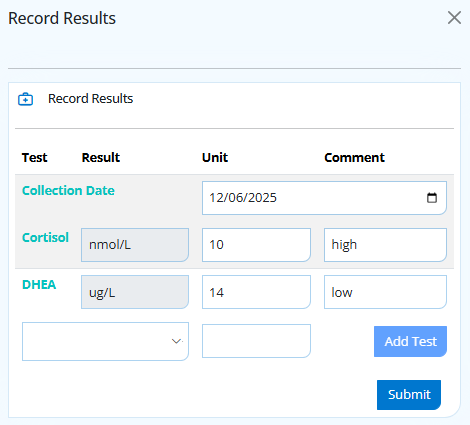
Step 2. Set the date that the test was taken, and type in the results (just the result number, without the unit of measurement), and any comments if required (ie "high", "low" or your interpretation of the result).
When accessing tests later, you can find them under the Tests tab. You can edit test results by clicking view -> Click the result value field to change the result OR you can edit from the Treatment Note.
Please note: there is no way to edit previously added test results. You can either:
- add more separately for the same date or,
- delete the old ones and add them again with the new results included.
View results
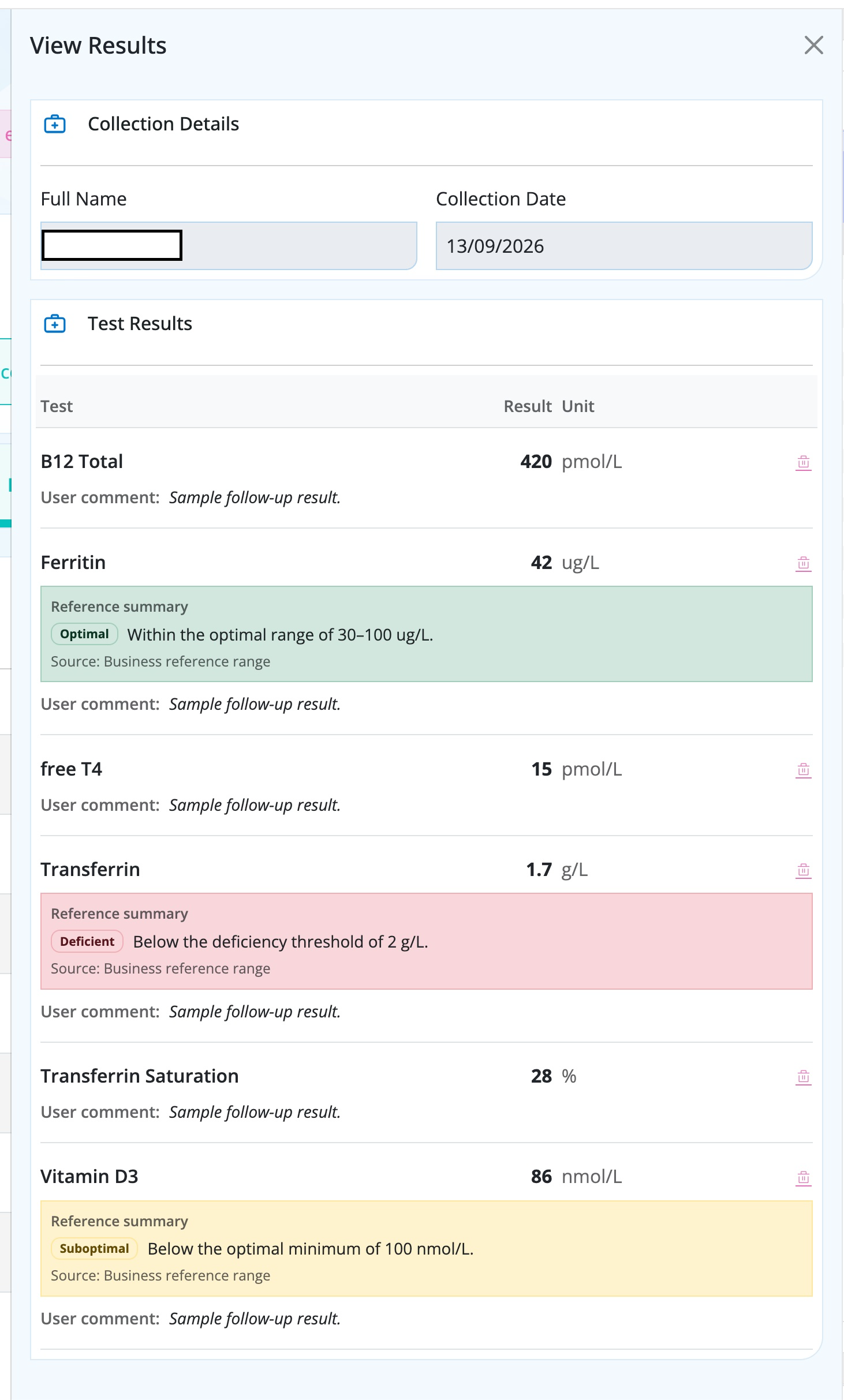
Step 3. Select View -> results will be displayed in alphabetical order.
You can delete individual test results from a batch using the delete icon from the right hand side panel. Note: This result will NOT be recoverable.
Your patients results will interpreted as optimal, suboptimal, elevated or deficient based on either the pathology lab reference ranges, or your own customised reference ranges if applied.
You can update your own preferred reference ranges under Pathology -> Tests. Please refer to this article to customise your test settings.
Print a Test Summary report
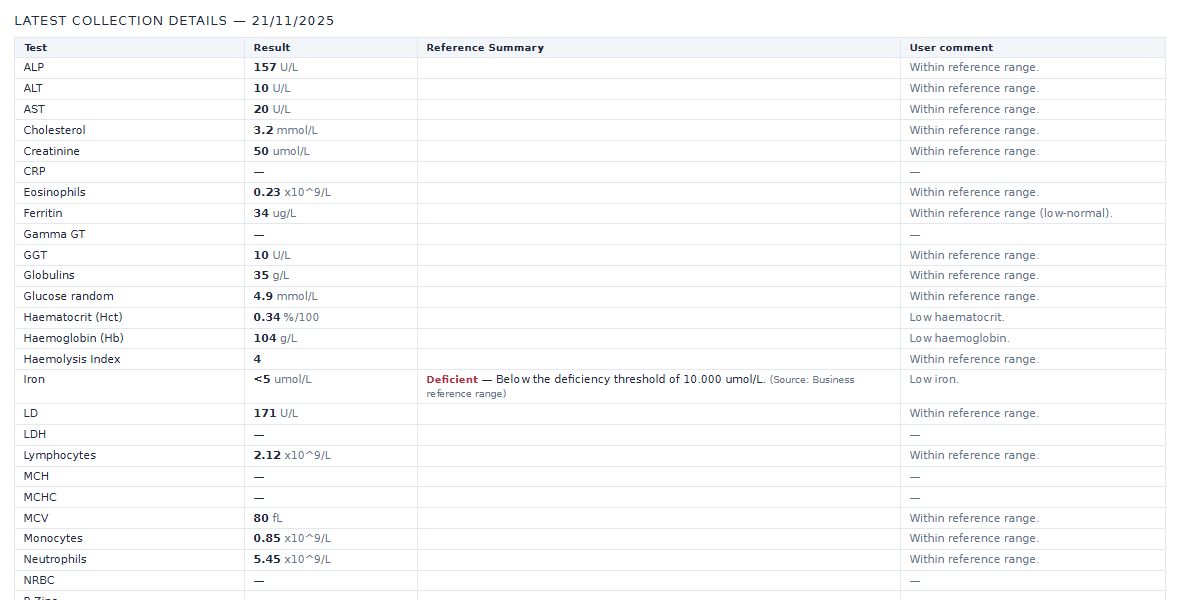
Step 6. To Print a Test Summary of the patient's pathology select -> Print Test summary.
The Test summary will display and compare the last 8 batches of results which have been entered.
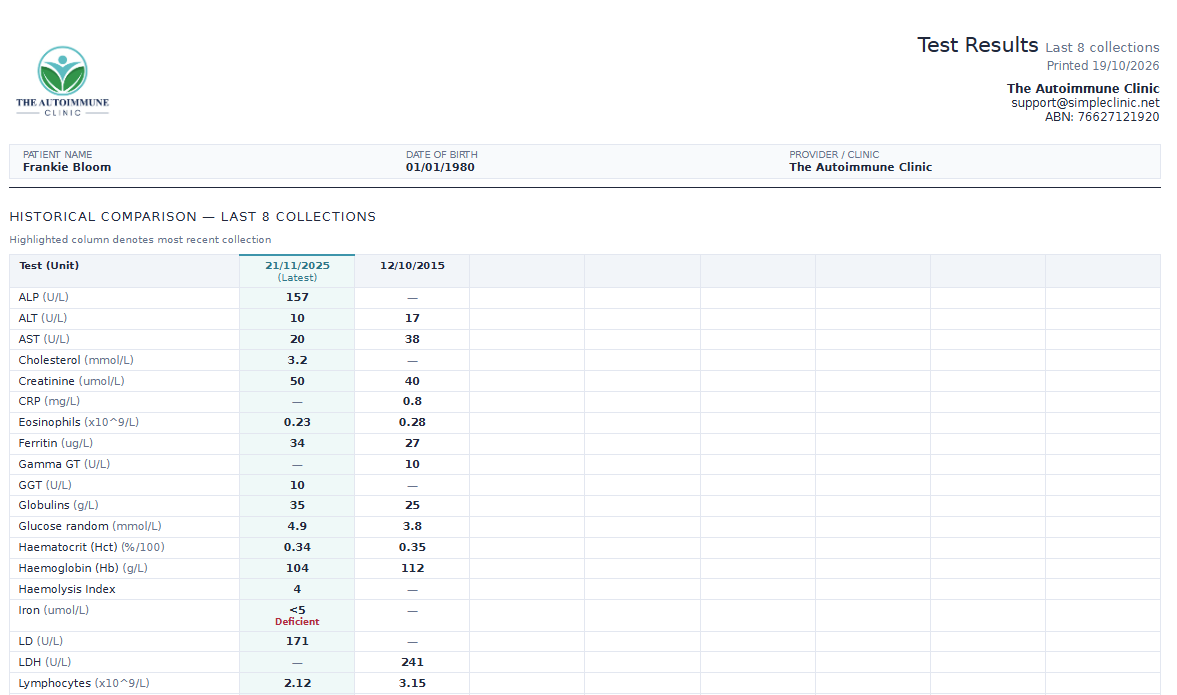
A more detailed summary of the latest result will be at the bottom of the report, followed by Historical collection data.