
Invoices needed for manual health fund claims must be set up correctly to show provider numbers and a service date.
This process is different to using the Tyro HealthPoint automated claim process.
On this page:
- Add Provider Numbers
- Adding Location Specific Provider Numbers
- Create Service Invoice Items
- Add an Item Code to a Service
- Create an Invoice
- Share an Invoice
Adding Provider Numbers
Please note: If you have different provider numbers for different locations, skip Step 1 and add these as per Step 2.
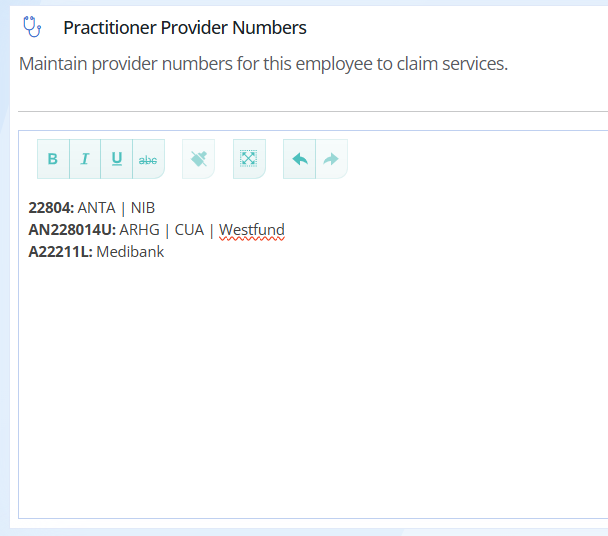
Step 1. Go to Employees Setup -> select view next to User -> add information as below into the Practitioner Provider Numbers field -> Save
Formatting Tips:
- group together funds that use the same code.
- don't add codes for funds you never use, these can be provided on request if they are ever needed.
- copy and paste the information into this field as plain text -> so no other formatting is brought across
- preview your invoices before sending to patients to ensure they are correct
Adding Location Specific Provider Numbers
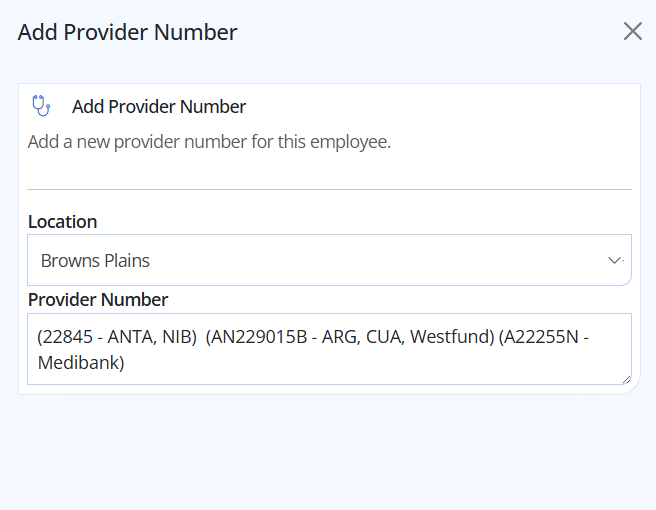
Step 2. If you have different provider numbers for different locations you can enter these under Employees Setup -> select view next to User -> under Location Specific Prover Numbers -> Select Add Provider Number -> choose the location -> Enter the relevant Provider numbers -> SAVE.
Note:
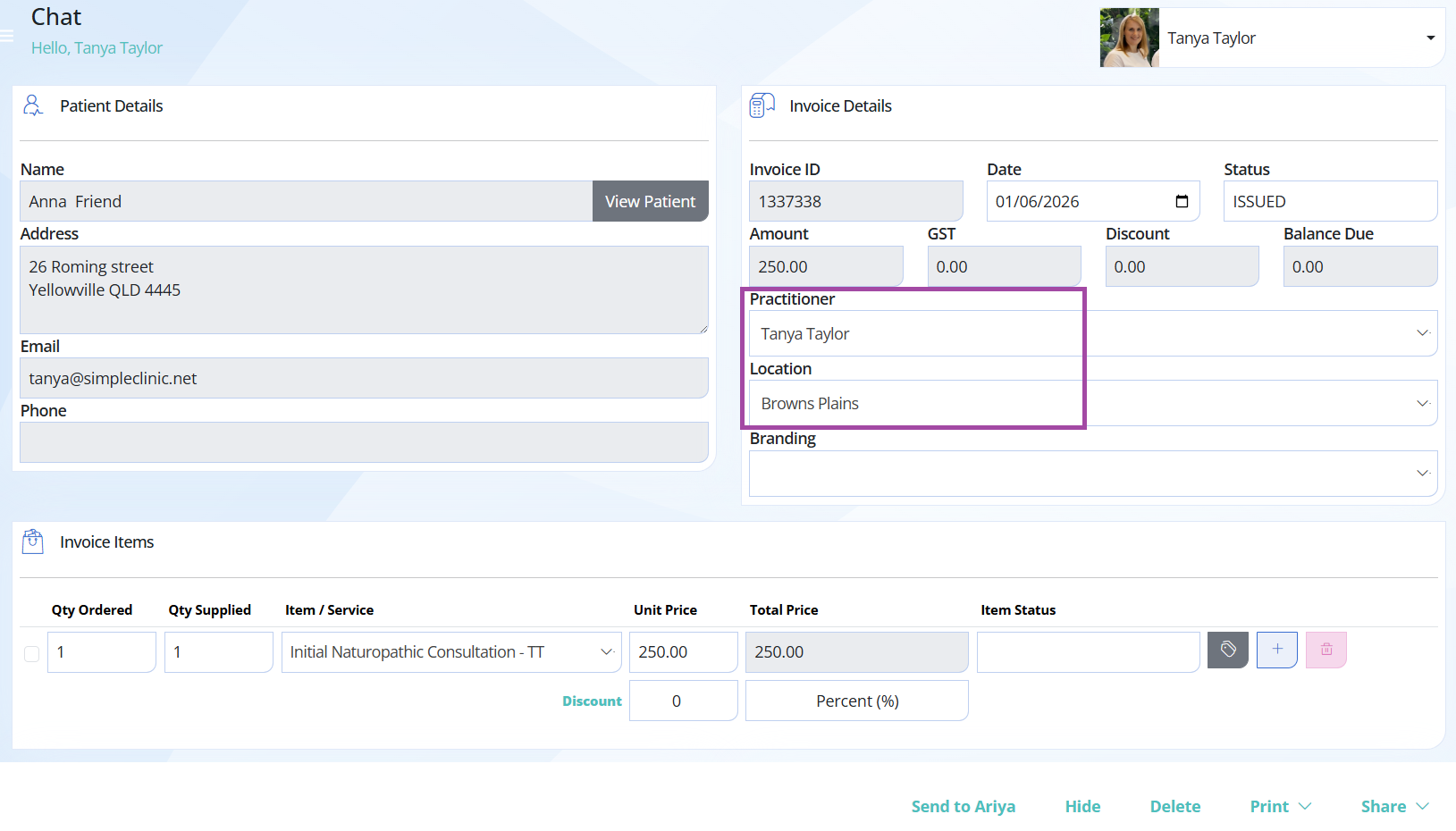
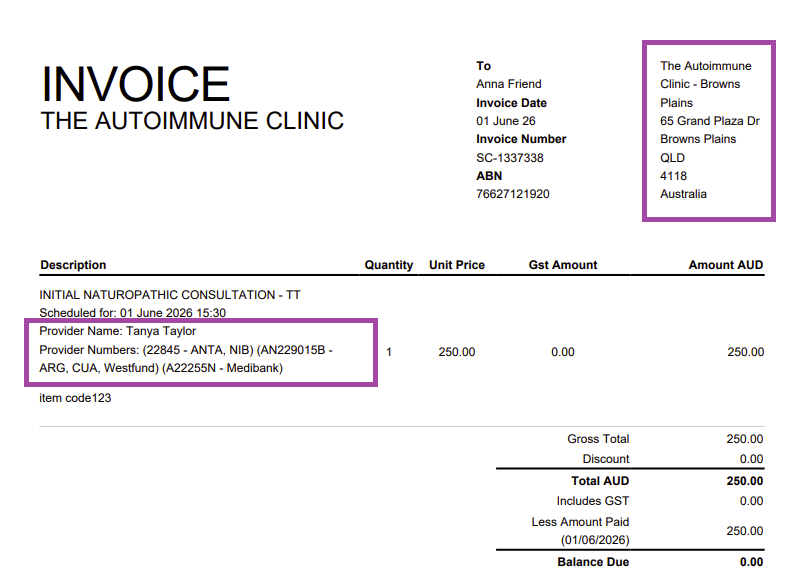
- Location specific provider number will display on the invoice based on the location and practitioner attached to the invoice
- If no location is selected on the invoice the displayed provider numbers will default to those set in Step 1.
- group together funds that use the same code, see the suggested formatting in the below screenshot.
- copy and paste the information into this field as plain text -> so no other formatting is brought across
- preview your invoices before sending to patients to ensure they are correct

To provide the location specific provider numbers -> Select the Practitioner and Location on the Invoice:
See the example below of the downloadable PDF invoice, which displays the location-specific provider numbers and the corresponding clinic address in the top-right corner of the invoice.
Creating Service Invoice Items
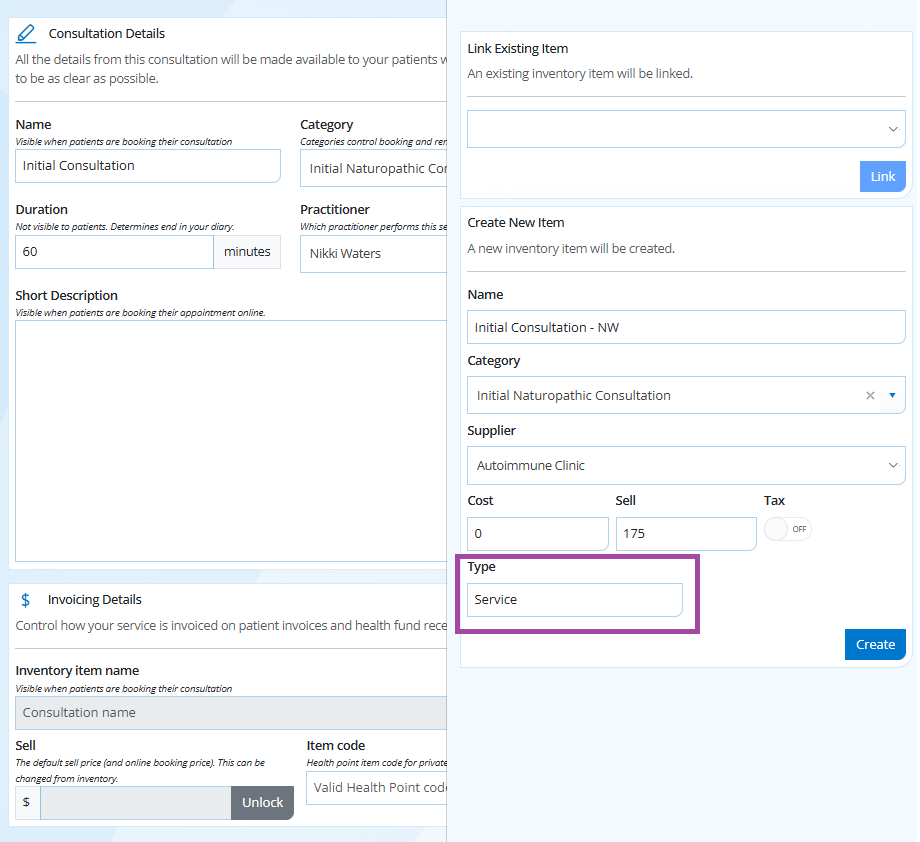
Step 2. Follow this article on how to create a service and an attached invoice item to ensure the invoice item type is set to Service.
Add an Item Code to a Service
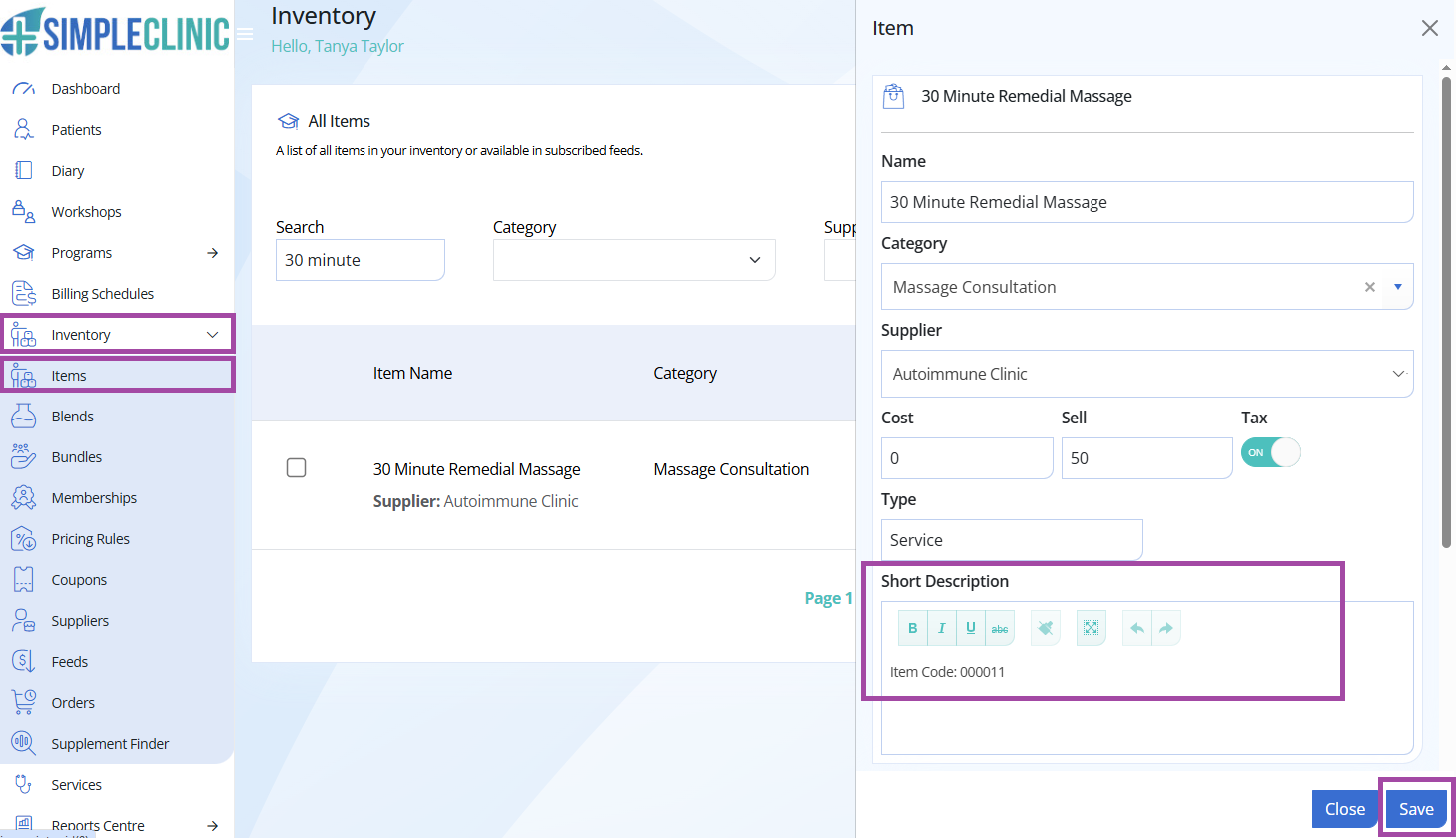
Step 3. To display an item code on your patients invoice you will need to add this to the Inventory Item's Short Description.
Go to Inventory -> Items -> Search for your Inventory Item -> Click on the required item to display the right hand side panel for editing -> Add in a Short Description e.g. 'Item Code 0042' -> SAVE
Creating an Invoice
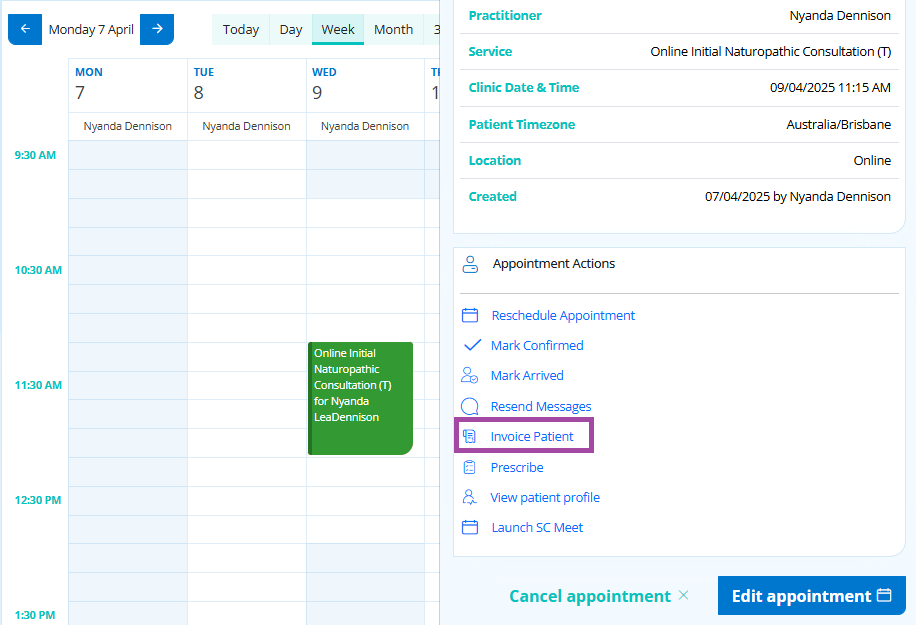
The invoice must be created from the diary appointment to ensure that the date of the service is on the invoice.
Step 4. Follow the steps in this article to create an invoice from the diary.
- The Practitioner Link must be set to the correct practitioner on the invoice.
- If you have multiple locations, the correct location must be selected on the invoice.
- The invoice must be paid manually or online by the patient for them to be able to claim a health fund rebate.
Sharing an Invoice
Invoices can be printed, emailed or accessed immediately by patient via the patient portal for their records, or for health insurance fund rebates if required.
Step 5. Follow the steps in this article to share an invoice via print or email.