
The Supplement Finder is designed to help locate supplements and quickly add them to a patient prescription. It allows practitioners to search by ingredients and actions, displaying instant recommendations all within the Prescription module.
On this page
- Important Info
- Finding Supplements
- Clearing your search
- Viewing supplement details
- Adding supplements to prescription
- Troubleshooting
Important info
- Supplement Finder is normally accessed from a Prescription.
- Supplement Finder can also be accessed from the Inventory menu, however the Add button only appears when the feature is opened from a prescription context.
- Supplement Finder searches supplements from Ariya Inventory Feeds where ingredient and product detail information has been provided by the distributor.
- In the option to sort search results by concentration, some ingredients don't provide a quantity, therefore results could be skewed. For example, liquid herbs, protein powders, wholefood-based, etc
- When searching by brand or product name, the search engine breaks names into smaller searchable terms. This means searches for names like "C-Max" may also return other related Vitamin C products. The exact product name match is given a higher ranking, so it will generally appear at the top of the results.
Finding Supplements
The Supplement Finder can be accessed from the Inventory menu. However items cannot be added to a prescription from here. All other steps are the same as the below.
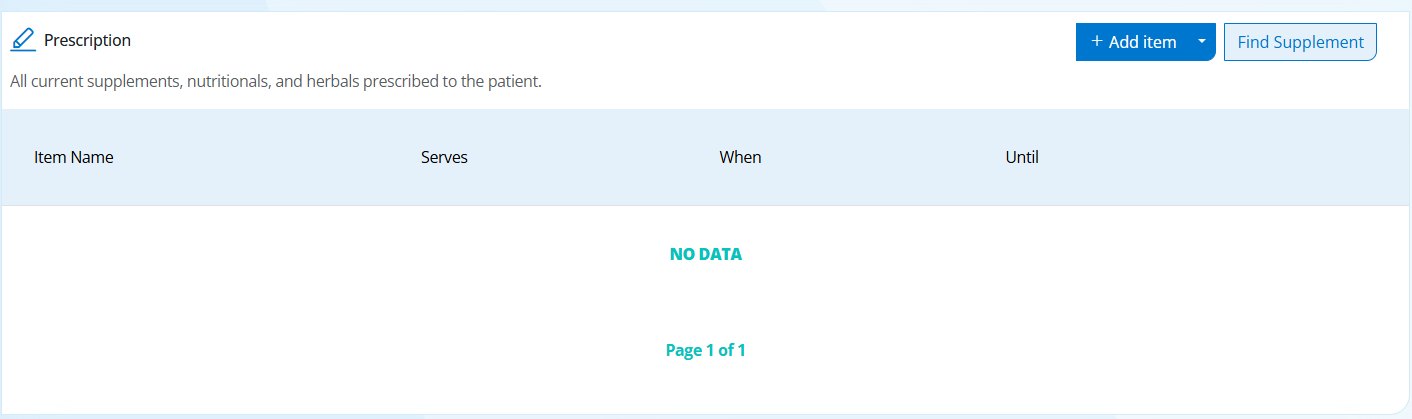
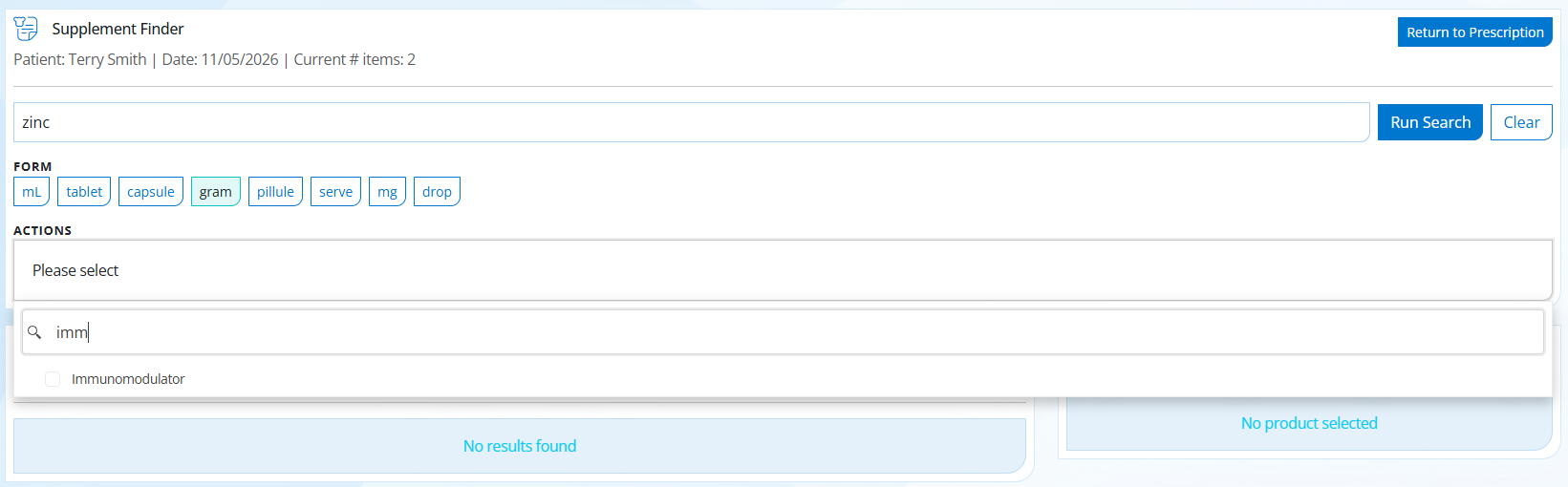
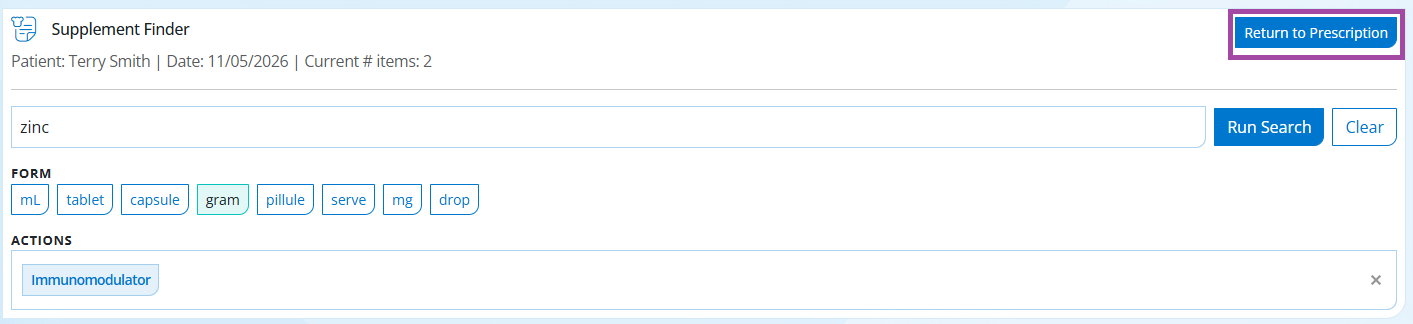
Step 1. Open a patient Prescription -> in the prescription items table, click Find Supplement -> enter free text into the main search field -> set optional search criteria as below -> Click Run Search -> as per images below.
- Optional: Select one or more buttons such as mL, tablet, capsule, gram, mg.
- Optional: Add one or more Actions using the actions filter when searching for liquid herbal ingredients. Scroll or search to find actions.

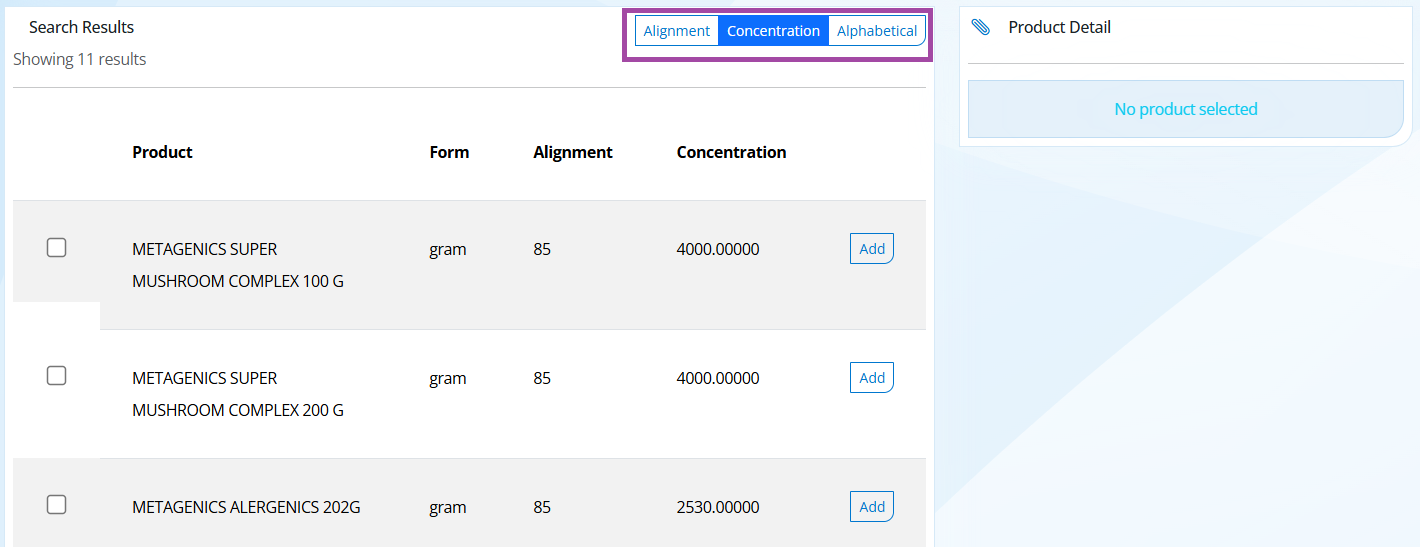
Step 2. After results load, you can sort by:
- Alignment (default) — prioritises supplements that best match your search terms.
- Concentration — prioritises higher aggregate totals of matching ingredients.
- Alphabetical
Clearing your search
Step 3. Click Clear to reset the search back to a clean state.
This clears the search text, selected form chips, selected actions, selected items, compare queue, result list, and resets sorting back to Alignment.
Viewing supplement details
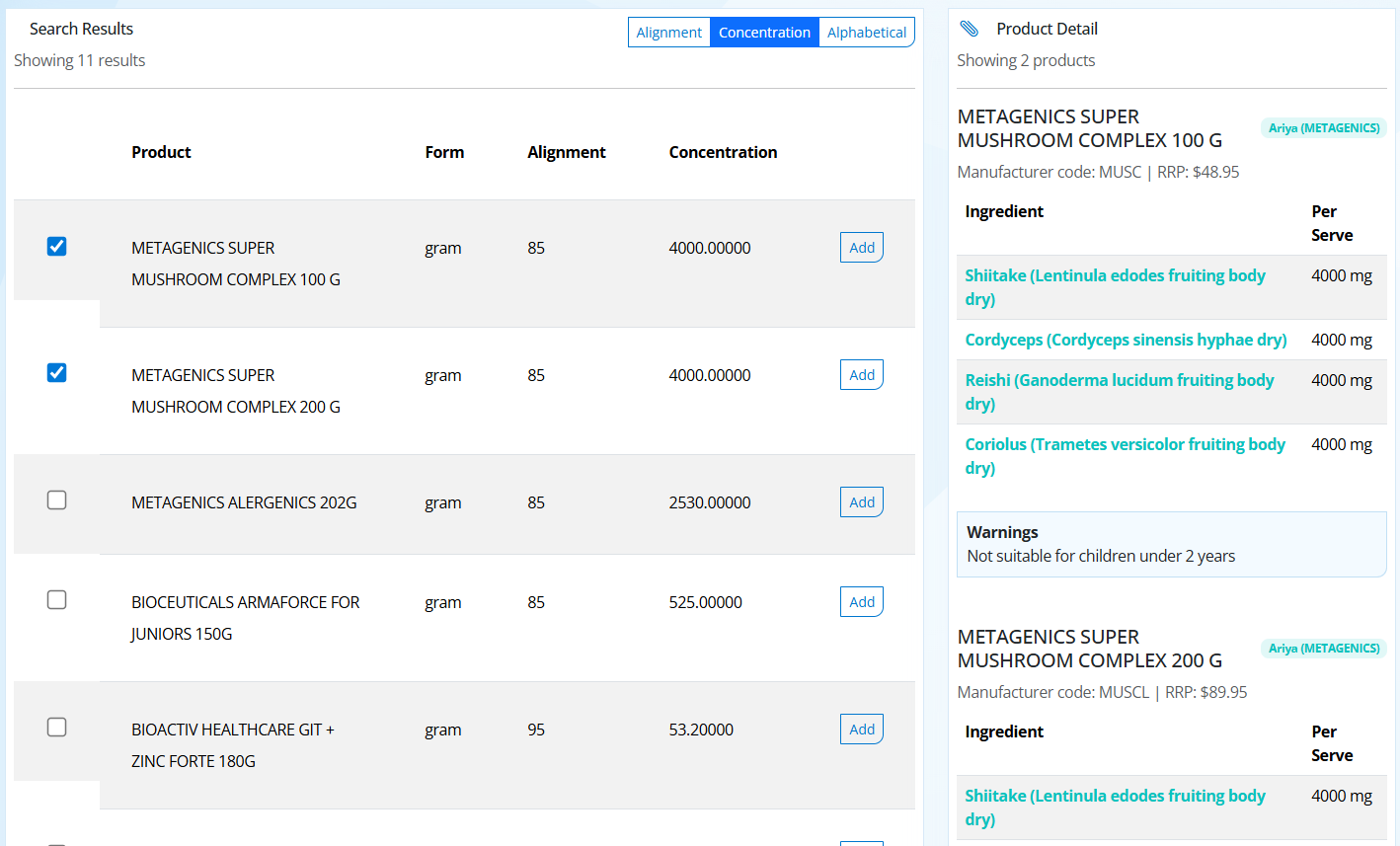
Step 4. Click a result row to to select or deselect it.
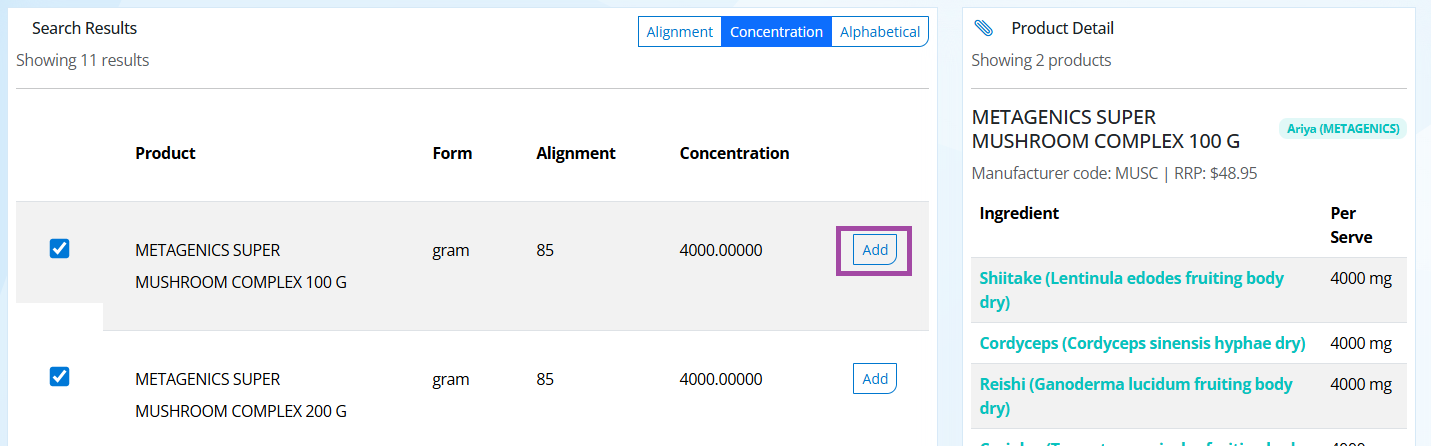
- Selected items appear in the Product Detail panel on the right-hand side.
- De-select to remove item from the Product Detail panel.
- Multiple supplements can be selected for comparison.
- The detail panel may include item attributes, ingredient rows, and warnings when available.
Adding supplements to prescription
Step 5. In a result row, click Add, as shown below. The supplement is added to the prescription automatically and a success message appears in the top-right corner.
Repeat the search and add as many items as required.
Step 6. Once all items are added to the prescription, select 'Return to Prescription' as below.
To add more items, return to step 1 and continue to search and add to the prescription.
Troubleshooting
If seeing unexpected results, use this tips for better search results
- Ignore punctuation or capitalisation in an ingredient name - e.g. St John's wort, St Mary's Thistle.
- Check for extra or required spaces in ingredient name.
- Consider latin binomial versus common names for ingredients, and alternate names and spelling.
I cannot see “Add” in results
- Make sure Supplement Finder was opened from a Prescription rather than the Inventory menu.
My filters seem stuck
- Click Clear and run the search again.
I get an Error searching for Supplements
- Select 'back' on your