Our website capture Lead Widget allows you to grow your patient base with our customisable embeddable signup widget.
When a visitor completes the simple signup form on your website, they're instantly added to your SimpleClinic account as a new lead and automatically enrolled in a welcome sequences using the New Lead trigger in our Email Blaster Marketing Automation.
No manual work required. Your new leads receive timely, relevant communications designed to convert interest into booked appointments, all managed through our drag-and-drop email builder.
On this page:
- Important Information
- Create and customise a widget
- Embed on your website
- Setup Marketing Automation for the New Lead trigger
- View submissions
- View Marketing Automation runs
Important Information
- Every new submission will create a new patient record as Type = Lead.
- A patient in the list can only be either a 'Lead' or 'Patient' not both. All Leads will qualify for New Lead Automations, all Patients will qualify for New Patient automations (if they meet the other qualifying factors).
- Each widget places a cookie in the user’s browser so that once the form has been submitted or closed, it will not appear again. It will only show again if the user clears their cookies, accesses the page from a different browser, or uses incognito/private mode. The cookie is linked to the specific widget ID, so if another widget is added to the page, that new widget will still appear once, even if the first one has already been dismissed.
How to create and customise a widget
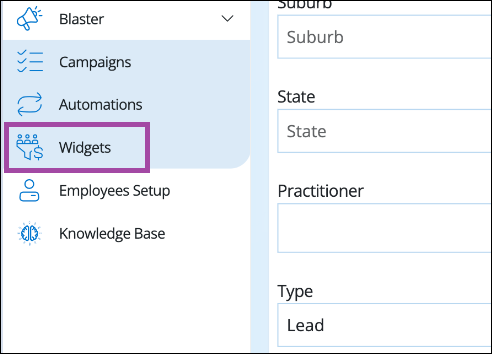
Step 1. From the left hand main menu select Blaster and from the dropdown -> widgets
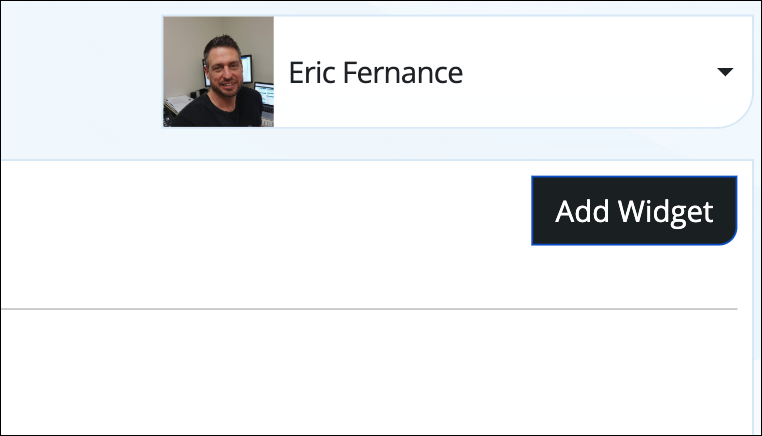
Step 2. Click on Add Widget
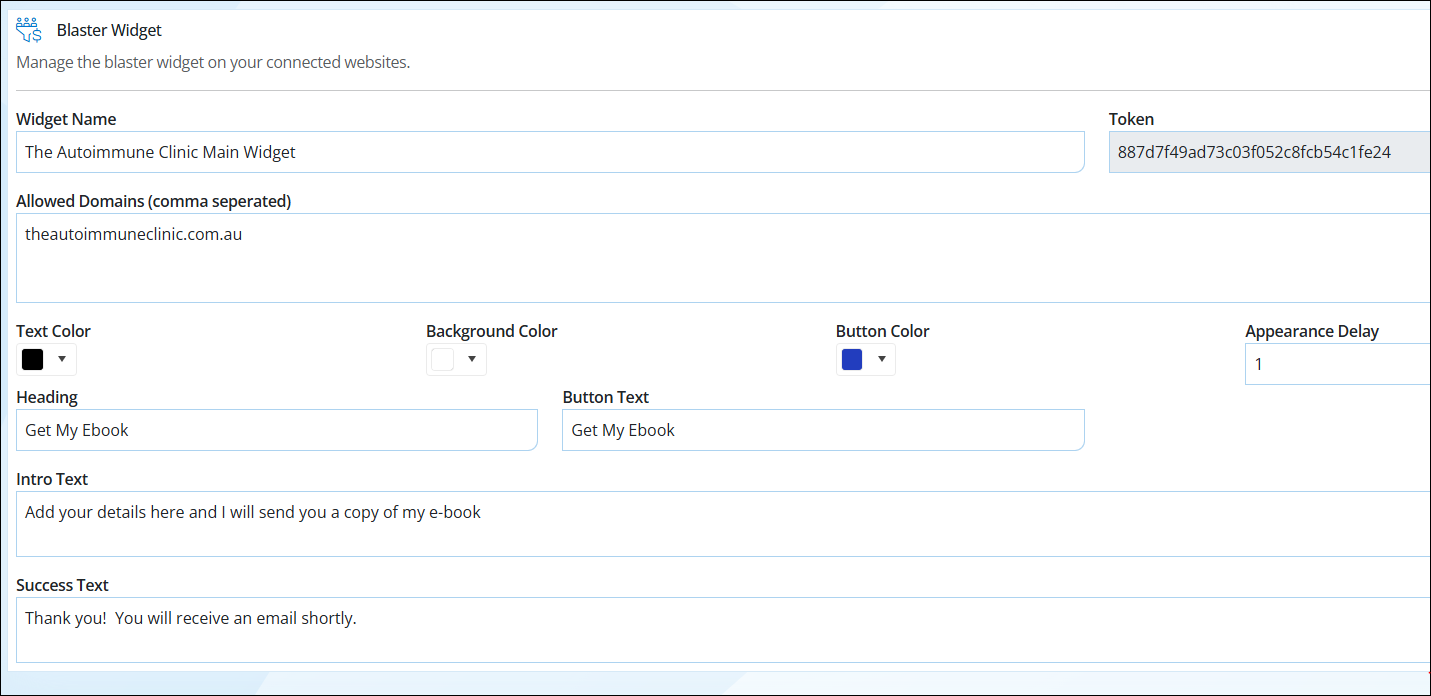
Step 3. Customise the Widget
- Widget Name
- Allowed Domains - on what website will this pop up widget be displayed on E.g theautoimmuneclinic.com.au and NOT the url e.g https://theautoimmuneclinic.com.au/
- Appearance Delay - pop up box will appear in X seconds
- Select colours for Text, Background and Button
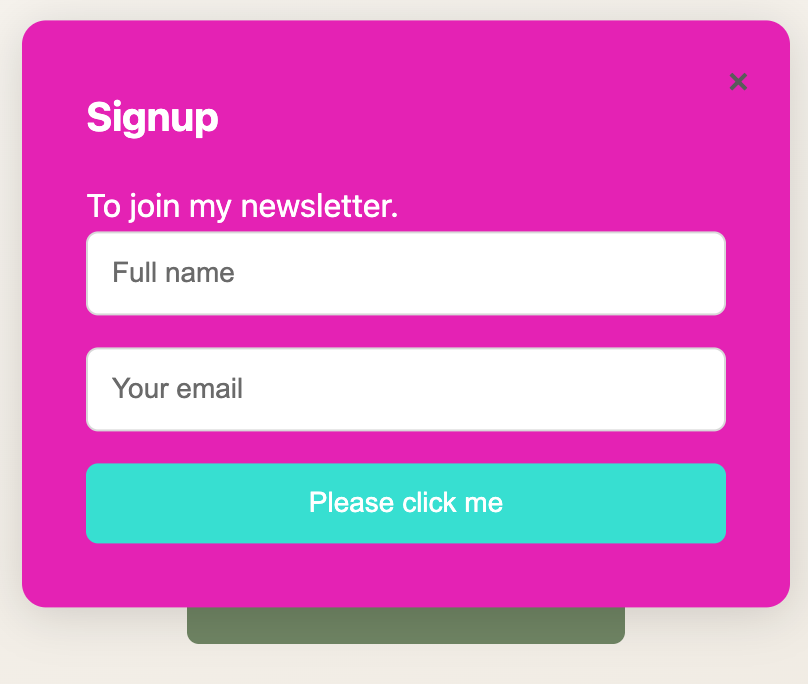
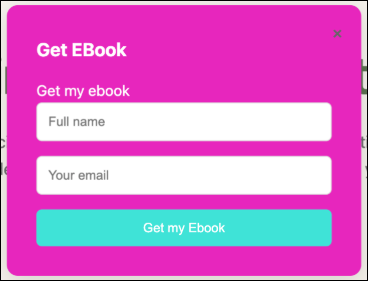
- Add in your widget Heading, Button text, Intro Text and Success Text
Embed on your website
Step 4. Embed the widget on your website (you will likely need your web designer or VA to do this on your behalf)
To add to your website add this before the closing </head> tag. Copy and paste as PLAIN TEXT.
<script src="https://cdn.simpleclinic.net/blaster-widget/widget.js"></script> <script> window.scWidget('init', 'YOURTOKEN','production'); </script>
YOURTOKEN is replaced with the actual token from the UI.
Setup Marketing Automation for the New Lead trigger
Step 5. Setup a Marketing Automation using the New Lead trigger.
View submissions
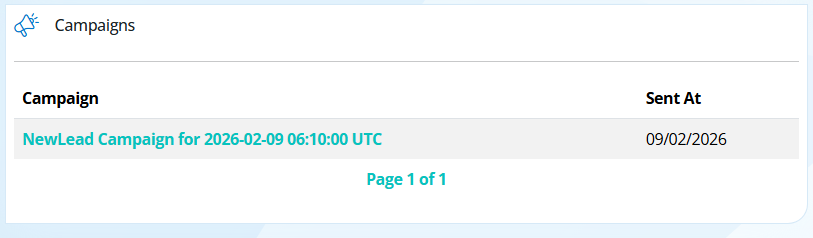
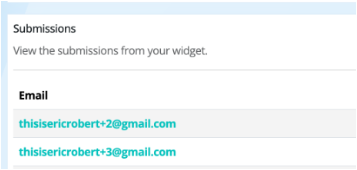
Step 6. Once a visitor has submitted the form you can also see this from below
View Marketing Automation runs
Step 7. Once a marketing automation has been sent, you can view it under the Messages tab under Patient Record