Marketing Automations allow you to automatically send emails to patients based on specific triggers, such as when a new patient is created or after an appointment has been completed.
Unlike Email Blasts, which are sent manually, Marketing Automations run continuously in the background and create campaigns automatically when patients meet the selected criteria.
A Marketing Automation is a rule that automatically sends an email to patients when a specific event occurs. Automations are commonly used for:
- New patient lead opt-in
- New patient welcome emails
- Appointment follow-ups
- Post-visit check-ins
- Re-engagement after appointments
- After program or workshop enrolments
- Reminders for paying invoices
More automation triggers will be added in the coming months.
On this page:
- Important Information
- Create an Automation
- Automation Triggers
- Automation Conditions
- Delay Explained
- Build Automation Email
- Activate an Automation
- View Automation Reports
- Automation Trigger Rules
- Marketing Automation Examples
Important Information
- Marketing Automations are designed for low-volume, targeted emails, not high-volume newsletters.
- Emails are sent within a time window, not at an exact minute.
- Emails are sent in batches, meaning delivery may take time for larger patient groups.
- If you have an existing Email Marketing Integration such as MailChimp or MailerLite, Marketing automations will use this integration to check for any previous patient un-subscribes. This is important so you are not sending emails out to patients who have already opted out of marketing via your Mailchimp or MailerLite integration. If your Marketing integration is not setup correctly with a List ID – your Email Blasts in SimpleClinic is be blocked, until this is rectified.
- Automations cannot be edited once created. If changes are required, the automation must be deactivated and recreated.
- Patients who have unsubscribed, bounced, or marked emails as spam will not receive automation emails. When these occur, the patient is automatically excluded from future marketing emails.
- Any consultations, workshops or programs created in the old UI will not be included in automations.
- All Marketing Automation emails are considered Marketing and as such will include an OPT OUT link. Use the below automations sparingly to reduce the risk of opt outs. Especially for outstanding invoice automated emails.
- Only the patient name merge tags are supported in Marketing Automations e.g. {{client.first_name}}
Create an Automation
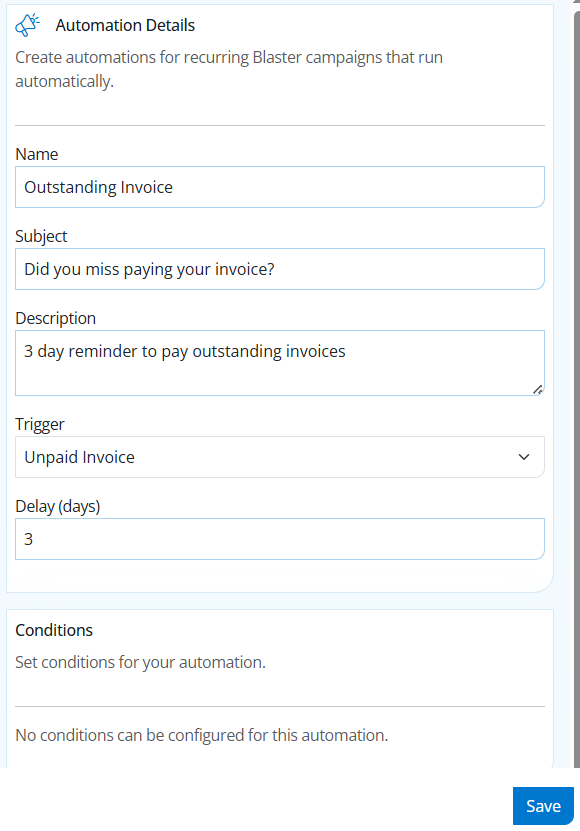
Step 1. To create a marketing automation → select Blaster from the left-hand main menu → select Automations → click Create Automation. Complete the following fields: (see examples bottom of page)
- Name - Add your Automation Name (for your records only)
- Subject - Add a Subject line. Note: this will appear as the subject line on the patients email.
- Description -> A description of your Automation (this is not the email)
- Trigger -> determines when the automation runs. See the available triggers outlined below.
- Delay -> The delay determines how long (days) after the trigger event the email is sent.
- Conditions -> Conditions are shown depending on the selected trigger. Some triggers have built-in conditions that cannot be changed. Conditions examples are below.
Automation Triggers
- New Patient -> send an email based on the date the patient was created.
- New Lead -> send an email based on the date a new lead was generated from a Lead Widget
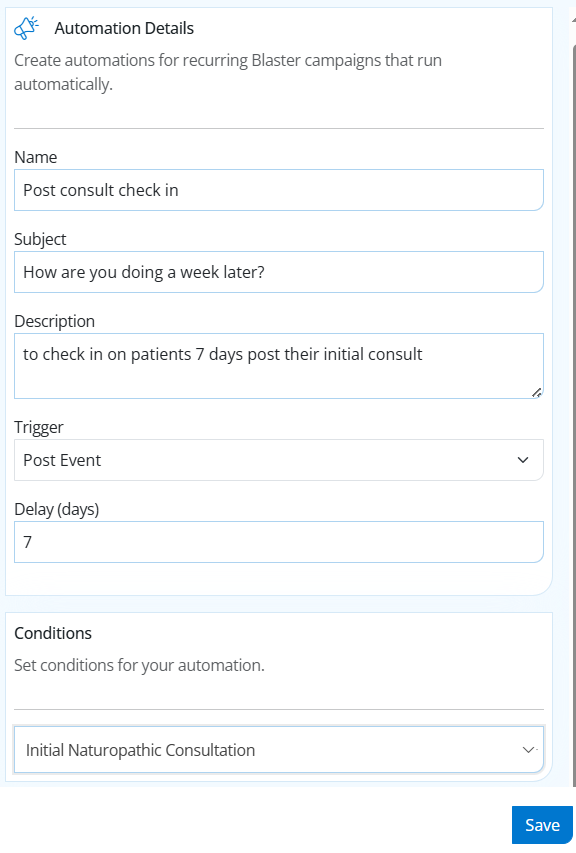
Post Event -> send an email based on the date of the completed appointment.
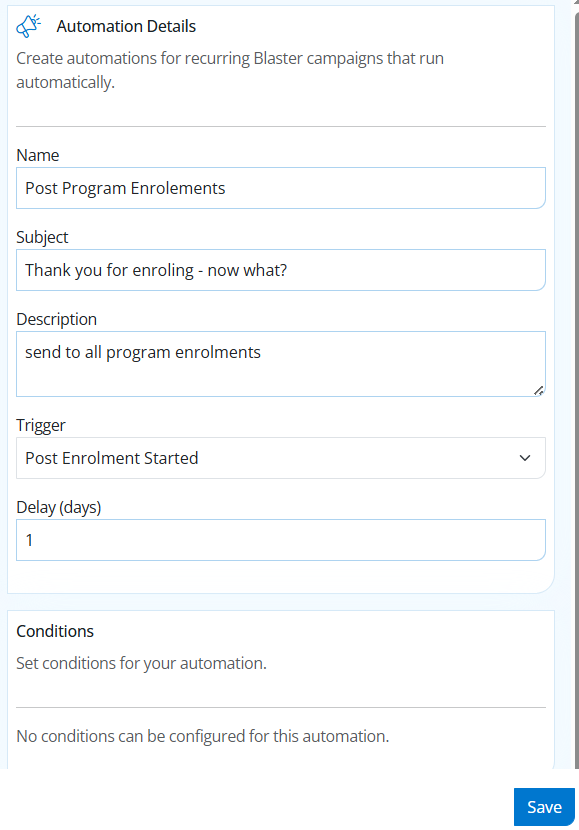
- Post Enrolment Started -> send an email based on the date of a Program enrolment.
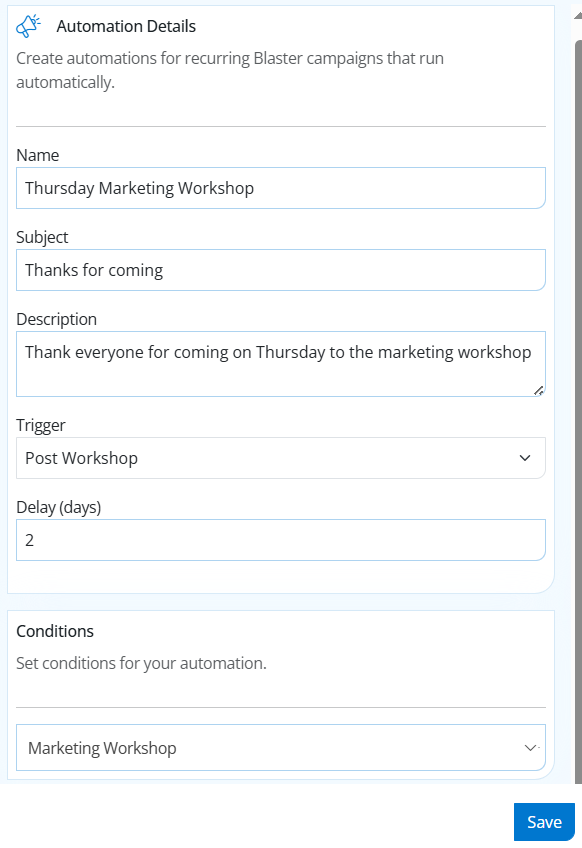
Post Workshop -> send an email to all attendees based on the date of the completed workshop.
Unpaid Invoice -> Sends an email to a patient based on the date of an outstanding invoice.
New Subscription -> Sends an email to patients based on the date they subscribe to a Membership Plan
Automation Conditions
- New Patient -> automations do not allow custom conditions, will send to all new patients.
- New Lead -> automations do not allow custom conditions, will send to all new leads.
- Post Event -> automations allow filtering by service category
Post Enrolment Started -> automations do not allow custom conditions, will send to all program enrolments.
Post Workshop -> automations allow filtering by workshop
Unpaid Invoice -> automations do not allow custom conditions, will send to all patients with an unpaid invoice.
New Subscription -> automations do not allow custom conditions, will send to all new patient membership plan subscriptions.
Delay Explained
Examples:
Delay = 0 days → email sent approximately 10-15 minutes after the event occurs
Delay = 1 day → email sent approximately 24 hours later
Delay = 3 days → email sent approximately 3 days later
Build Automation Email
Step 2. To build the automation email → select the Email button (as below) → you will be taken to the email builder.

Step 3. Build the email using the drag-and-drop email builder. This builder works the same way as Email Blaster:
Drag elements from the left into the email
Move, edit, or delete sections as needed
Use merge tags where supported
Remove hashtags and replace with social media links or leave blank
Activate an Automation
Step 4. Once all required fields are completed and the email has been built -> activate the automation.
Once activated, automations cannot be edited or deleted. If changes are needed:
Deactivate the automation
Create a new automation with updated settings
This helps prevent accidental changes that could result in incorrect emails being sent.
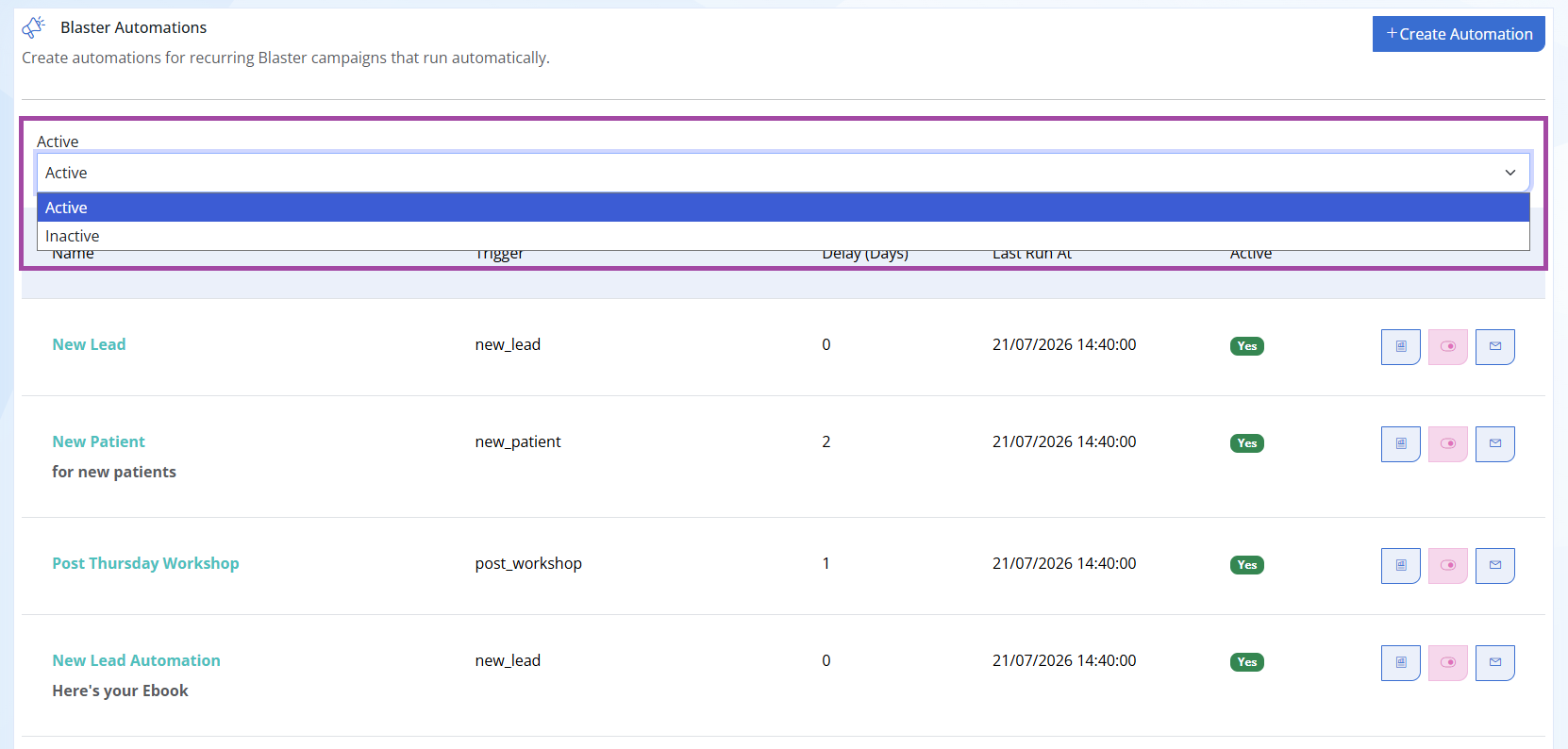
- To only view Active Automations (Hide inactive automations) --> Select the Active filter at the top of the Automations list.
View Automation Reports
Step 5. to view automation results -> go to Automations -> select the automation -> click Report
Once an automation-created campaign has finished sending, it will also appear under the Campaigns tab.
Automation Trigger Rules
The New Patient trigger sends an email when a patient is newly created. Built-in rules include:
Patient is not archived
Patient is not marked as a bad patient
Patient type is PATIENT
Each patient will only receive a specific New Patient automation once, even if the automation continues to run.
The Post Event trigger sends emails after completed appointments. An appointment qualifies if:
The appointment has finished
Status is arrived, confirmed, or invoiced
The appointment is not archived
The linked patient is active and valid
(Optional) The service matches the selected category
The delay setting determines how many days after the appointment the email is sent.
Please note: If service is selected, the automation will be sent to ALL services, so ensure to select your service for the automation.
The Post Program Enrolment trigger targets patients who have started a program enrolment within a specific time window relative to the automation delay. The following rules are applied:
- Enrolment start date is calculated based on the automation delay.
- Only enrolments that started within the calculated time window are included.
- Enrolment must be active.
- Enrolment must belong to the same business as the automation.
- Patient is not archived.
- Patient is not marked as a bad patient.
- Patient type is Patient.
- Each patient will only receive the same automation once.
- A patient may receive multiple Post Program Enrolment automations if they are enrolled in different programs or if separate automations exist.
The Post Workshop trigger targets patients who attended a workshop that ended within a specific time window relative to the automation delay. The following rules are applied:
- Workshop end date is calculated based on the automation delay.
- Only workshops that ended within the calculated time window are included.
- Workshop must belong to the same business as the automation.
- If a workshop is selected in the automation conditions, only that specific workshop is included.
- Patient must be registered as an attendee of the workshop.
- Patient is not archived.
- Patient is not marked as a bad patient.
- Patient type is Patient (not contact).
- Each patient will only receive the same automation once.
- A patient may receive multiple Post Workshop automations if they attend different workshops or if separate automations exist.
The Unpaid Invoice trigger targets patients with issued invoices that still have a balance owing, based on a date calculated from the automation delay. The following rules are applied:
- Invoice date is calculated based on the automation delay.
- Only invoices issued on the calculated date are included.
- Invoice must belong to the same business as the automation.
- Invoice status must be Issued.
- Invoice balance owing must be greater than zero.
- Patient is not archived.
- Patient is not marked as a bad patient.
- Patient type is Patient (not contact).
- Each patient will only receive the same automation once.
- A patient may receive multiple Outstanding Invoice automations if separate automations exist with different delays.
To provide the patient access to their outstanding invoice refer them to login to the Patient Portal. For example:
"Please login to your Patient Portal account via https://patient@simpleclinic.net to access and pay your outstanding invoice."
Marketing Automation Examples
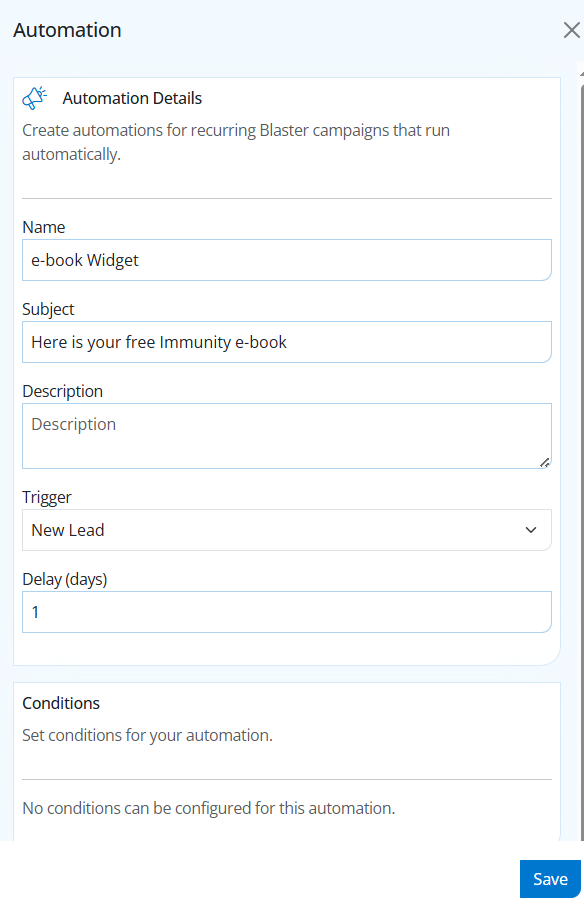
1. New Lead
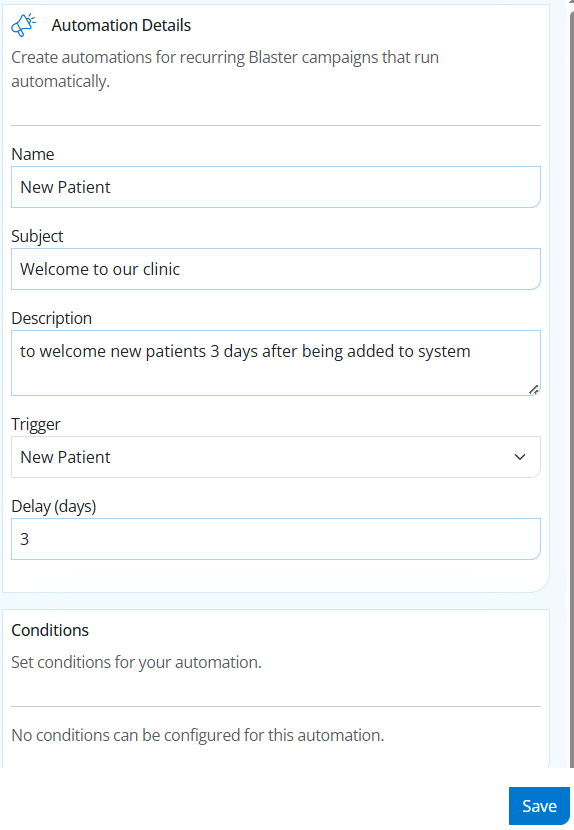
2. New Patient
3. Post Event
4. Post Workshop
5. Post Program Enrolment
6. Outstanding Invoice