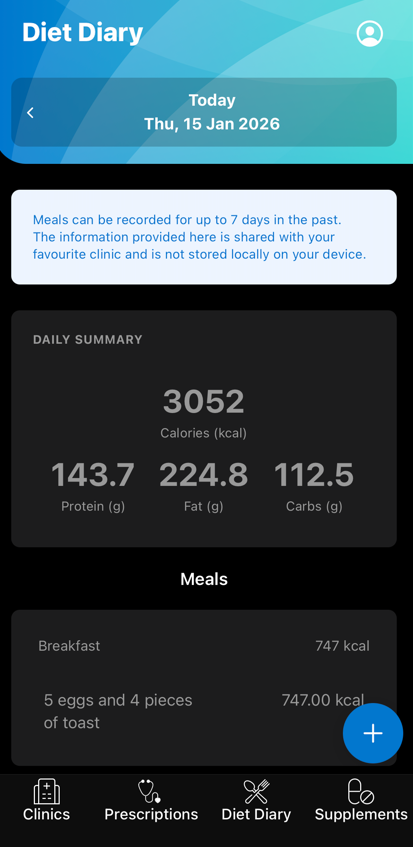
The SimpleClinic Patient Portal mobile app is currently only available on the Apple AppStore and only accessible via a shareable link, which you’ll find further down this page.
Using the SimpleClinic Patient Portal mobile app your patients can:
- View & re-order prescriptions (with online payment)
- Make an appointment
- Log diet tracking information
- Track supplements
Use the information in this article to create your own help guide for patients. See these articles for linked information in the practitioner app. Patient data will only be visible if they have selected your clinic as their favourite.
On this page:
- Important Information
- Share and Download
- Log In
- Clinics
- Prescriptions
- Diet Diary
- Supplements
- Profile
- Health Tracking
- Updates
- Dark Mode
Important Information
- The SimpleClinic Patient Portal mobile app is currently only available on the Apple AppStore and only accessible via a shareable link (to prevent unwanted users signing up).
- A user account will need to be created in the web version of the Patient Portal first, an account cannot be created in the app.
- Some features are only available after a favourite clinic and favourite prescription are selected. Patient data will only be visible if they have selected your clinic as their favourite.
- Programs are not supported at present via the mobile app
- The app must always be updated to the latest version to get the latest features.
Share and Download
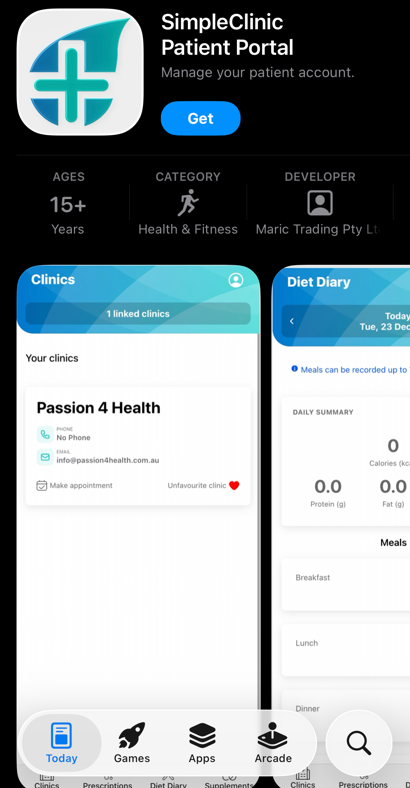
Step 1. Send the link below to your patients to download. The app cannot be found in the app store (to prevent unwanted users signing up). Use the Patient Portal example invite to send to your patients.
https://apps.apple.com/us/app/simpleclinic-patient-portal/id6756026633
Please note the above link will only work when accessed on your iphone.
Log In
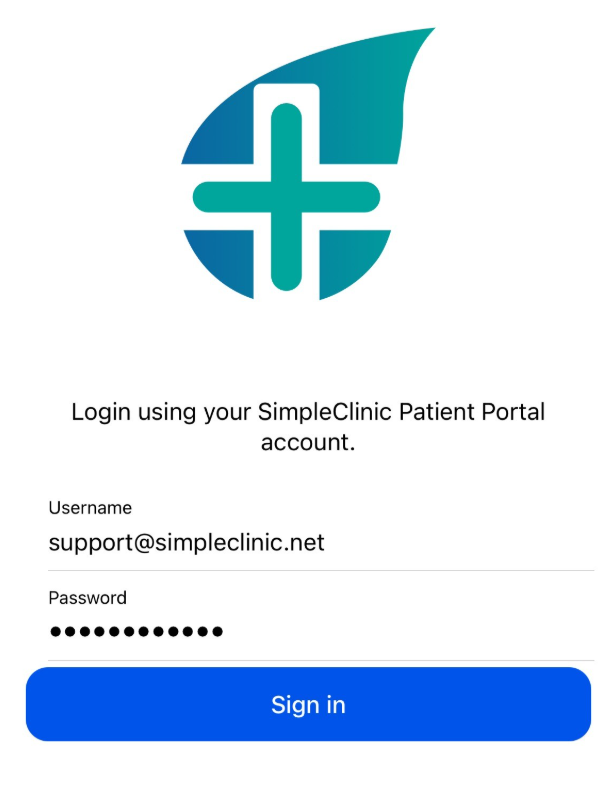
Step 2. Once downloaded -> log in to the app using your patient portal username and password. A user account will need to be created in the web version of the Patient Portal first, an account cannot be created in the app.
Clinics
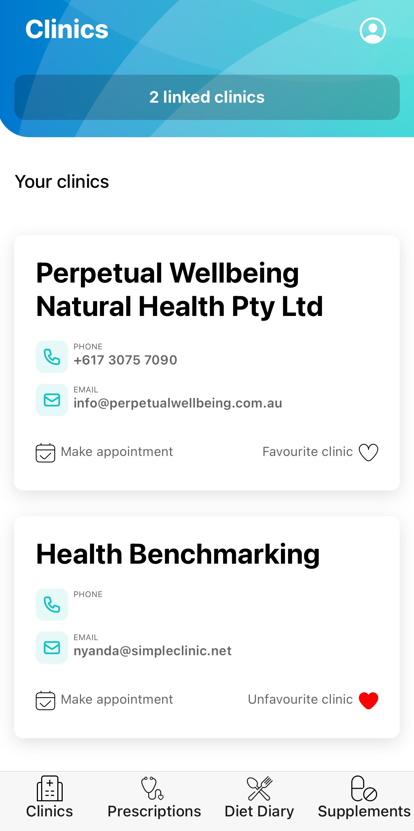
Step 3. View all linked clinics on the Clinics tab -> select a Favourite Clinic to log diet diary information with this clinic.
Prescriptions
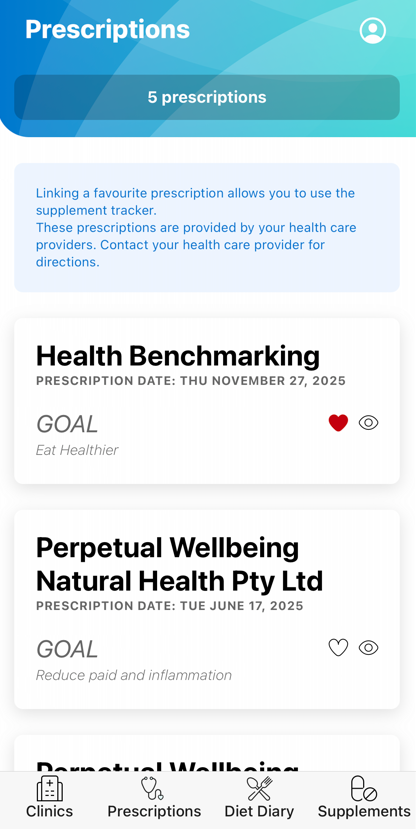
Step 4. View all prescriptions from all clinics in the Prescriptions tab -> select a favourite prescription to be able to track supplements.
Step 5. Click on the eye icon next to a prescription to view the full prescription in an external web page -> select Done in the top left hand corner to return to the app.
Diet Diary
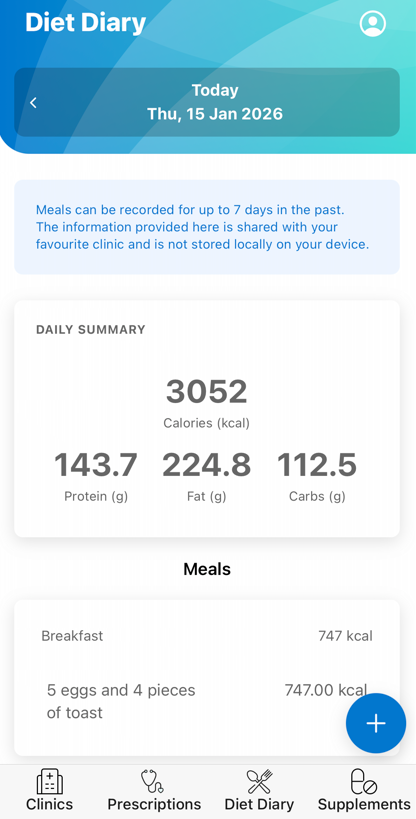
Step 6. Select the plus (+) button to add meals to the diet diary. The view will default to the current date, use the arrows next to the date field to go back up to 7 days.
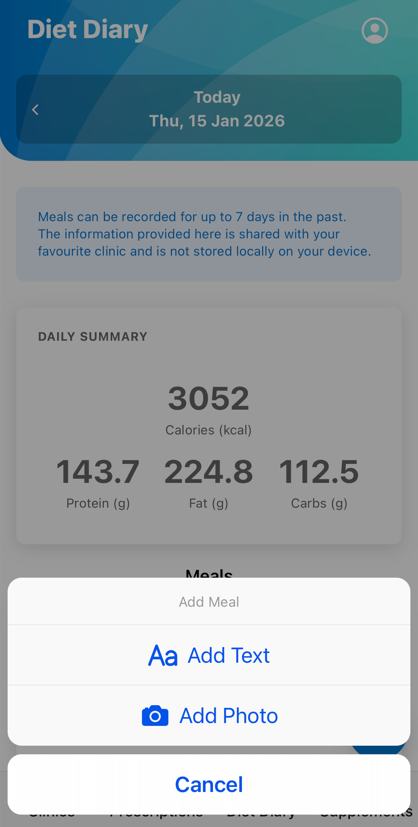
Step 7. Select an option to add meals -> either add text, which can also be voice dictation, or upload a photo and AI will calcuate macro and micro nutrients. Values will be more accurate depending on the level of data entered and how clearly the food can be seen in the photo. Once meals are entered they can be re-selected for easy entry next time as below.
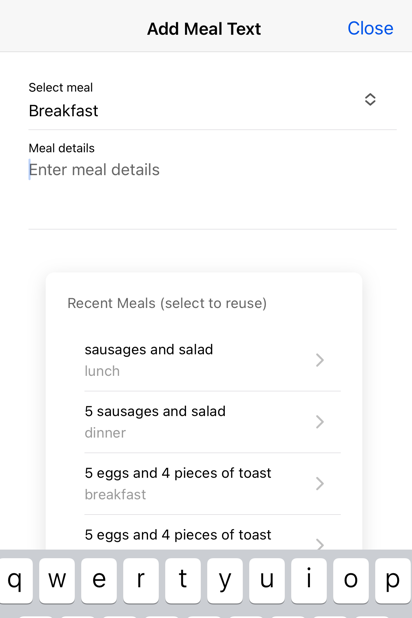
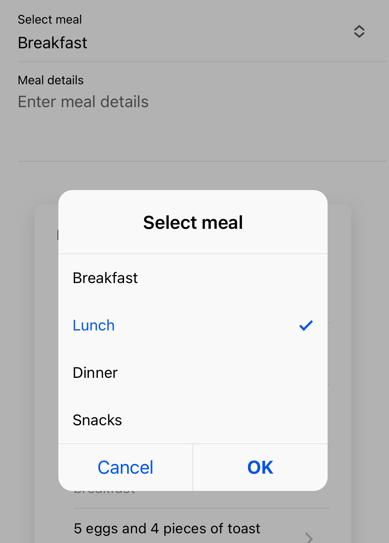
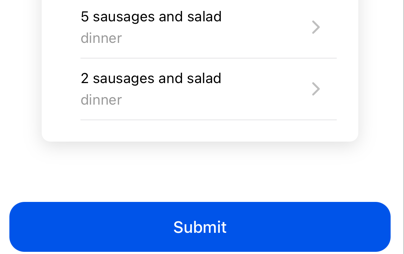
Step 8. Select the meal - breakfast, lunch, dinner, snacks - and then enter the meal details or select a recently entered meal. Scroll to the bottom of the screen to select Submit when done.
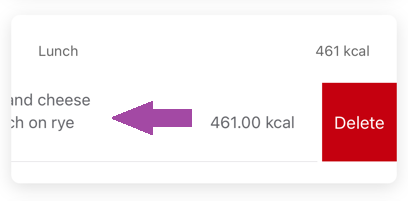
Step 9. To delete an entry -> slide the item across to the left and select the delete button that appears as below.
Supplements
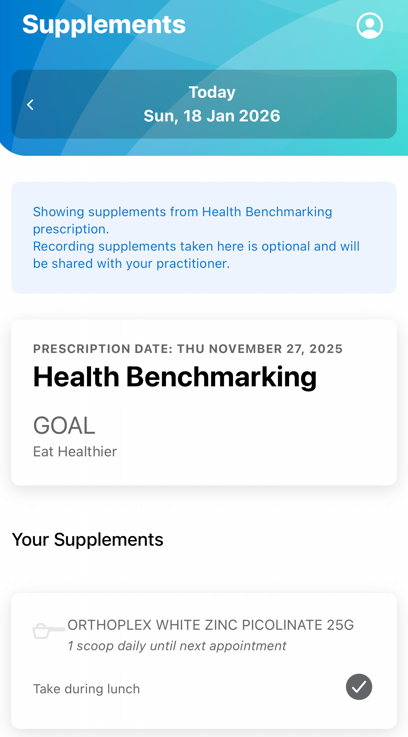
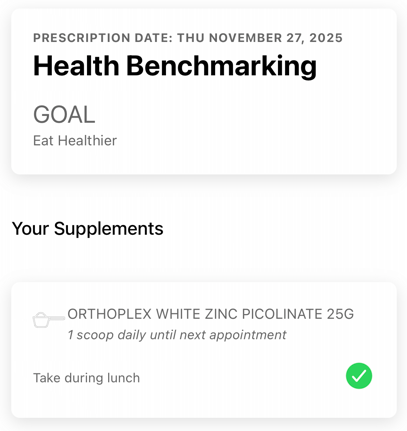
Step 10. Select the tick next to your supplement (from your favourite prescription). A grey tick means not taken, a green tick means taken - as below. Use the arrows next to the date field to change from the current date.
Profile
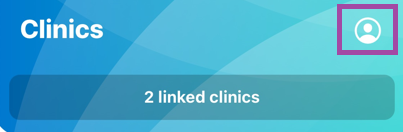
Step 11. Select your Profile from the top right hand corner in the app.
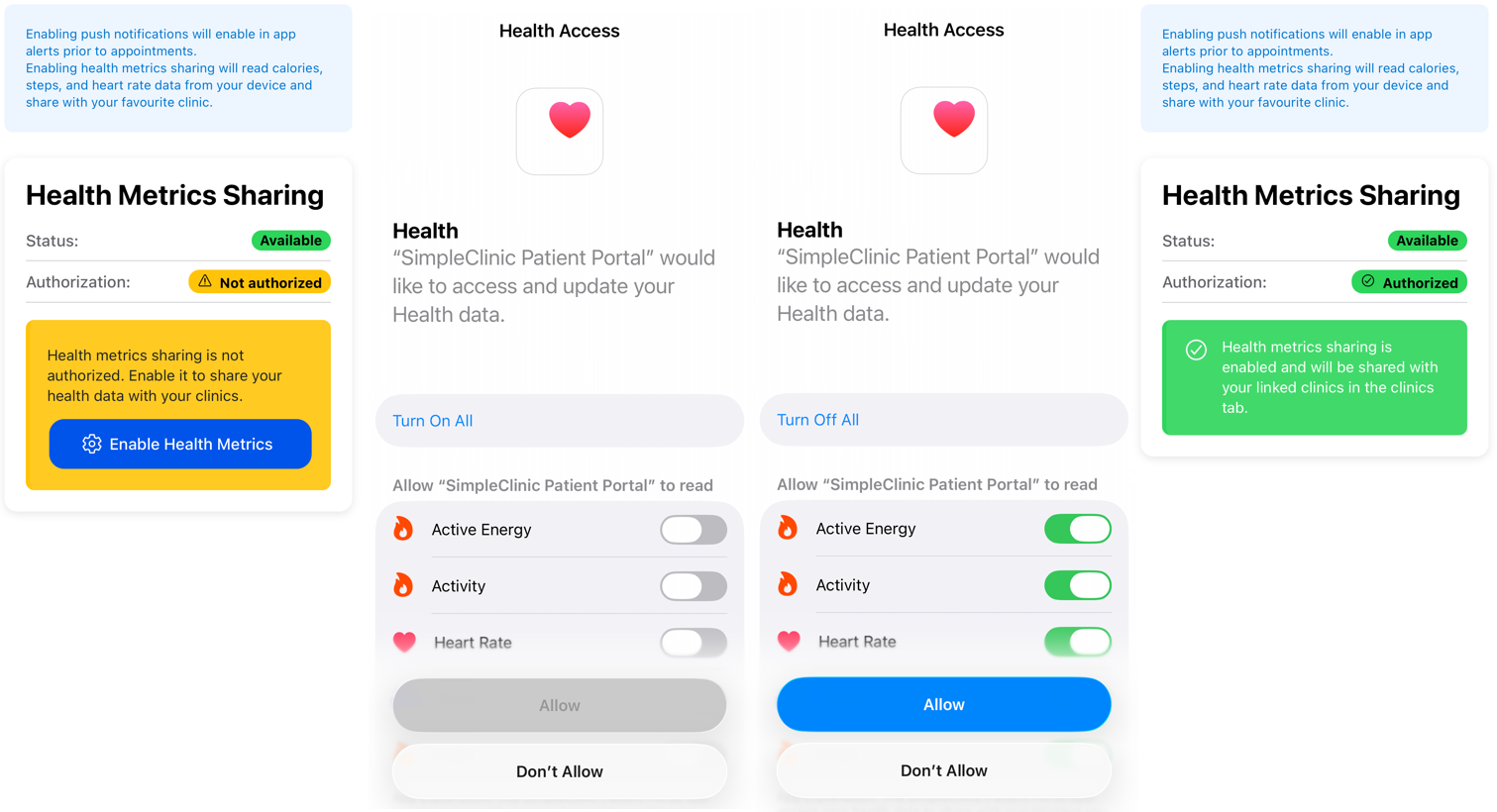
Step 12. Enable Health Metrics sharing to share calories, heart rate, sleep and steps data with your favourite clinic.
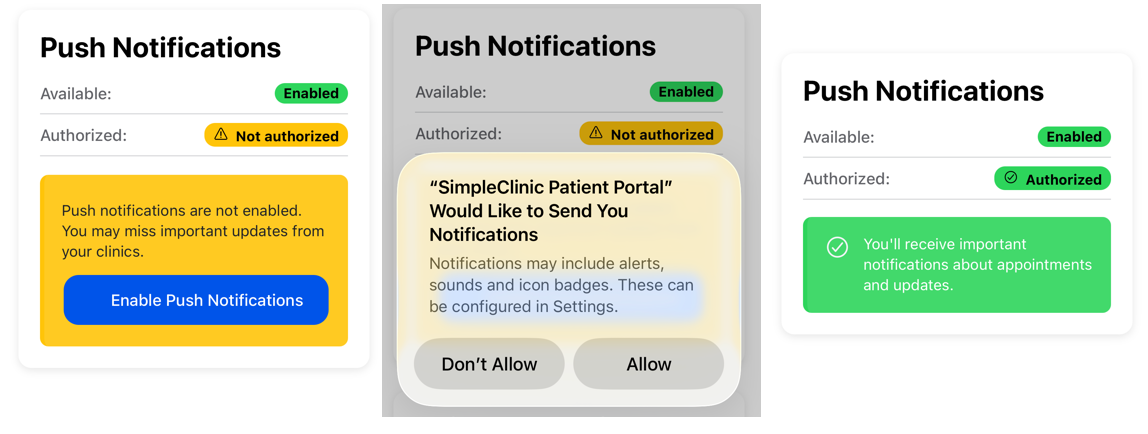
Step 13. Enable in app notifications to receive in app notifcations prior to next appointments.
Enabling Health Metrics
Enabling Push Notifications
Updates
The app must always be updated to the latest version to get the latest features. You may be prompted when there is a new version to update (depending on your device and settings). If not, you can check the build version and if there is any newer version available.
Step 14. To update your version to the latest build, either
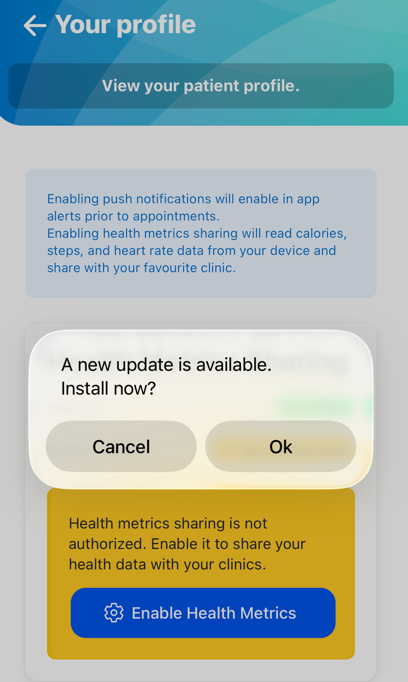
- Select Ok if you are prompted to install the latest version and wait for this to happen.
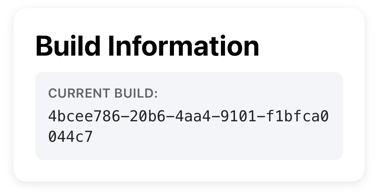
- Go to Your Profile by selecting the icon in the top right corner -> view the current and available builds (if any) -> if there is an available version this mean you are not on the latest version and need to update the app -> go to the app store to update.
Dark Mode
Step 15. The patient portal app will use the default mode set on your device, for example as below is the app in dark mode.