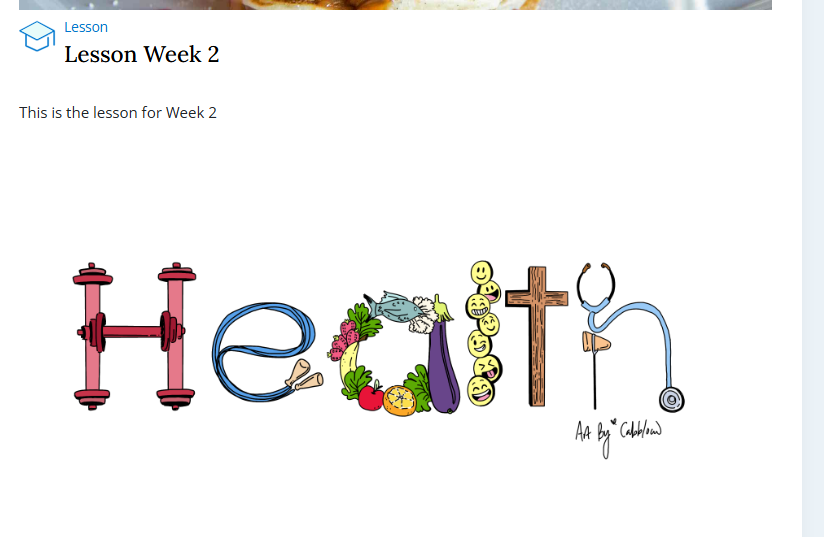
Follow the steps below to pre-add lessons before linking to Courses.
See this article for adding materials
See this aritcle for adding courses
Important Information
- Any images added to lesson introductions must be hosted elsewhere and added using a link (as per steps below). Your image file must be the correct dimensions prior to uploading as a hosted image.
Step 1: Add Lesson details
Go to Programs -> Lessons -> select Add new lesson -> enter the details -> add materials -> Save Lesson
- Lesson Name
- Lesson Introduction - - see important information above regarding adding images.
From this screen you can also quickly add materials, either a previously uploaded material or you can add a brand new one.
Once all Materials and Lessons are added - Create a Course


Step 2. option A: Add an existing Material -> click Quick add material -> select an existing material from the drop down -> add ordering -> select Add Material
See this article on how to add Materials from the Materials menu

Step 2. option B: Add a new Material -> click Quick add material -> add in details for your new material and connect any document, video or form -> add ordering -> select Add Material

Once all your materials are added, you will be able to see them listed like below:

Adding Images
Any images added to lesson introductions must be hosted elsewhere and added using a link. Your image file must be the correct dimensions prior to uploading as a hosted image.
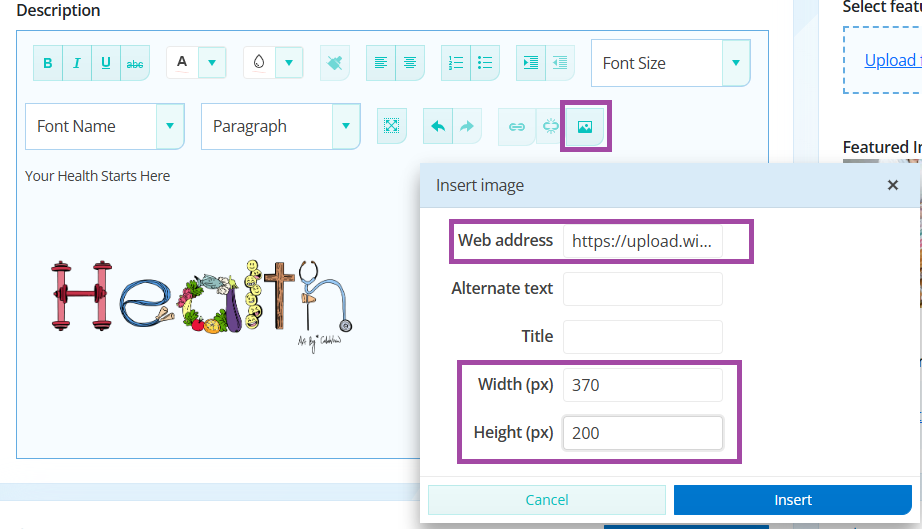
To add an image: Find image address -> paste into image window -> set dimensions -> save lesson (or material or course) -> review how it appears for the patient on the sales page (course description) or in the patient portal (lesson or material).
Example:
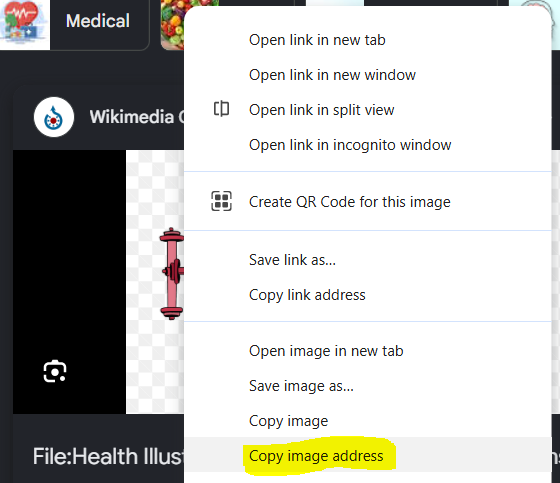
Find image address by right clicking on the image as below.
Select the image button in the lesson, course or material -> paste the addess -> set the dimensions -> select Insert (as below).
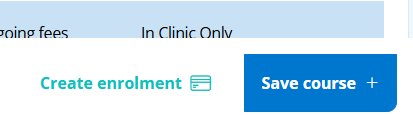
Save Lesson / Course / Material:
Review how it looks for the patient in the patient portal or on the sales page.