
Meal Planning can be used to create meal plans for your patients. You can share meals plans via the Patient Portal, as a PDF or by sharing a link.
On this page:
- Connect Meal Planning
- Create a Meal Plan
- Share Meal Plan
Connect Meal Planning
Go to Business Setup -> Integrations -> Meal Planning -> Connect

Create a Meal Plan
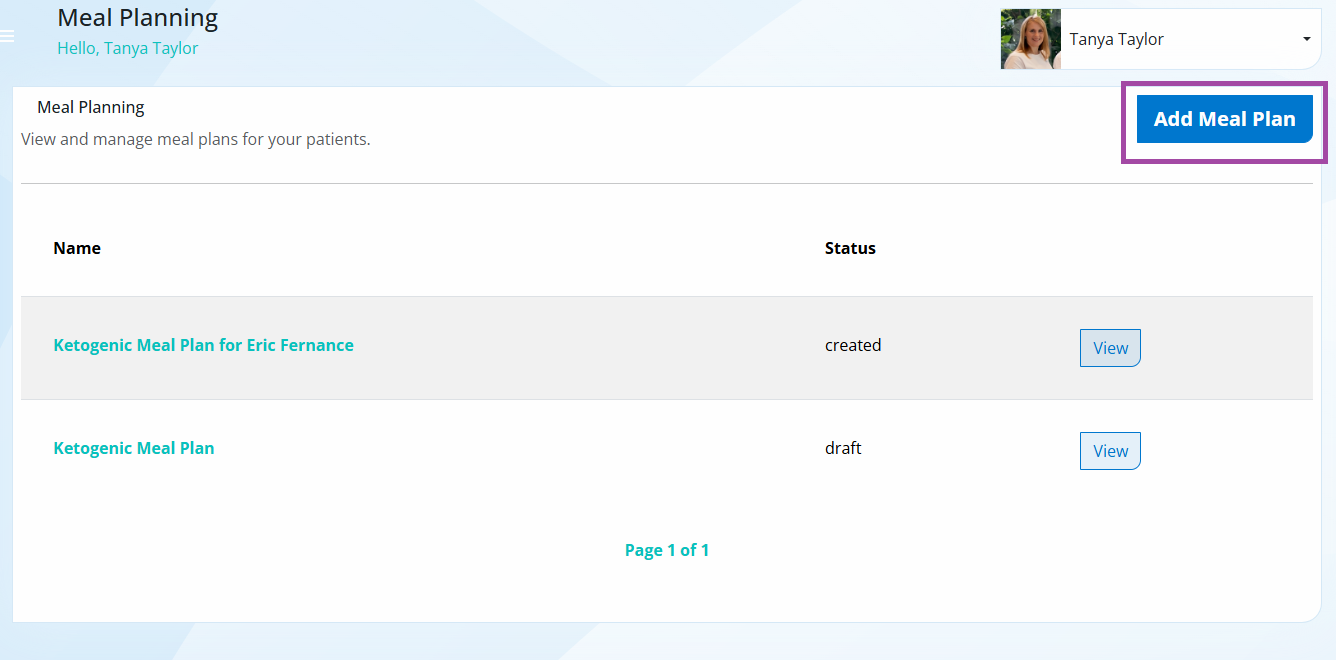
Step1. Go to Content -> Meal Planning -> select New Plan
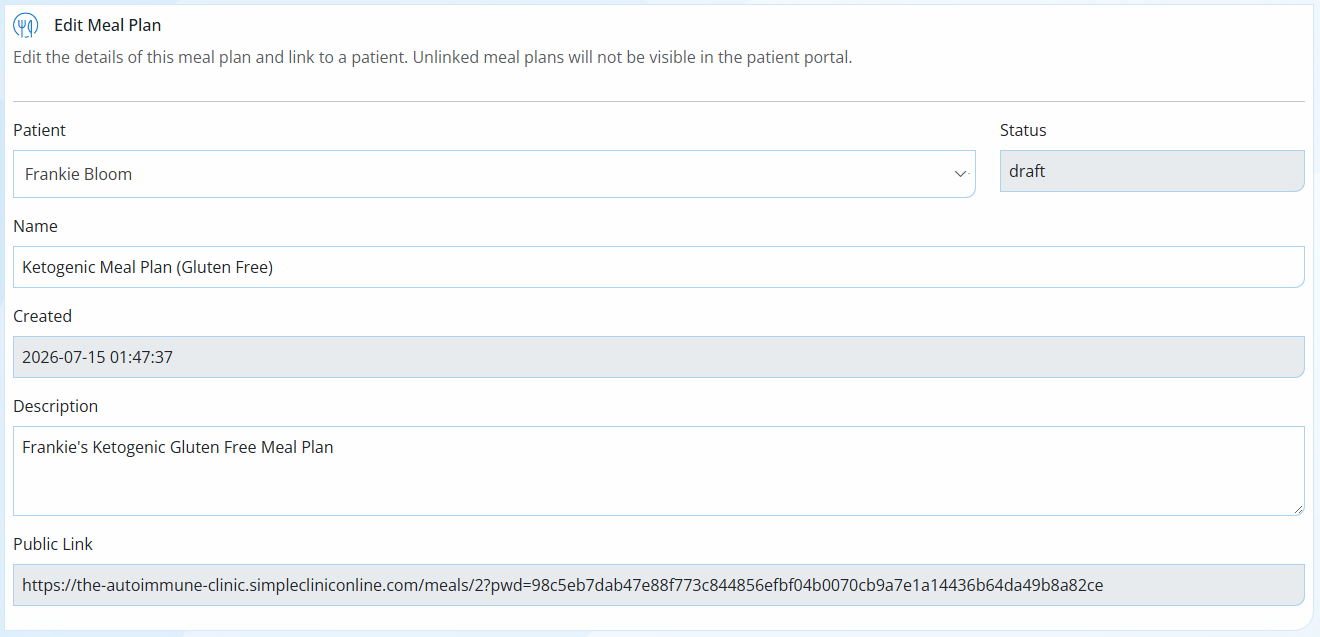
Step 2. Complete the Meal Plan fields:
Patient - Select a Patient to link the Meal Plan too. Unlinked Meal Plans will not be visible in the Patient Portal
Status - The Meal plan will remain in Draft status and can be edited until you SUBMIT it to be generated. Once generated the Meal Plan will be updated to 'Published' and will be locked from editing.
Name - Enter a name for your Meal Plan. e.g. Ketogenic Meal Plan (Gluten Free).
Created -This is the date the Meal Plan was created.
Description - Add a description to your meal plan.
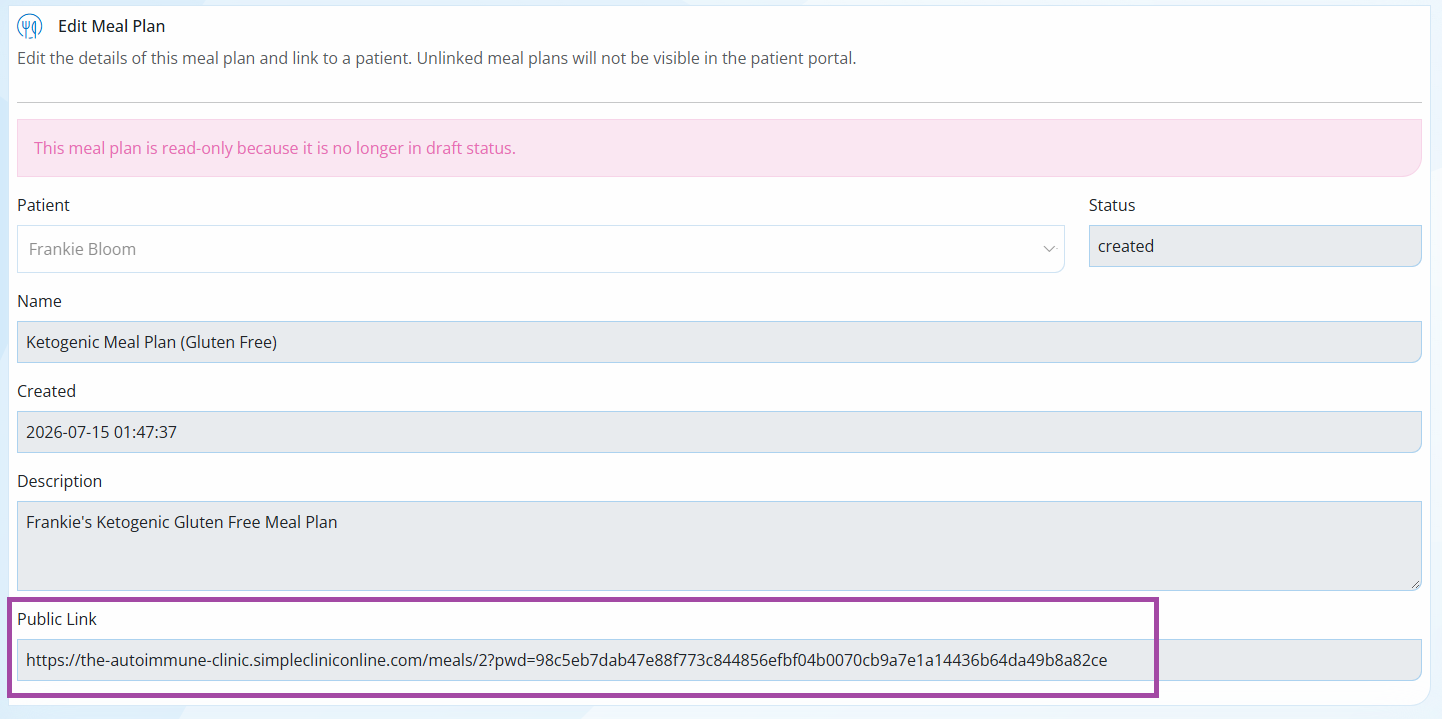
Public Link - Use this link to share the meal plan with a patient. This can be used if the patient doesn't use the Patient Portal.
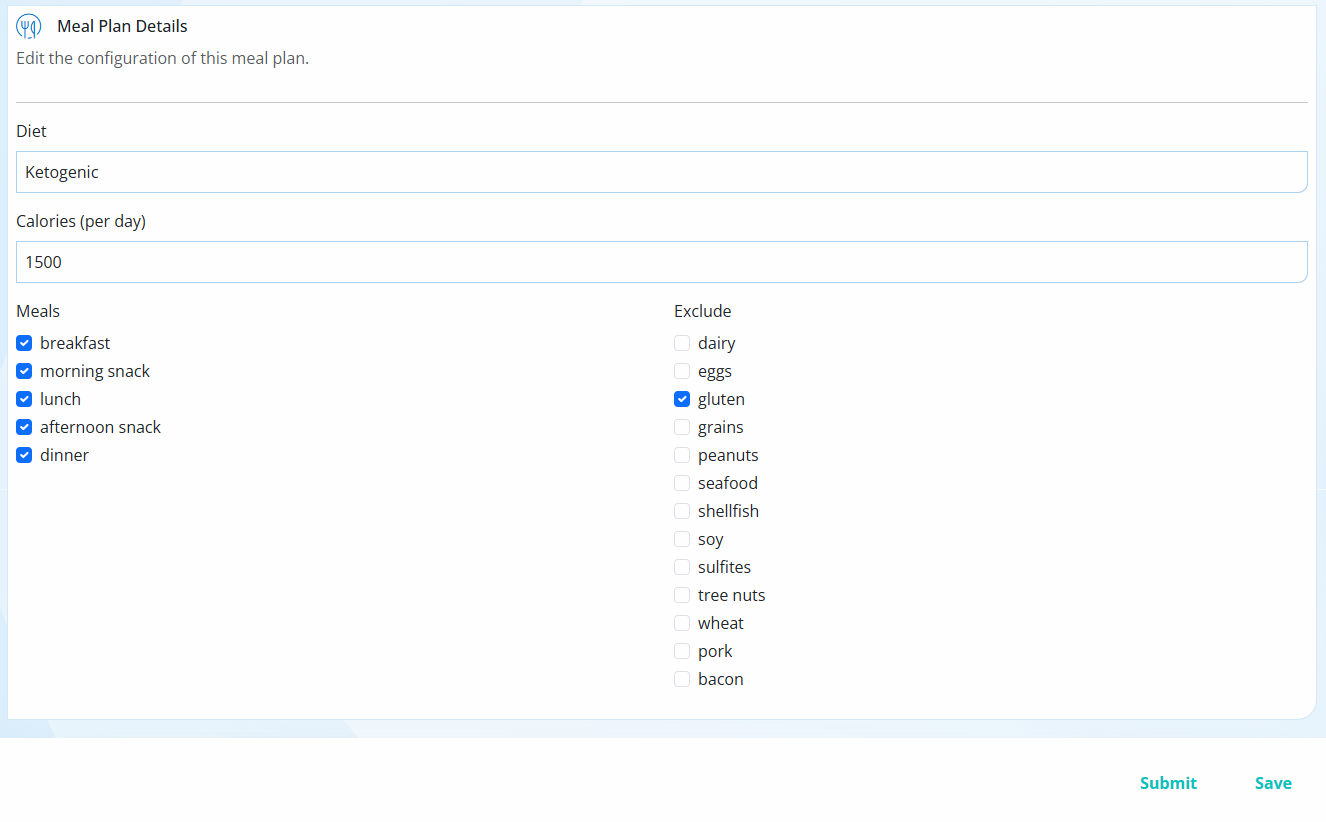
Step 3. Edit the Meal Plan Details:
Diet - Select from one of the set Diet options
Calories (per day) - this is a required field, however, calories are not shown on the patient meal plan link. Calories are required so that the AI can generate an appropriate portion size for each meal.
Meals - Select the Meals you would like to include.
Excluded - Select any items you would like to exclude.
SAVE - Select SAVE to Save you settings
SUBMIT - Select Submit to generate your Meal Plan
Select Save to save your Meal Plan Settings -> Once you are ready -> click SUBMIT for your Meal Plan to be generated.
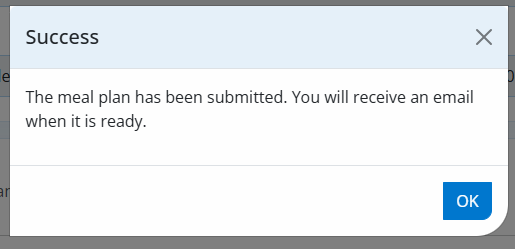
Once SUBMITTED -> You will see the notification below.
Note: The Meal Plan will show as ‘Submitted’ until it is completed (approx. 5-10 mins depending on the plan). You can leave the page while this is happening.
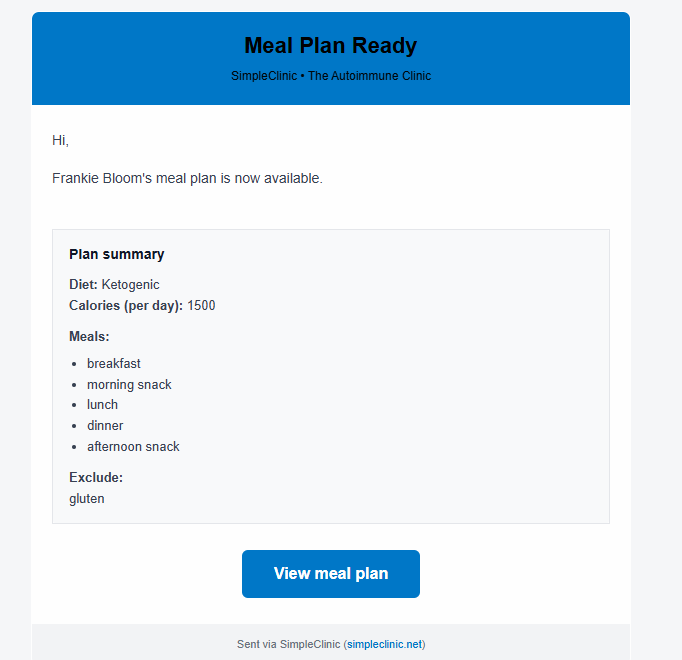
Step 4. When your meal plan has been completed, you will receive an email notification. This email will be sent to the admin email listed under Business Setup -> Your Clinic
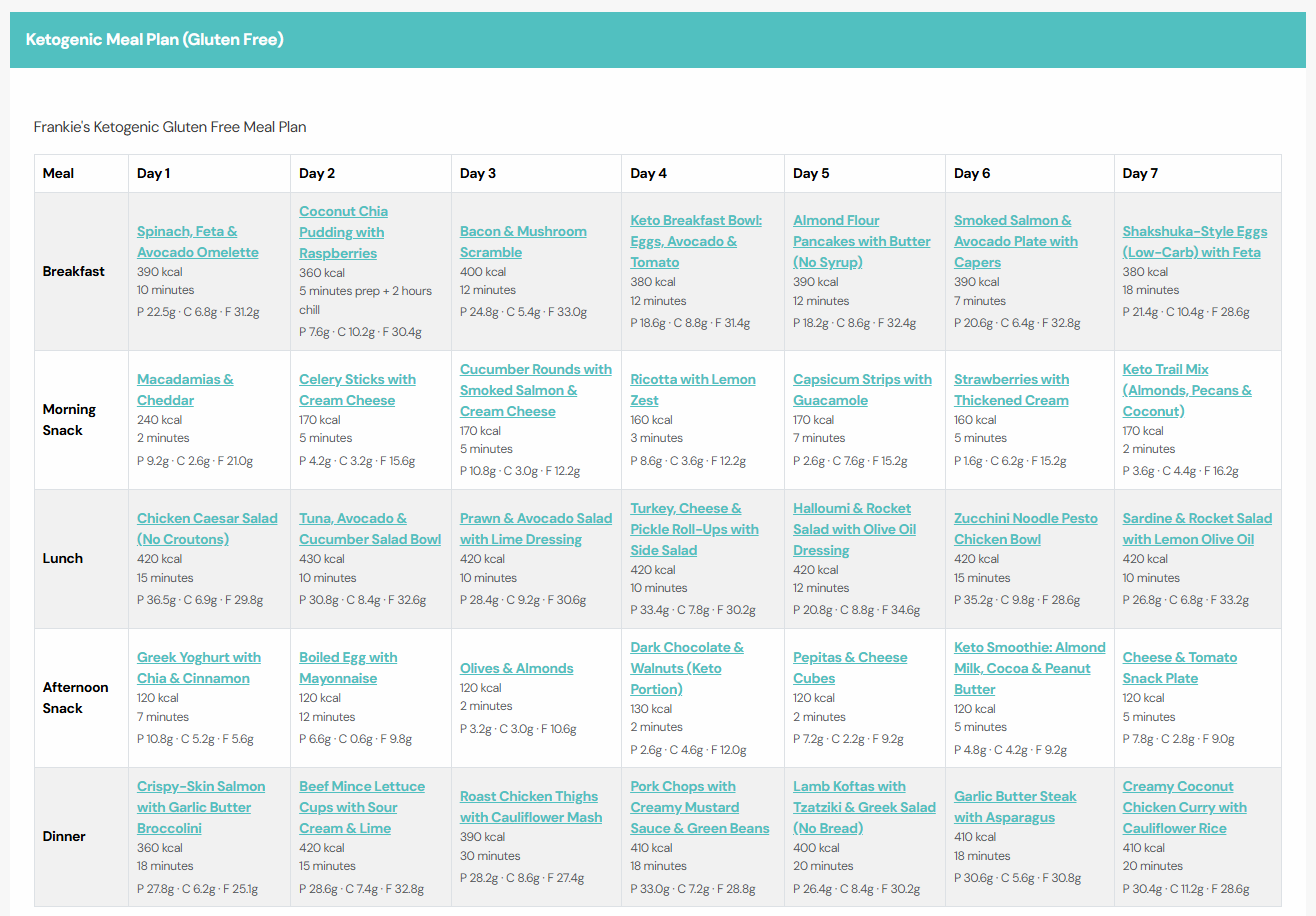
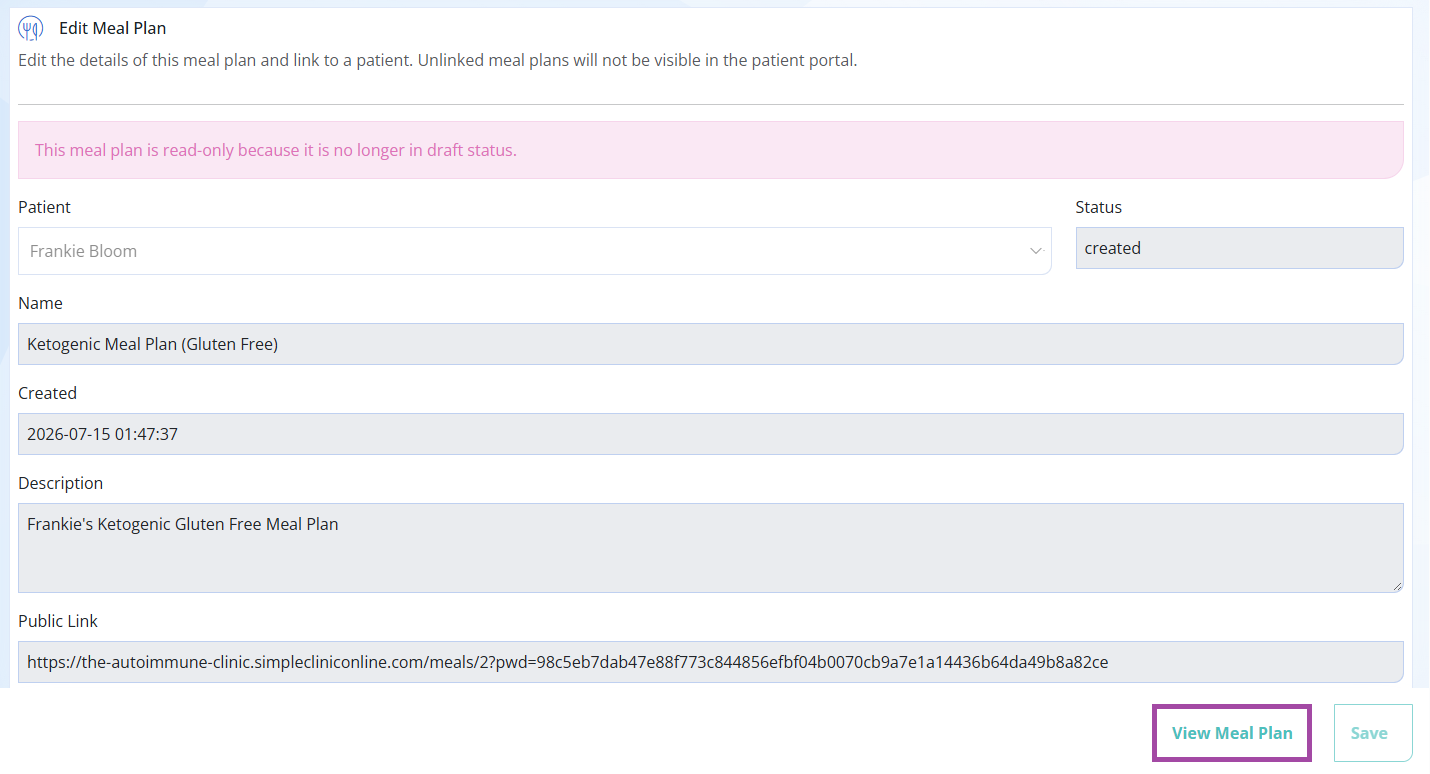
For the Patient View of the Meal Plan -> Click the View meal plan button to see the patient view of the meal plan.
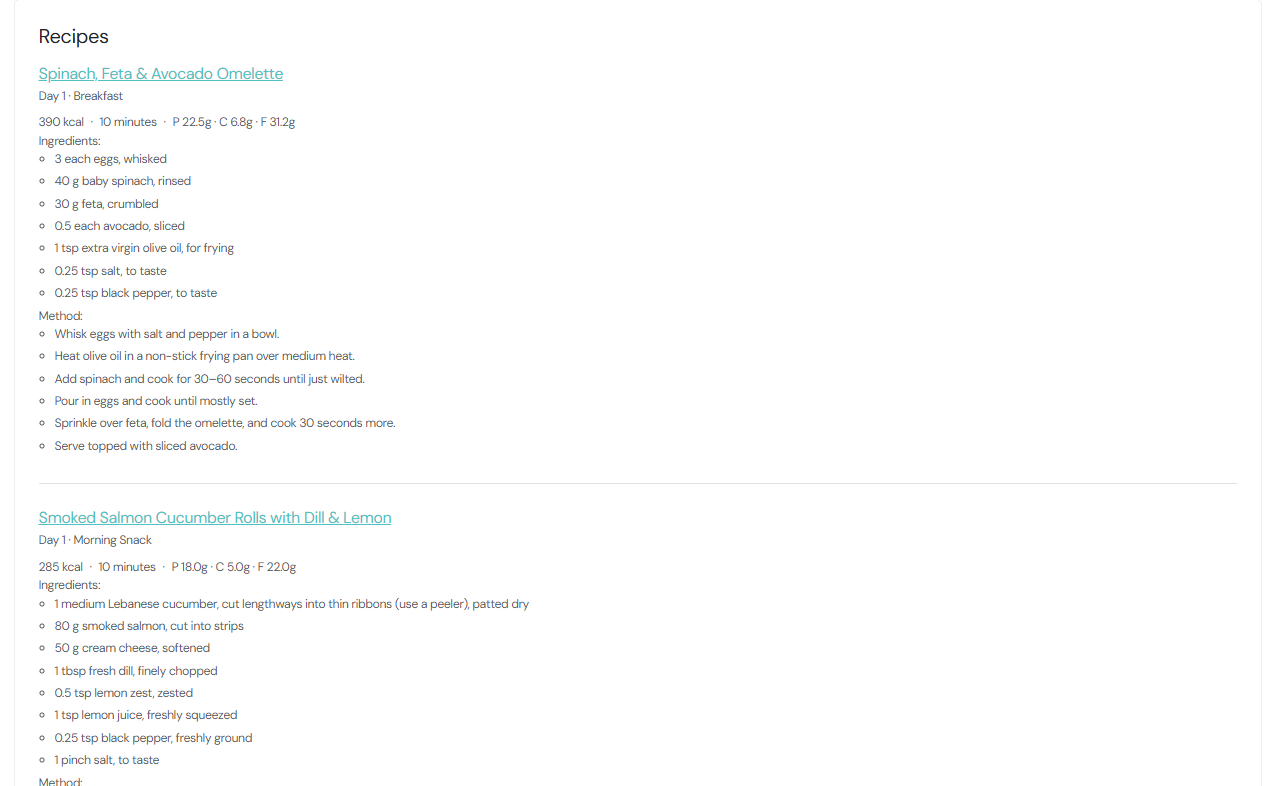
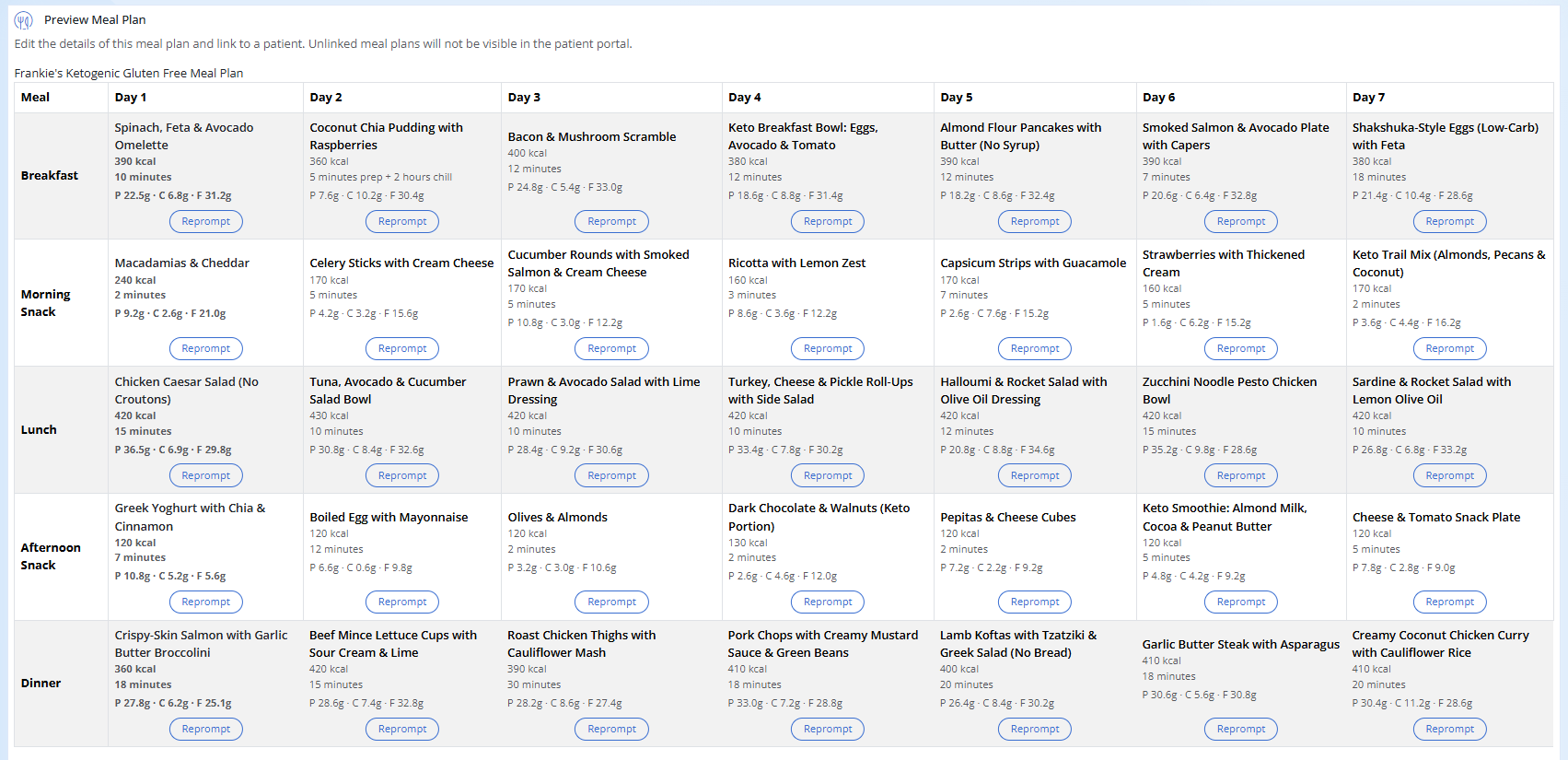
Step 5. For the Practitioner view of your meal plan go to Content -> Meal Planning -> View -> Click View Meal Plan from the bottom of the page.
Step 6. In the Practitioner view of the Meal Plan you can select Reprompt on any recipes you would like to Lumielle to change for you.
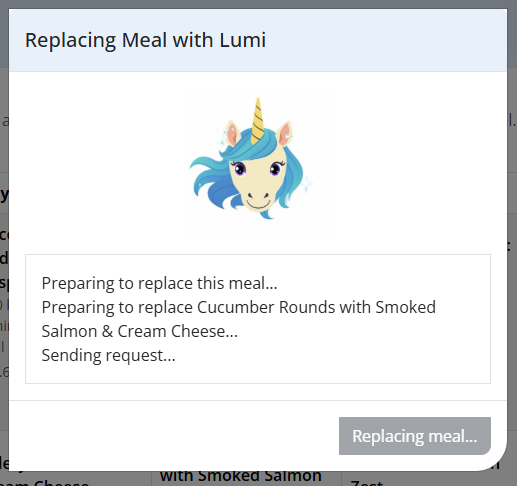
Lumielle will update the recipe.
Share the Meal Plan
Step 7.
- Print: select Print within your browser -> you can print to PDF to save it -> upload it to your Document Library -> send it to your patients or print it out straight to a printer.
- Copy and paste the public URL into an email to the patient
- The patient linked to the Meal Plan will have immediate access via the Patient Portal.
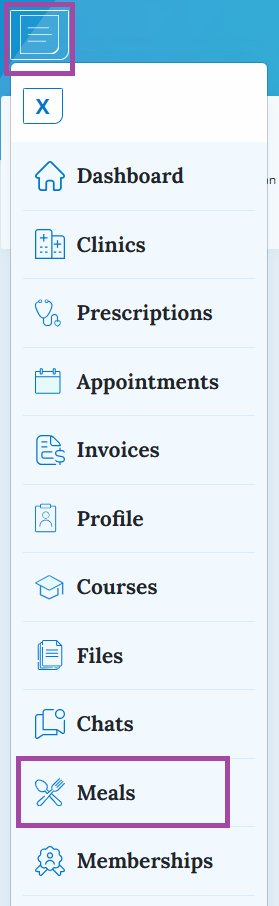
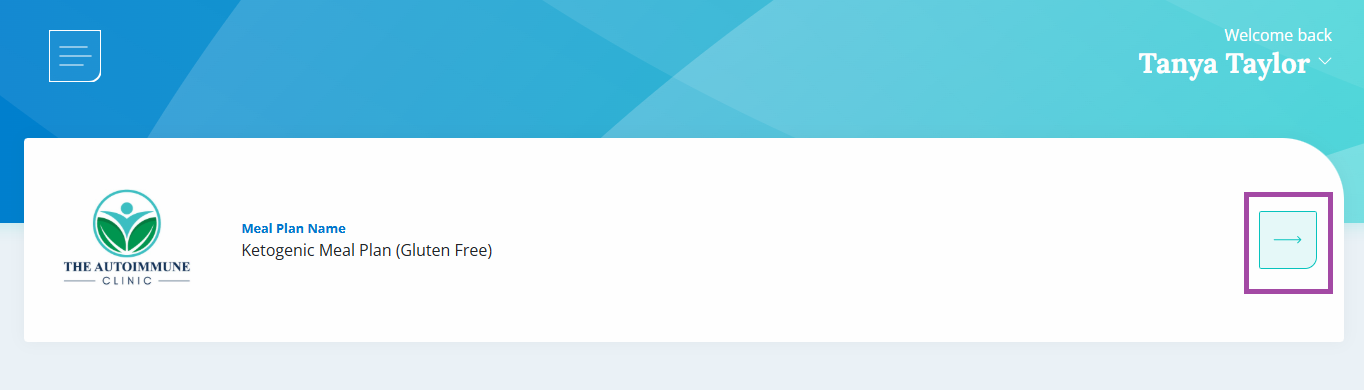
In the Patient Portal -> Under the Main menu -> the patient needs to select Meals -> then select the arrow next to the meal.
Meal Planning Costs
Please note: during the Beta phase, there will be no cost incurred to generate a meal plan. Once we release the final release version, we will review the pricing model and if there is a cost it will be consumption based.
Meal Planning tips
Meal plans are created using openAI technology, this means data is gathered from many sources and brought together to create recipes based on the criteria selected. Please keep the below things in mind when creating a meal plan:
- A Mediterranean diet by default includes a lot of dairy products. If you choose to exclude dairy significantly reduces the available recipes. Instead - guide your patient to look for lactose free, or other dairy substitutes where dairy is included.
- Many Gluten Free recipes will include gluten free substitutes by default, for example a bagel, wrap, bread or cous cous. Advise your patient to look for Gluten Free versions of these products or use something else instead, e.g. rice, potato or quinoa.