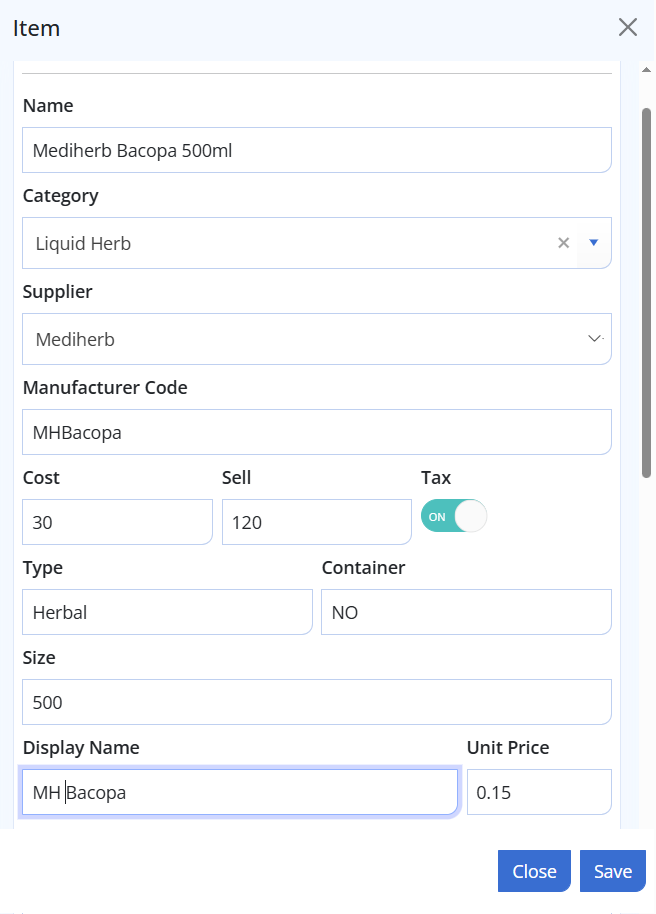
Each liquid herbal extract you prescribe needs to be in your SimpleClinic inventory. For example, a 500ml bottle of Astragalus, Echinacea, Paeonia, Zizyphus
Before adding items, please review this article to see if you can or should be using the liquid herbal ingredients from the Feeds. Items can be used direct from the feeds or cloned, to save time adding them in.
Please see this article if you will be using Ariya to mix and ship liquid herbals.
From the Inventory-> Items menu, click on the Add button to create a new herbal extract inventory item.
Complete the following fields for your Liquid Herbal to be added as an ingredient for your Liquid Herbal Blends:
Name - Add a name for the Herbal ingredient. This will be used to search for the herbal when adding it to a prescription.
Category - Select the category 'Liquid Herbal', or if it doesn't exisit, type 'Liquid Herbal' to create new category. The category is used for reporting purposes.
Supplier - Enter the supplier for the Herbal ingredient. Refer here for added suppliers to your supplier list.
Manufacturer Code - Add a Manufacturer code. Note ensure this code is unique, as items with the same code will have their stock counts linked.
Cost - The price you paid for the WHOLE bottle
Sell - The price if you were to sell the WHOLE bottle to a patient
Tax - Select Tax = ON as all products are subject to GST when you purchase them. This is not the same as your settings for GST registration which are managed under Business setup --> Your Clinic -> Finance Tab.
Type - Select Herbal.
Container - Select No. Your liquid herbals are ingredients, not containers.
Size - Enter the size of the whole bottle
Display Name - Enter the name of the herbal. This will be what displays on your Prescription, Invoices and Herbal Labels.
Unit Price - Enter the Sell price per mls. To calculate the per/ml price, Divide the bottle Sell Price by the Bottle size.
Short Description - Enter a Short description of the product. This will display on your invoices.
SAVE.