Use the Task List on your SimpleClinic Dashboard to create and manage tasks that need to be completed by a specific due date.
Tasks can be created as general tasks or linked to a particular patient, helping you keep track of important follow-ups and outstanding actions.
On this page:
- Creating a task
- Creating a task linked to a patient
Creating a task
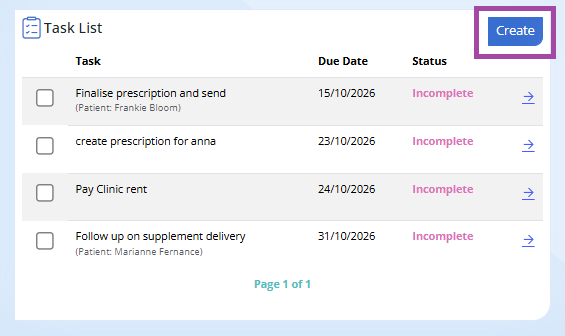
Step 1. On the Task List tile on your dashboard -> Select Create
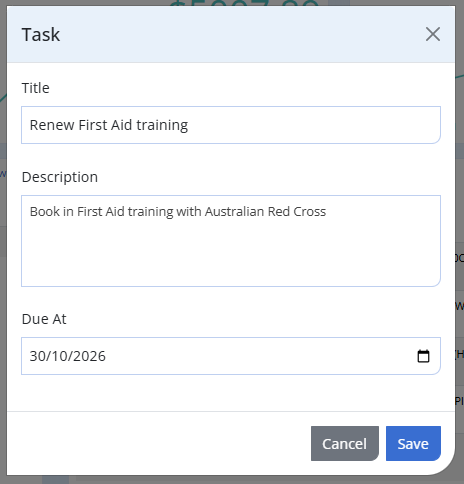
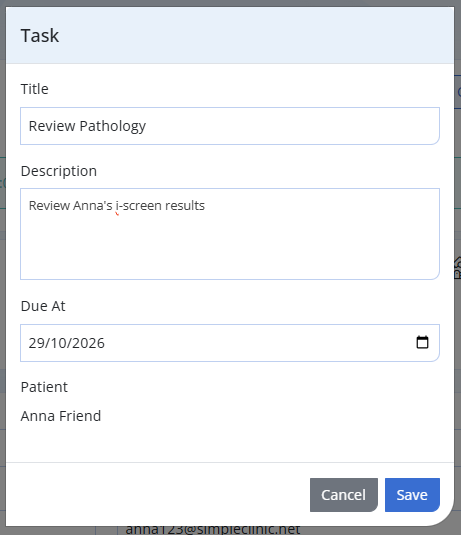
Step 2. Complete the details to create your Task:
Title: Name of your task, this will be seen on your dashboard
Description: Any further details required for your task can be viewed when you click into the task by selecting the arrow button next to the task.
Due At: Set the date your task is due to be completed.
Once complete -> click SAVE.
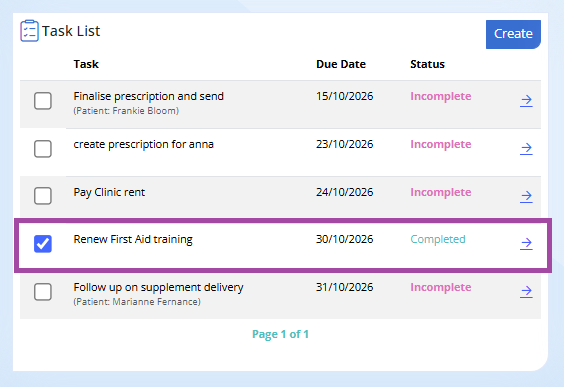
Step 3. Click the tick box next to the task to mark it as complete. Once you refresh the screen, the completed tasks will be removed.
Creating a task linked to a Patient
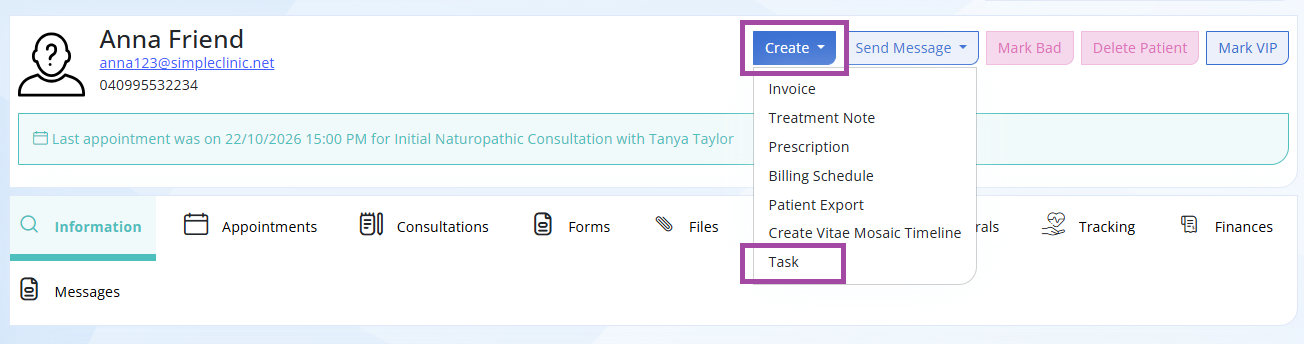
Step 4. Go to Patients in the Main Menu -> search for the Patient Record -> in the Top action bar select Create -> Task.
Step 5. Enter your Title, Description and Due date -> click SAVE.
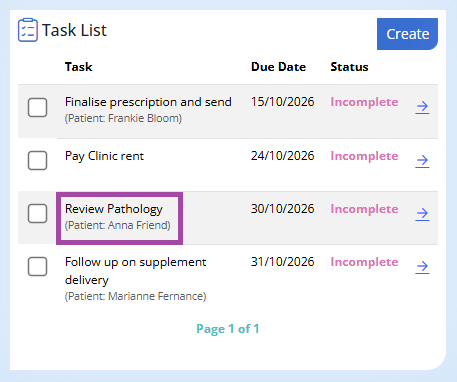
Step 5. The patient task will now be visible on the dashboard task list.
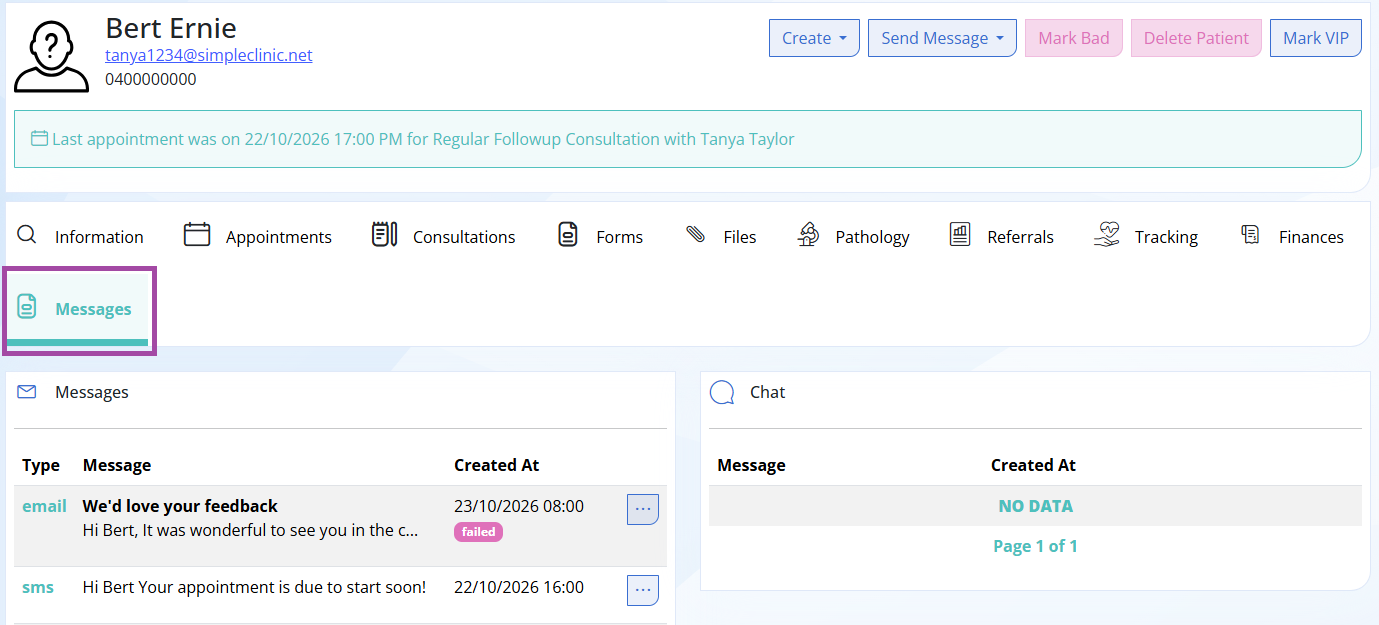
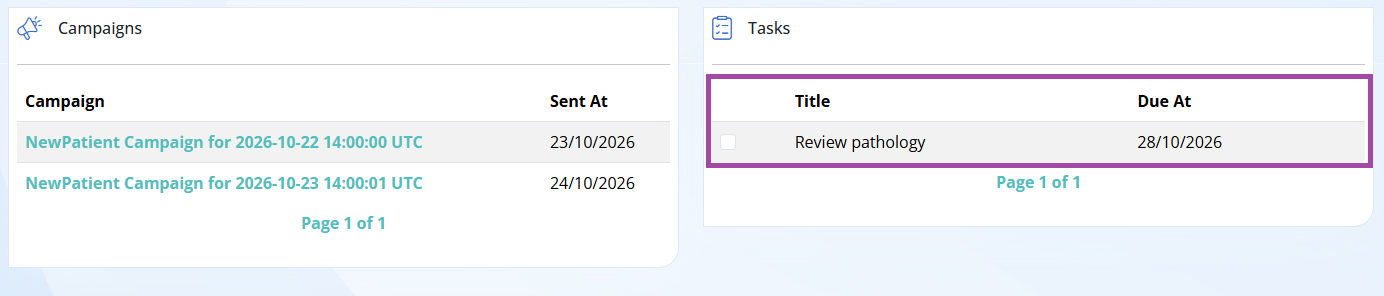
It can also be viewed and marked as complete under the patient record messages tab.