If you need to refund a patient for an invoice or credit the cost of an item, you can create a Credit Note against the original invoice.
A credit note records the amount being credited and the method used to return the funds to the patient.
On this page:
- Important Information
- Helpful Links
- Create a credit note
- Refund the patient
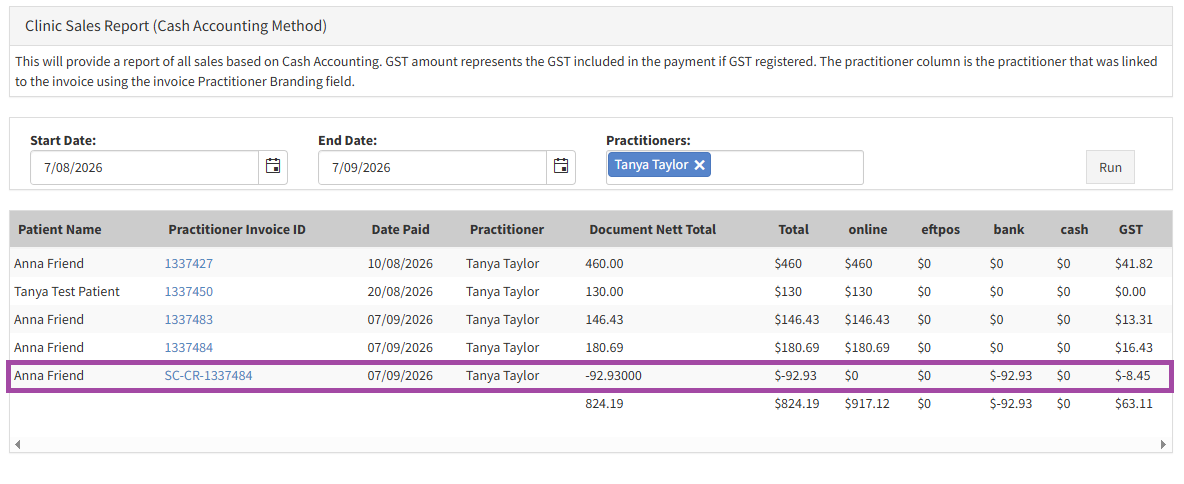
- Credit note reporting
Important Information
- A credit note is linked to the original invoice. It should be used when you are reversing or refunding an amount that has previously been invoiced
- This article is relevant only for the new Invoice UI and when the clinic is NOT integrated with Xero. To update to the new invoice UI go to Business Setup -> Your Clinic -> Select the User Interface Settings tab -> Update Invoice UI to 2023 -> SAVE.
Note: Creating a credit note in SimpleClinic records the refund, but does not automatically return the money to the patient. You must manually process the actual refund to the patient using the payment method selected on your credit note or add a credit voucher to the patient record for the patient to use at a later date.
Helpful Links
Create a Credit note
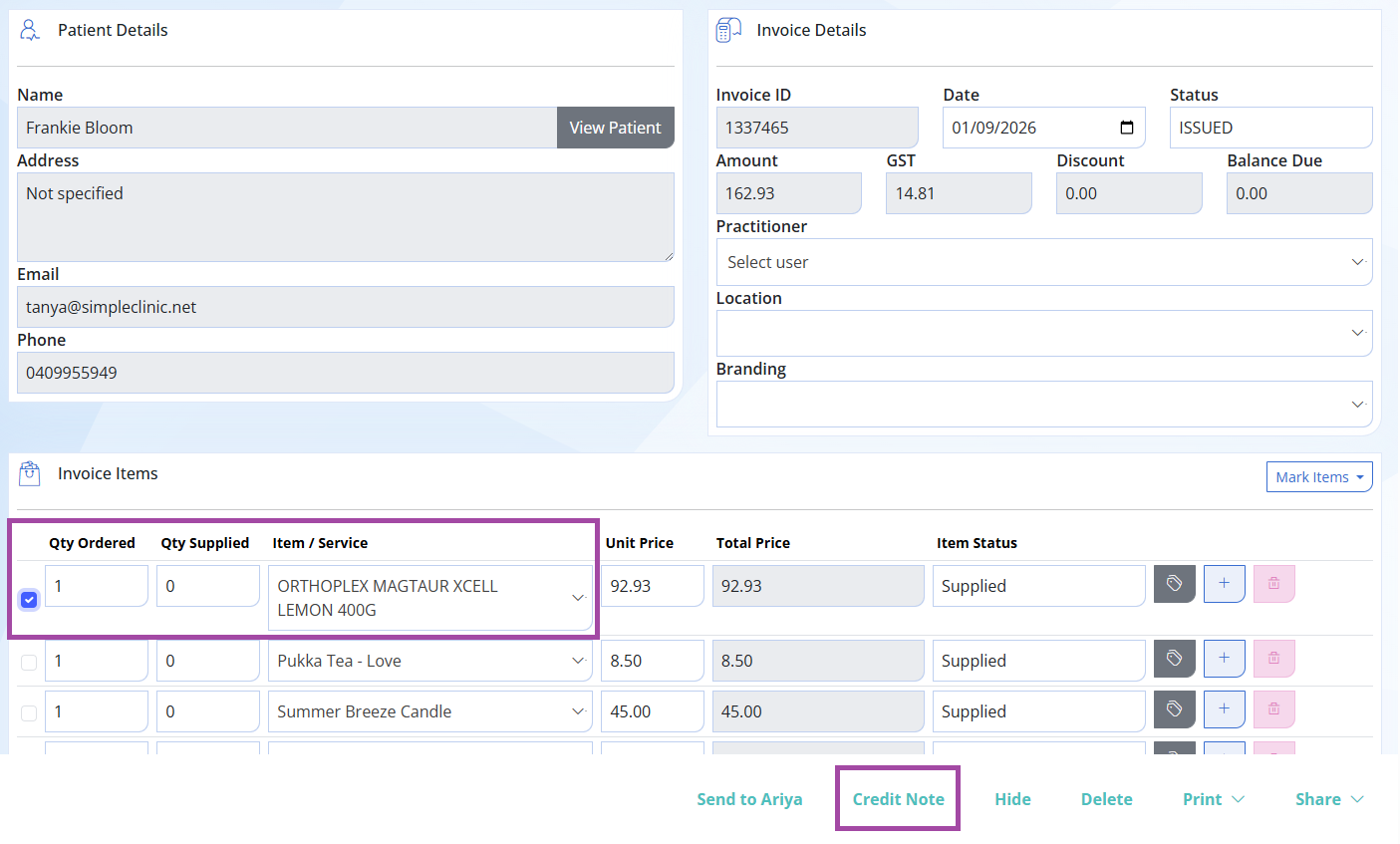
Step 1. Open the patient's invoice
Open the patient record -> Go to the Finance tab -> Open the invoice you need to refund -> Click the tick box next to the item you need to refund -> select Credit Note on the bottom action bar.
Step 2.
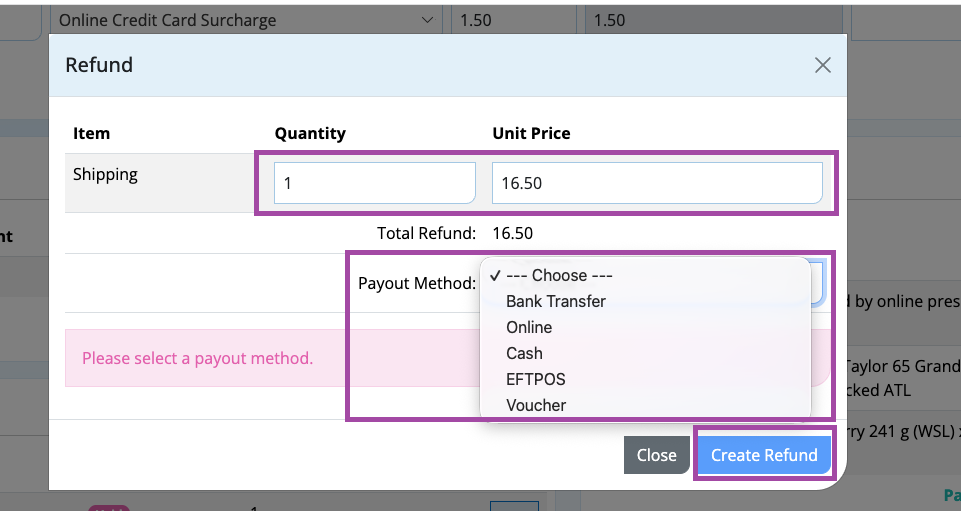
Ensure the following fields are correct:
Quantity - The quantity will automatically reflect the amount of the item which was sold. Adjust if you are refunding a partial amount.
Unit Price - This will display automatically the price of the goods sold. Adjust if you are refunding a partial amount.
Payout Method - Chose how the patient will receive the refund.
- Bank Transfer - Refund your patient from your bank account
- Online - Refund from your online payment gateway (Square/Stripe)
- Cash
- EFTPOS
- Voucher - Add a credit voucher to the patient record for them to use at a later date.
Click -> Create Refund
Step 3.
A comment will be recorded on the invoice under the invoice comments
A credit note will be visible under the 'Credit Notes' table showing how many items have been refunded
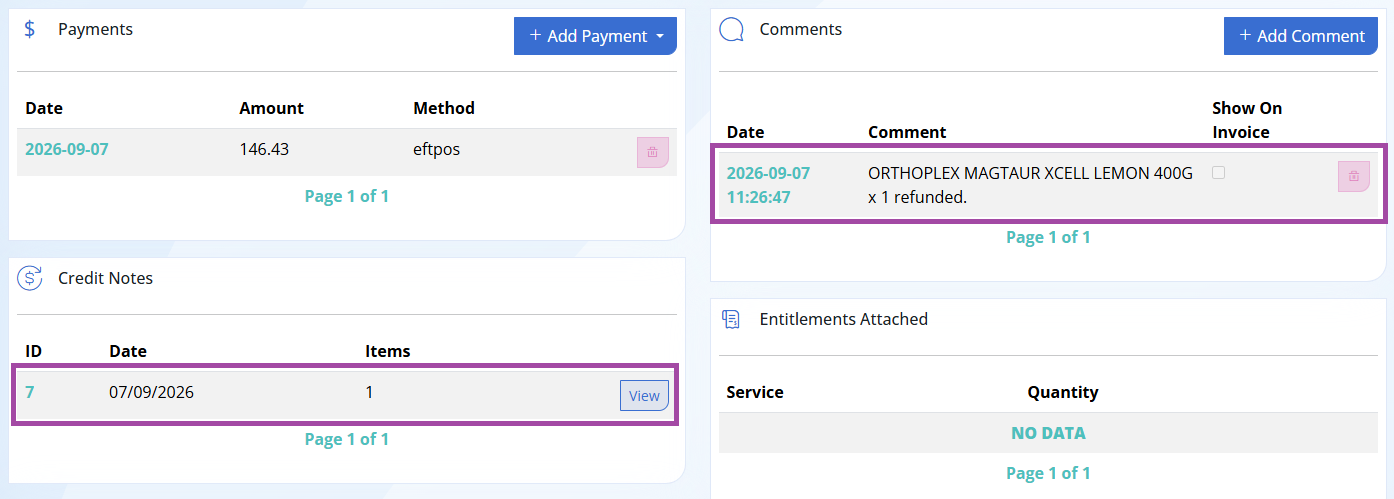
Click View to view the details of the credit note.
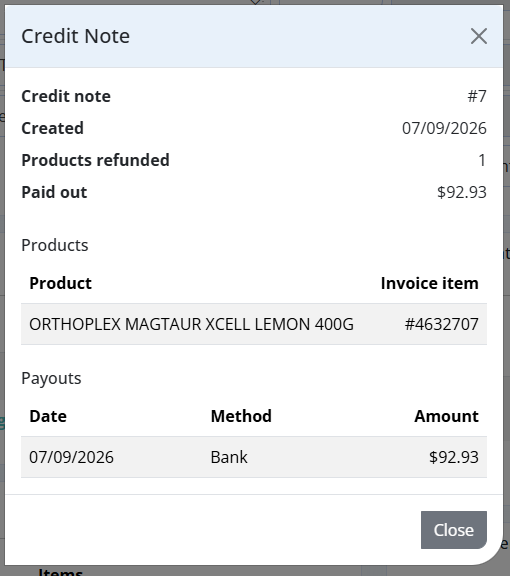
Refund the patient
Step 4.
Provide your patient a refund using the payment method selected on your credit note.
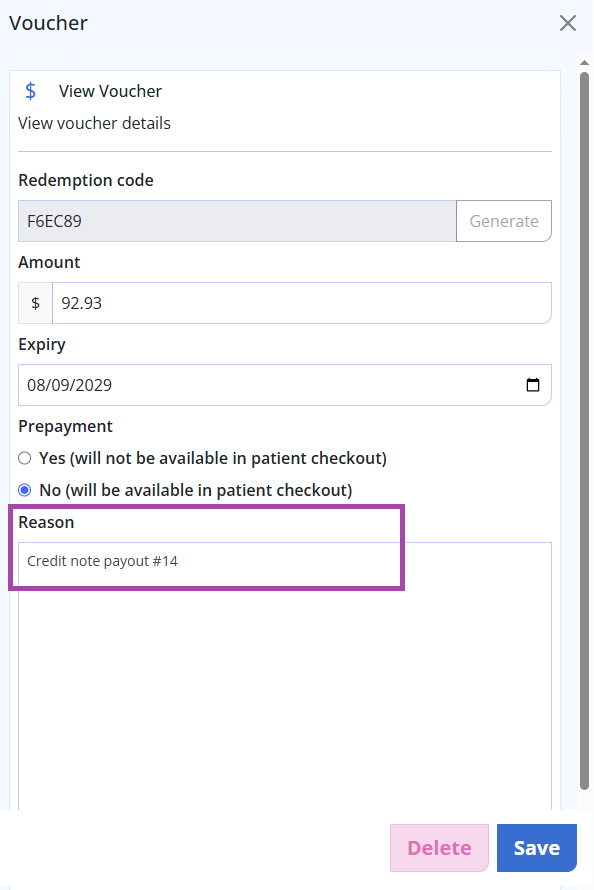
Note: If you selected 'Voucher' a credit voucher will automatically be created against the patient record, referencing the credit note number.
The voucher will automatically be set as 'No' for Prepayment. This means the voucher will be available to the patient in the online booking, or the online prescription checkout, to be used as they prefer.
If you don't want the patient to have access to their credit voucher to use online, go to the patient record -> Finance tab -> Select the arrow next to the voucher -> Select 'Yes (will not be available in patient checkout).
Click here to see how a patient can redeem their credit voucher.
Returning products to stock
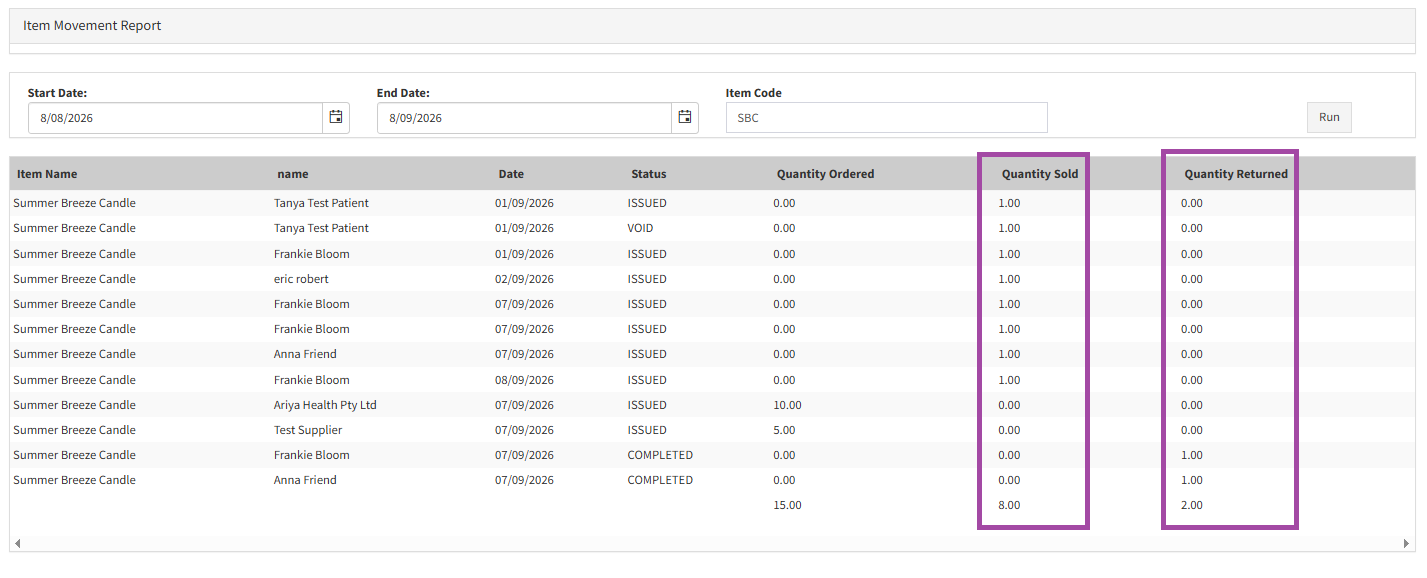
Once a credit note has been created, it is assumed that the product will return to your stock. An automatic stock adjustment will be made and visible on the reports below.
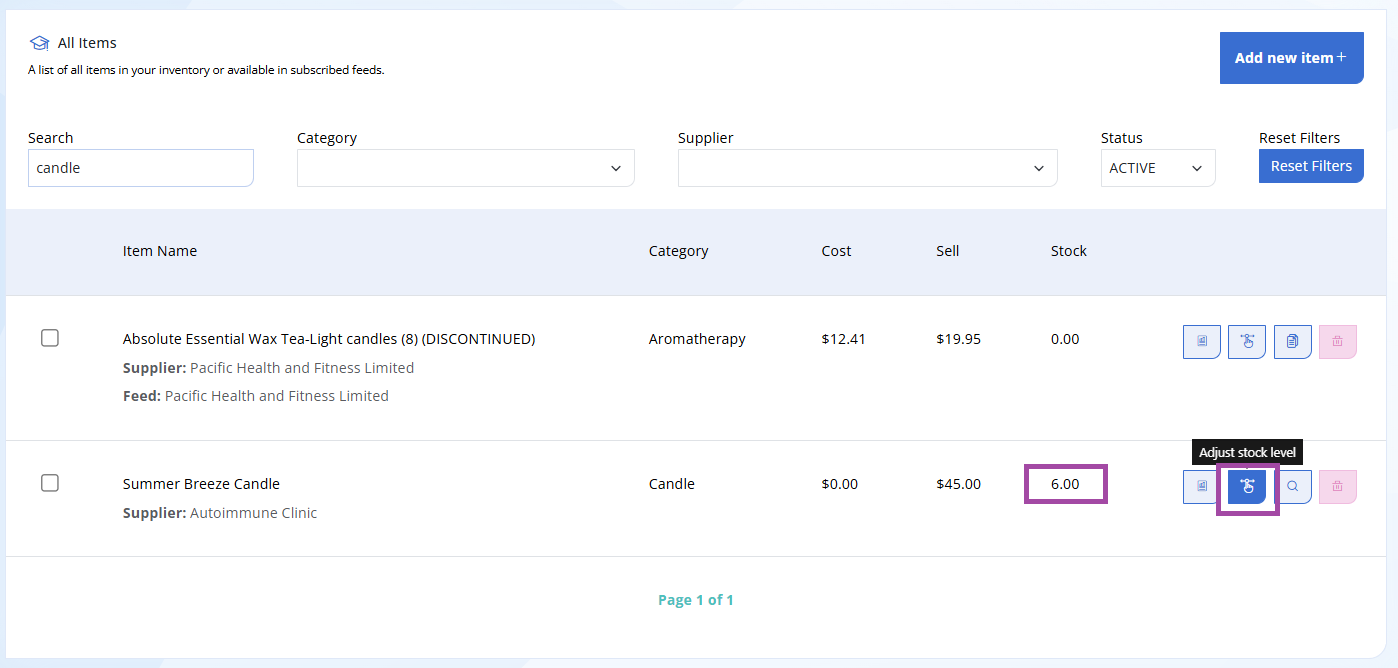
If the product is opened / damaged or not re-salable you will need to manually update your stock accordingly.
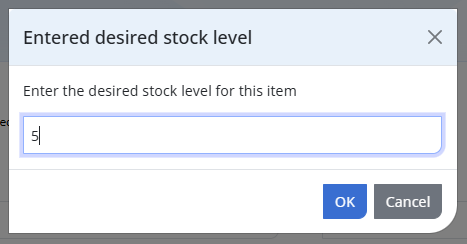
Go to Inventory -> Search for the Inventory item -> Select the Adjust stock level button -> Reduce the stock number by the number of items being disposed of -> Click OK.
Credit note reporting
- Sales Report (Cash Accounting Method)
- Stock On Hand report


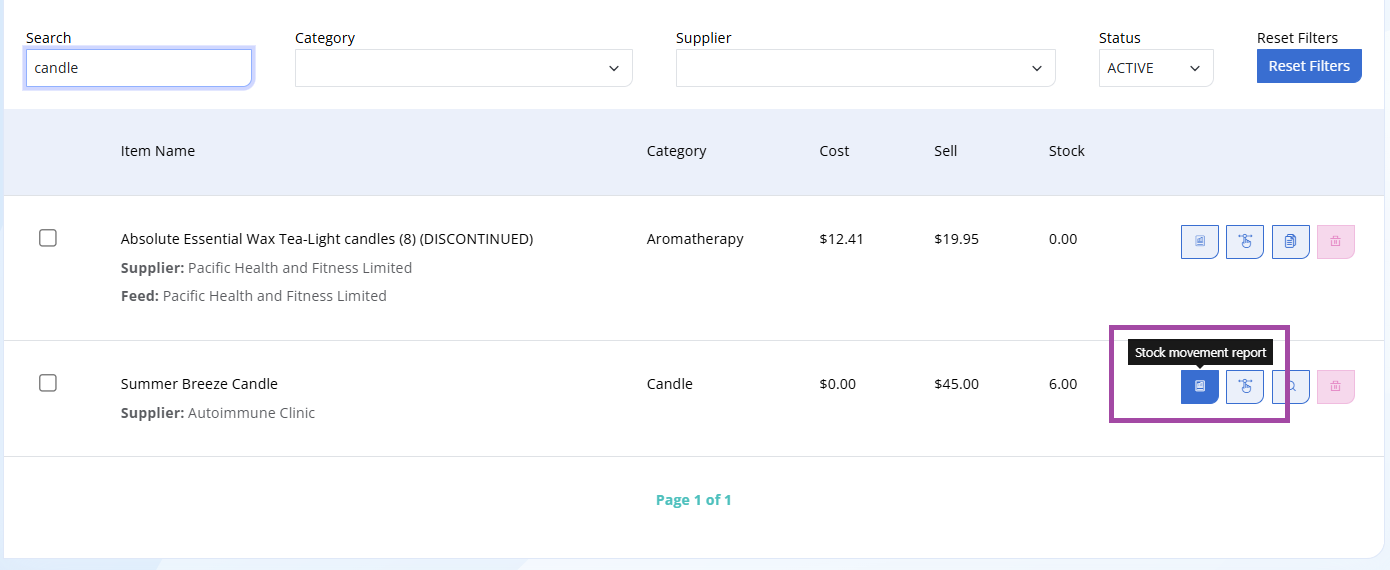
- Stock Movement Report. Under Inventory -> Items -> Select the Stock Movement Report next to your inventory item to see the stock movements for your required date range.