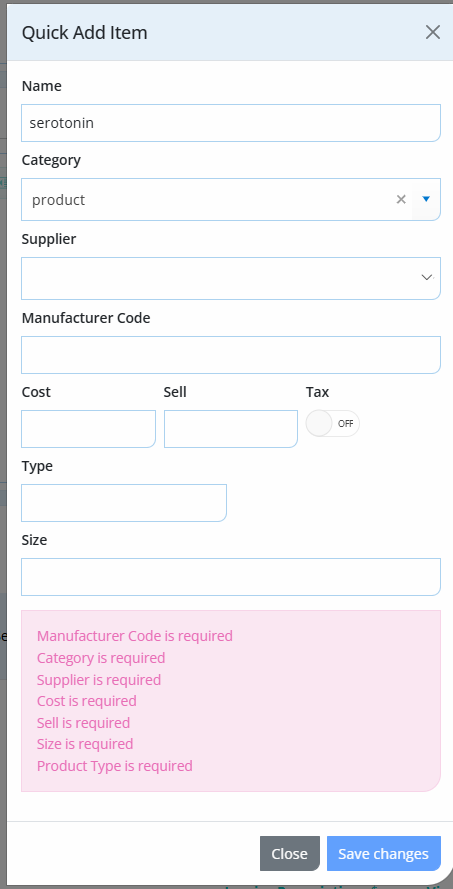
When you are in a prescription and you go to add an item that doesn't already exist in your inventory items via the drop-down menu, an Add to Inventory button will appear.
Complete the below required fields, using this as your guide:
- Item Name – This can be anything you wish up to 256 characters.
- Category – This field is a free text entry field for you to enter the category. It auto completes based on previously entered categories. If no previous categories match the new entry will be added. This will allow you to break down reporting items into Misc, Gifts, Food, Product etc.
- Supplier – This field auto completes based on previously entered suppliers. (If you're adding a new supplier, please do this FIRST from Inventory -> Suppliers -> Add Supplier -> complete all fields -> Save Changes.)
- Manufacturer Code - if you don't know this, add anything here e.g. a 3-letter code like HPA
- Cost – This is how much you buy the item for exclusive of GST.
- Sell - This is how much you sell the item for inclusive of GST.
- Tax Settings – This specifies whether the item is GST free or not.
- Size - This will be the number of tablets, capsules, mL or grams in the container without a unit of measurement.
- Type - Choose from options in the drop-down e.g. herbal, supplement, compounding etc.
Save changes.