
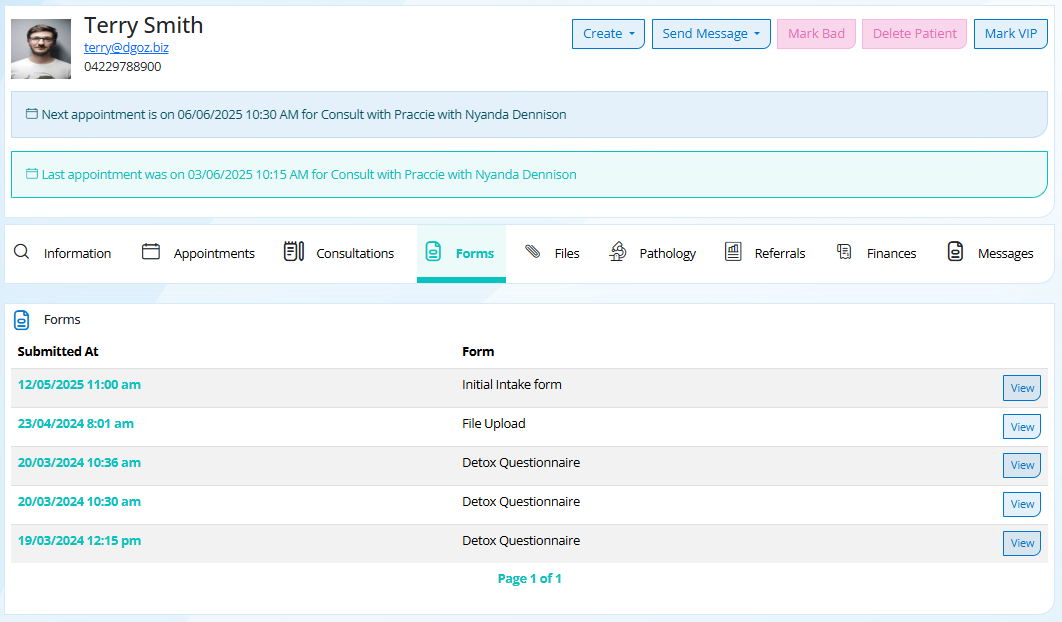
In the video and image below, we show you the Patient Forms tab.
The Forms tab shows all forms submitted by the patient.
You will receive an email when a form has been sent back. If you have received no notification, the form hasn't been submitted. This means the patient has not completed the form correctly, e.g. not completed all the required fields, or they haven't submitted it to you.
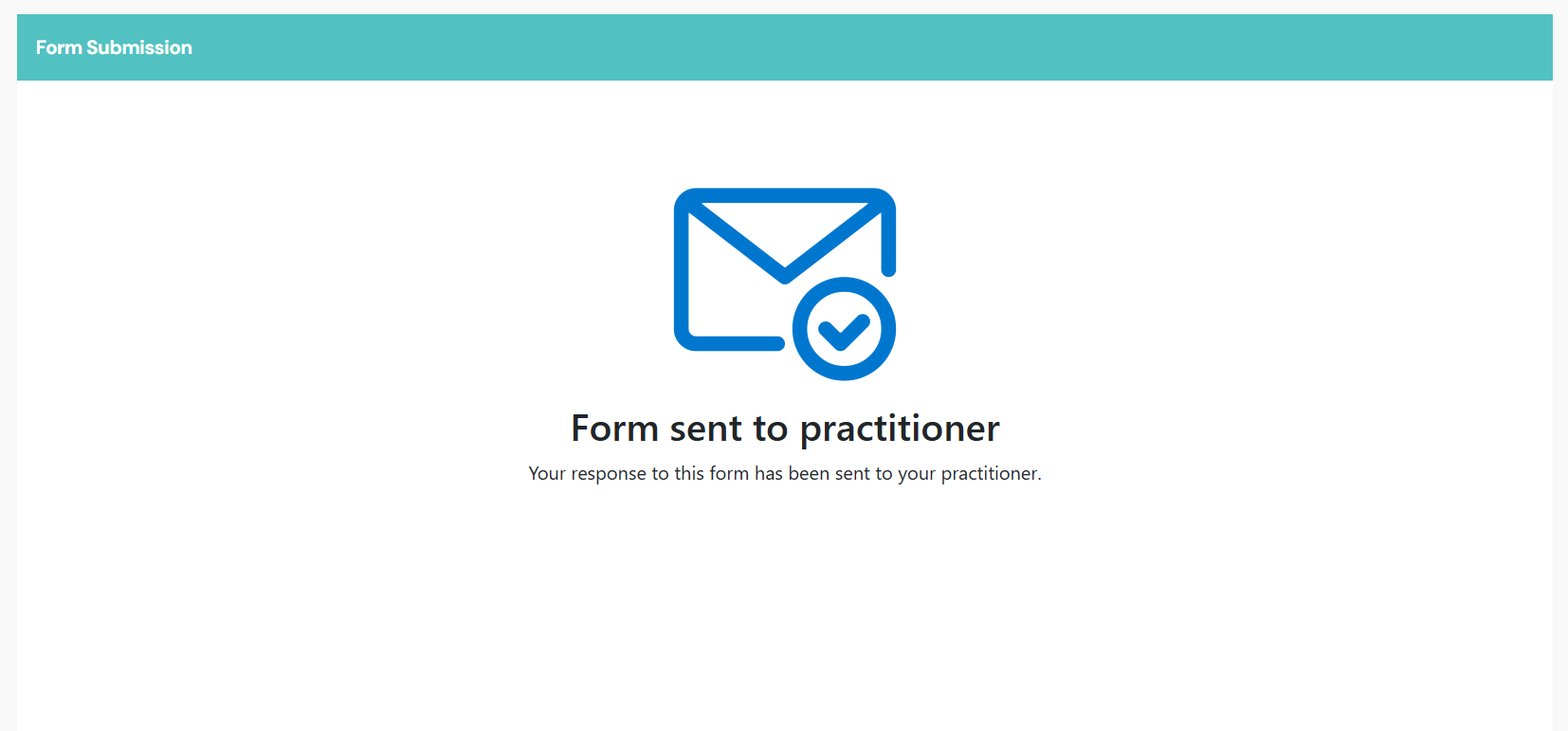
There is a confirmation message that appears after the form has been submitted (as per the below image), if the patient does not see this then the form hasn't been sent.
If you received the notification but can't see the form, it means the form is unlinked and needs to be linked to the patient from the Responses menu. Forms become unlinked when the DOB and email combination doesn't match, or if you don’t have the DOB or email fields in your forms.
Select View to view the answers to your form questions and see any uploaded files.
Updating Patient Information from the Intake Form
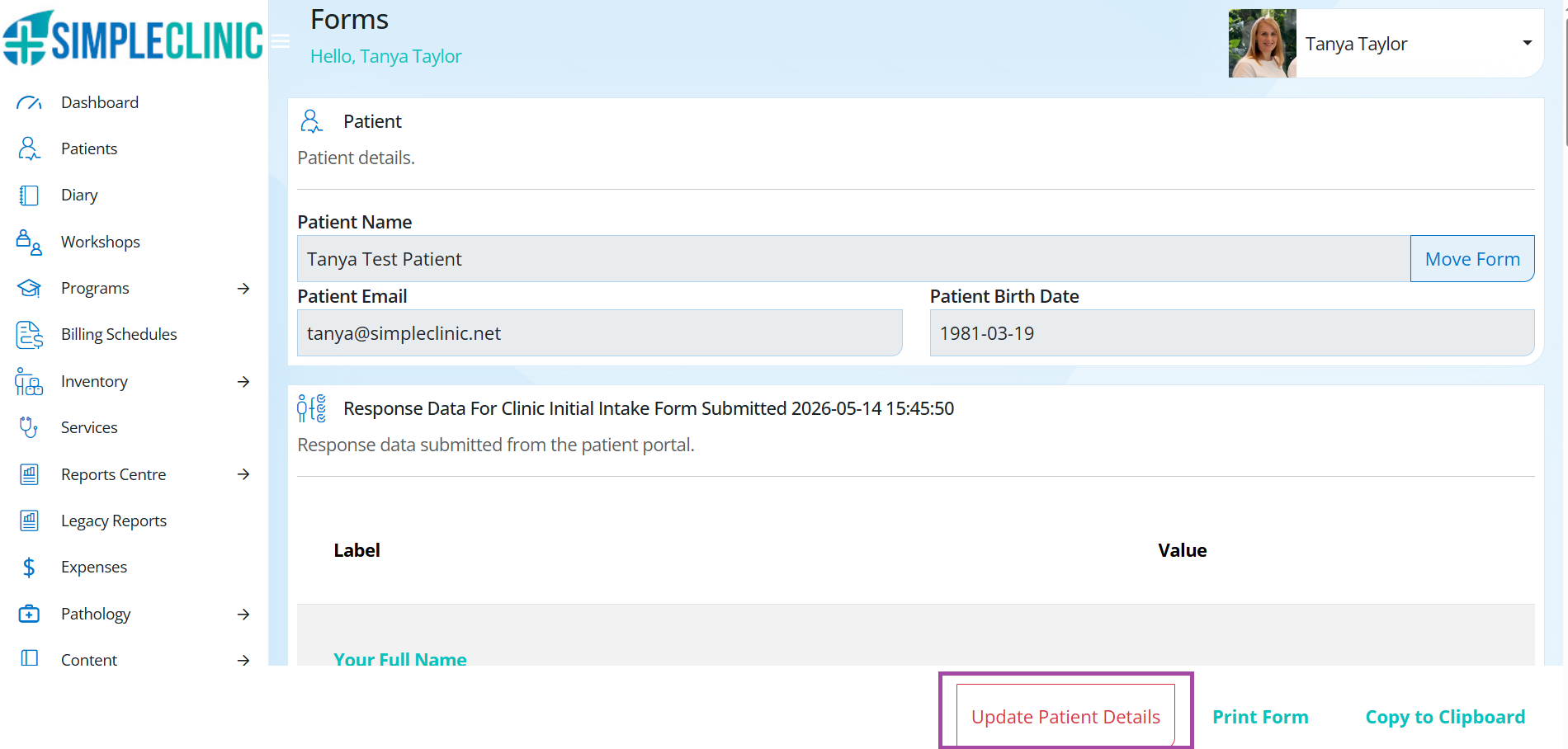
Once a patient has submitted an Intake form you can update the Patient Information tab with their personal details.
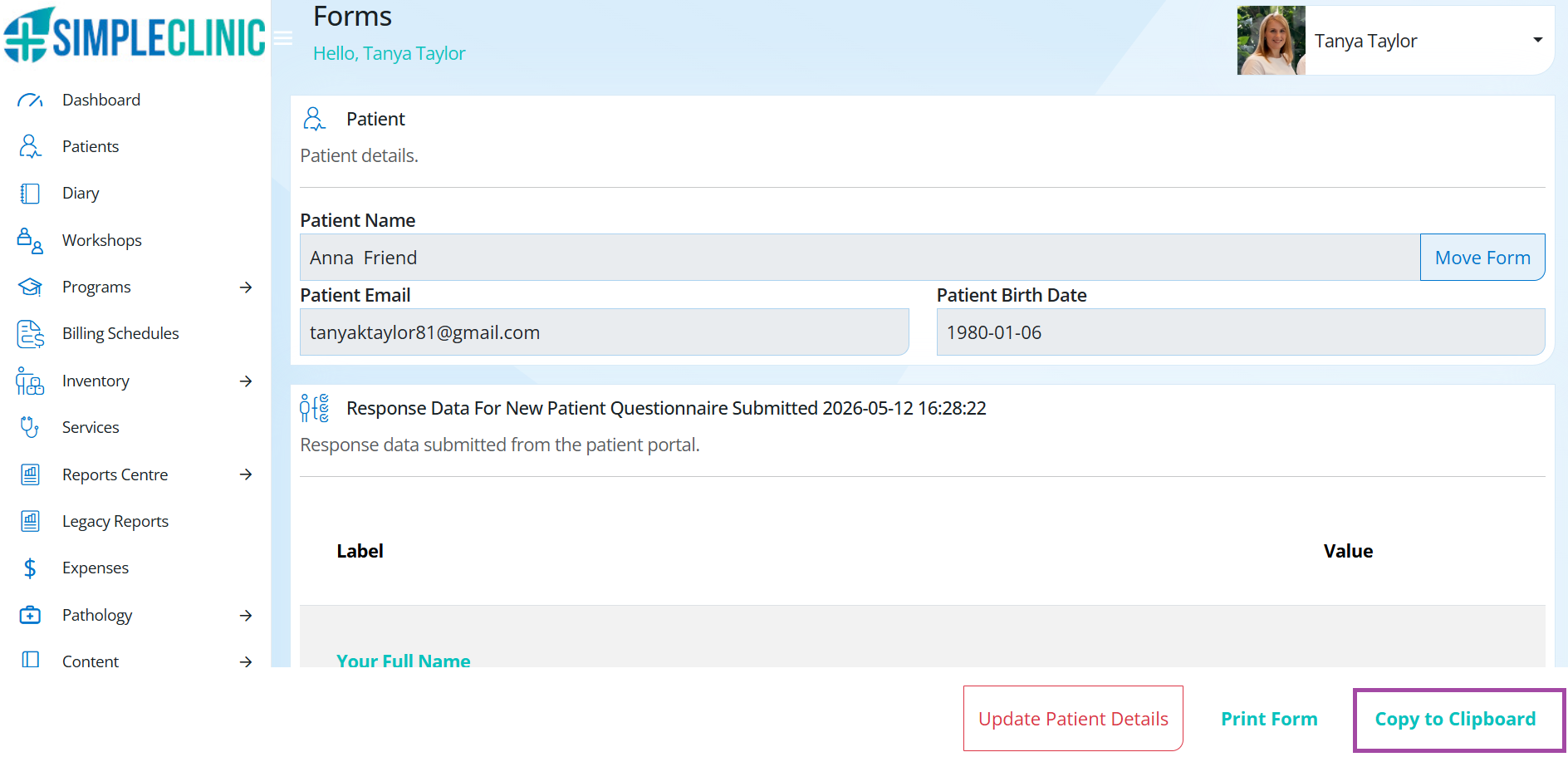
To do this go to the Patient Record --> Select the Forms Tab --> VIEW the Form --> Confirmed the form is linked to the correct patient record --> Select Update Patient Details.
The following Patient Details will be updated in the Patient Information Tab from the Form responses:
- First Name
- Last Name
- Address
- DOB
- Emergency Contact name and phone number
Printing a form response
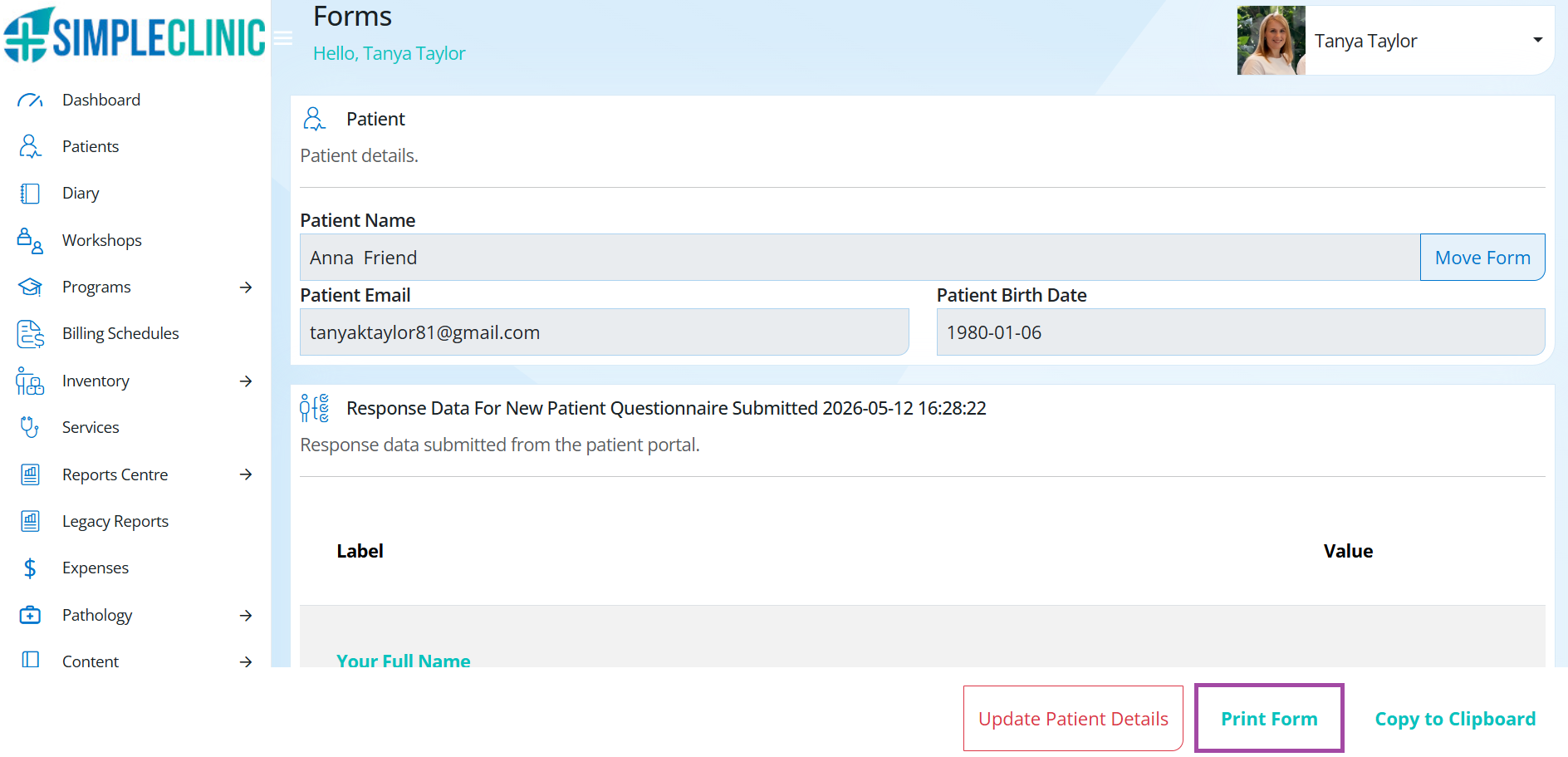
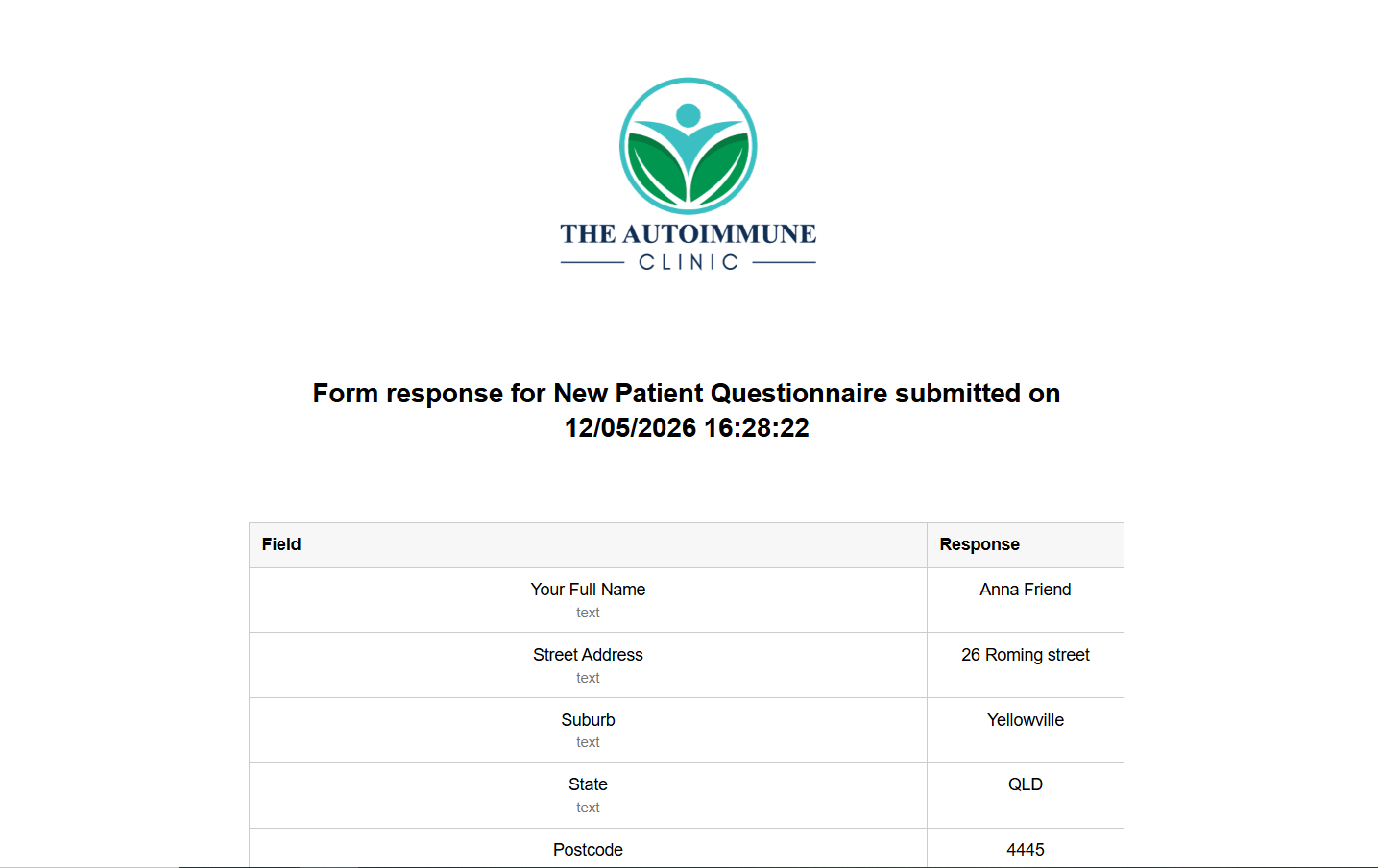
Print a copy of the completed Form by selecting --> Print Form.
Copying the Form Information
To copy the completed form answers select --> Copy to Clipboard from the bottom of the Form page. You can then paste this into your Treatment Note if you wish to add to it and edit during your consultation.
Viewing Patient Forms Submitted Demonstration Video