Items in the inventory feeds can be hidden so that they do not appear when adding items to an invoice or prescription.
Items created by yourself can be deleted if you no longer need them, or hidden so they can be restored at a later date. Once an item you created is deleted it cannot be restored.
On this page:
- Hide Items from Supplier Feeds
- Bulk Hide Items
- Unhide Items
- Hide self added Inventory Items
- Delete self added Inventory Items
Hide Items from Supplier Feeds
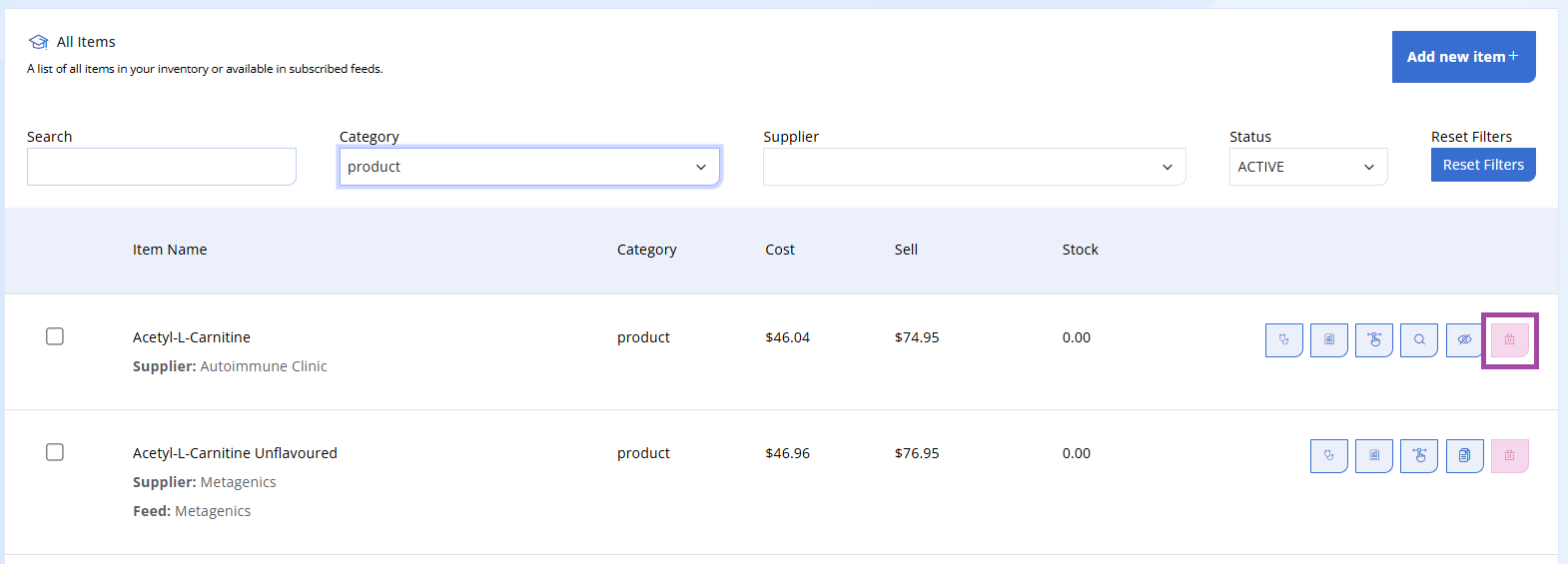
Step 1. Go to Inventory -> Items -> select Delete next to the item as below.
Note - ensure it is a product from a Supplier Feed, as self added inventory items are not recoverable.
Bulk Hide Items from a Suppler Feed
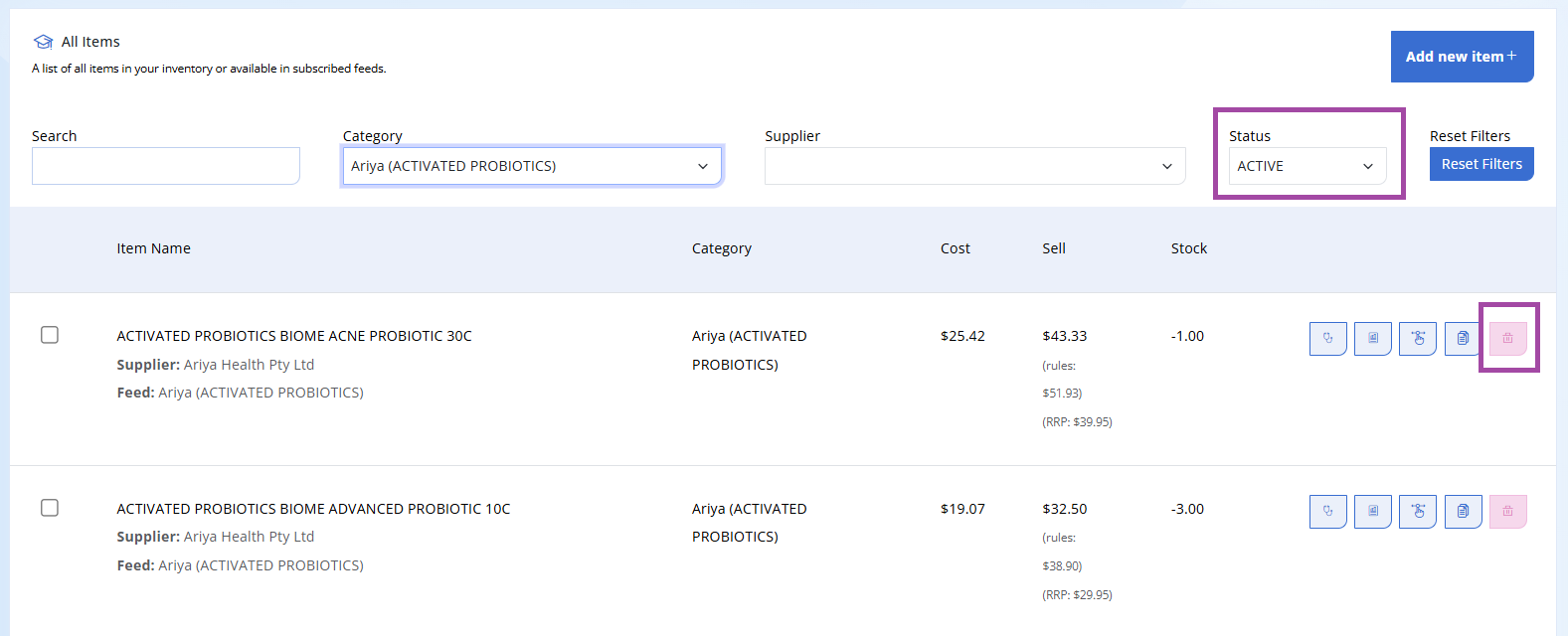
To hide multiple inventory items at once:
Step 2. Go to Inventory -> Items -> select the tick box on the left of the multiple inventory items --> select 'Delete selected'
Note: If you Delete any items which are NOT from a supplier feed, they are not recoverable.
Unhide Items
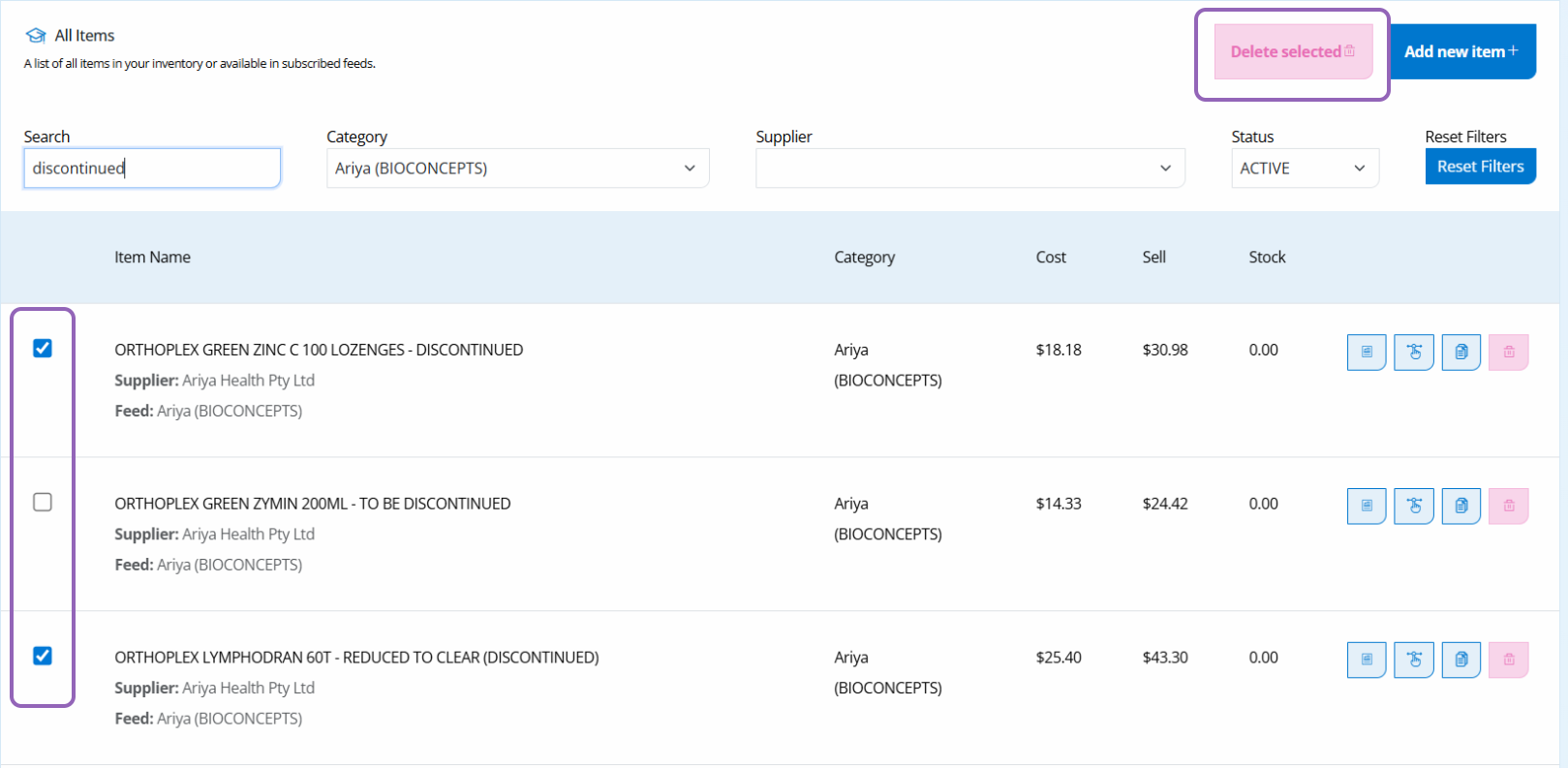
Step 3. Change the Status dropdown to INACTIVE to see all hidden items.
Step 4. Select the Restore button to send any items back to the ACTIVE list, as below.
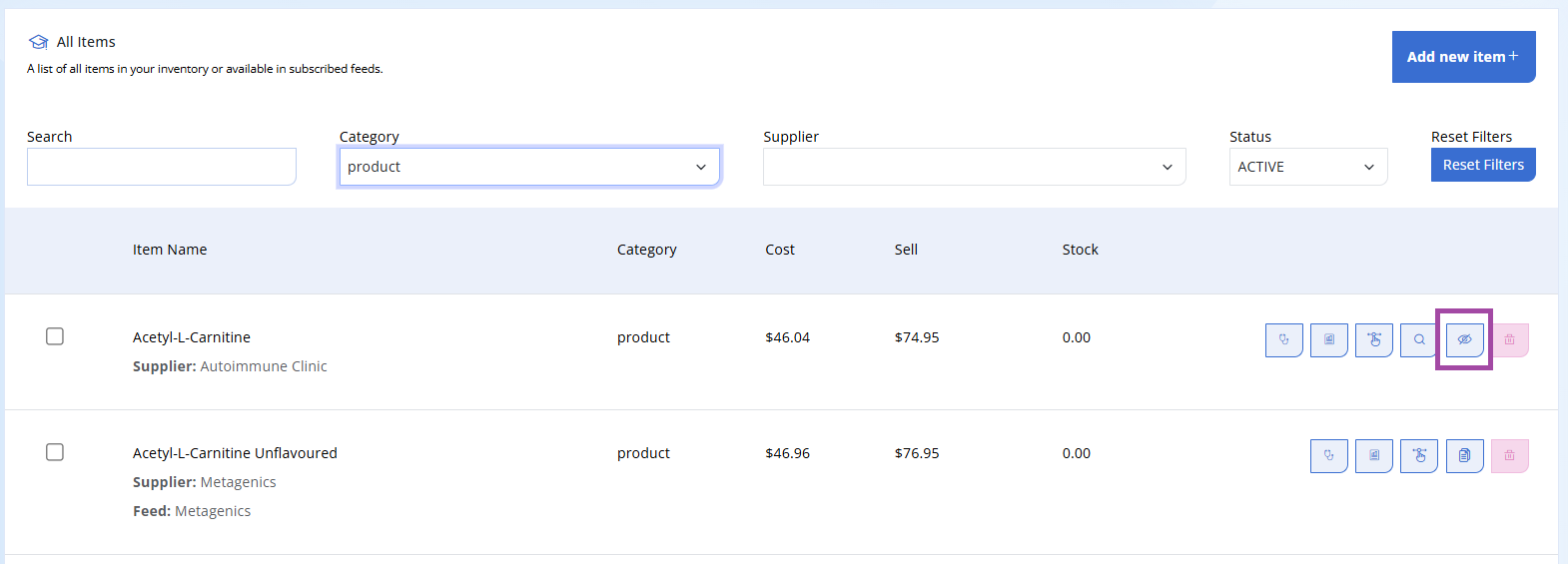
Hide self added Inventory Items
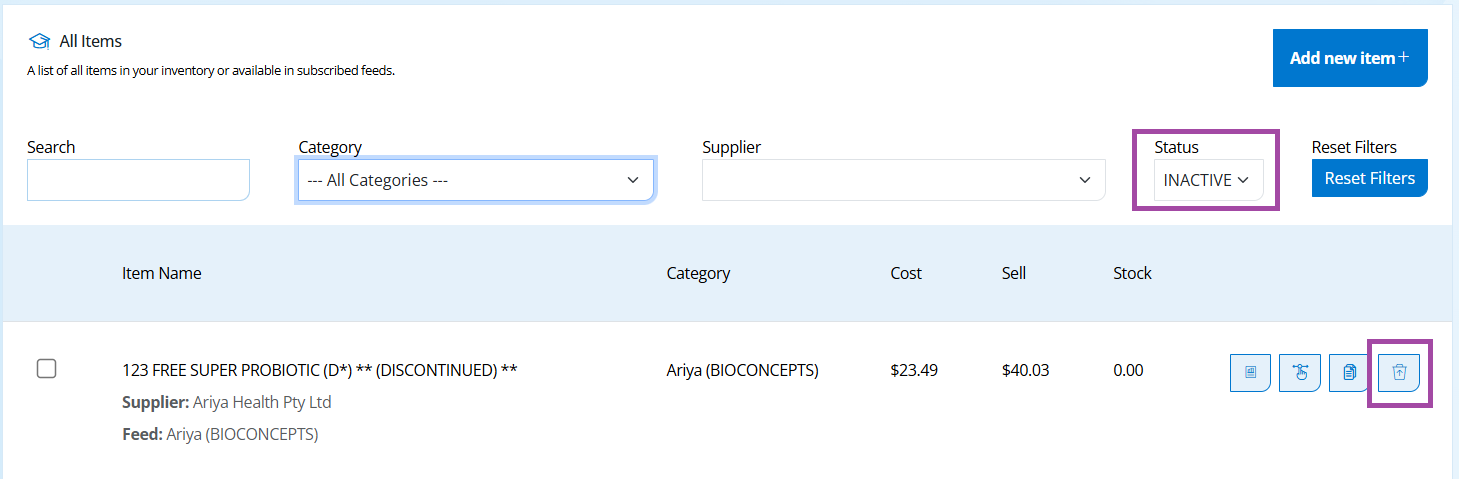
Step 5. Select the Hide Item button to send any self added inventory items to the INACTIVE list, as below.
Delete self added Inventory Items
Step 6. Select the Delete button to permanently remove any self added inventory items. Note this item is not recoverable though any previous invoices will not be affected.