Create “containers”, or the bottles used for all the sizes you dispense your herbal medicines into.
Step 1. Go into the Inventory Items list by clicking on the Inventory-> Items menu option.
Step 2. If you already have Inventory Items for herbal medicines, such as “Liquid Herbal 100ml” or “Liquid Herbal 200ml” or similar, you must edit these items. If you don’t have these items, click on the Add New button in the Your Items screen.
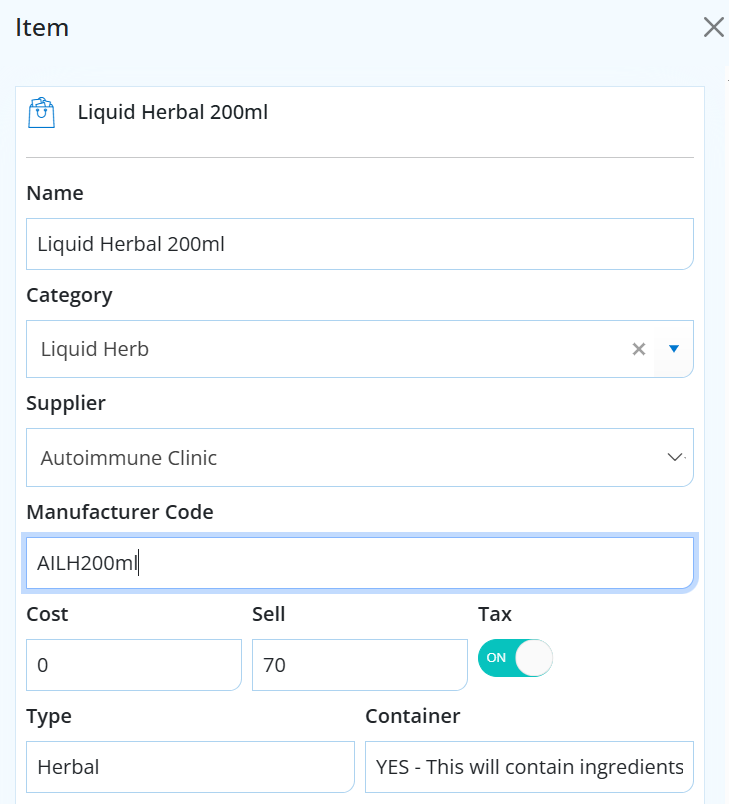
Step 3. Fill in all the details for each size of liquid herbal bottle item as needed.
Name - E.g Liquid Herbal 200ml.
Category - Select Liquid Herb, or if it doesn't exisit, type Liquid Herb to add it as a new category. The category is used for reporting purposes.
Supplier - Your clinic
Manufacturer Code - Add an item code. This is required for Stock Movement reporting. You can create a code for your clinic, e.g. AILH200ml (Autoimmune Clinic Liquid Herbal 200ml)
Cost - The bottle cost
Sell - The price you wish to sell the bottle of herbs. Note this is only relevant if you are charging per container, rather than per mls of the ingredients. This setting can be changed under Business Setup --> Your Clinic -> Finance Tab.
Tax - Herbs are a product an incur GST. This is different to if your Clinic is GST registered or not.
Type - Herbal. This setting is required for the bottle to be set up for the Liquid Herbal Builder in your prescription
Container - Select YES. This means this item is the bottle/container, not the ingredients for the blend.
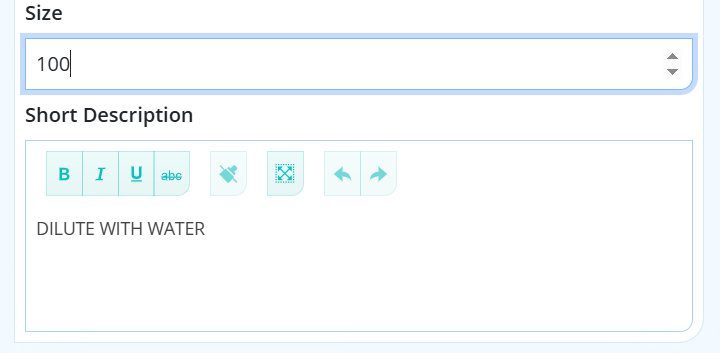
Size - The size of the bottle
Short Description - Add a short description to show on the prescription if required.
Please note: if you regularly prescribe more than one of the same size liquid herbal you will need to add separate containers for these, e.g. Liquid Herbal 200ml and Liquid Herbal 200ml (Blend #2). So that they can be differentiated when printing labels, ordering online, or sending to Ariya.