
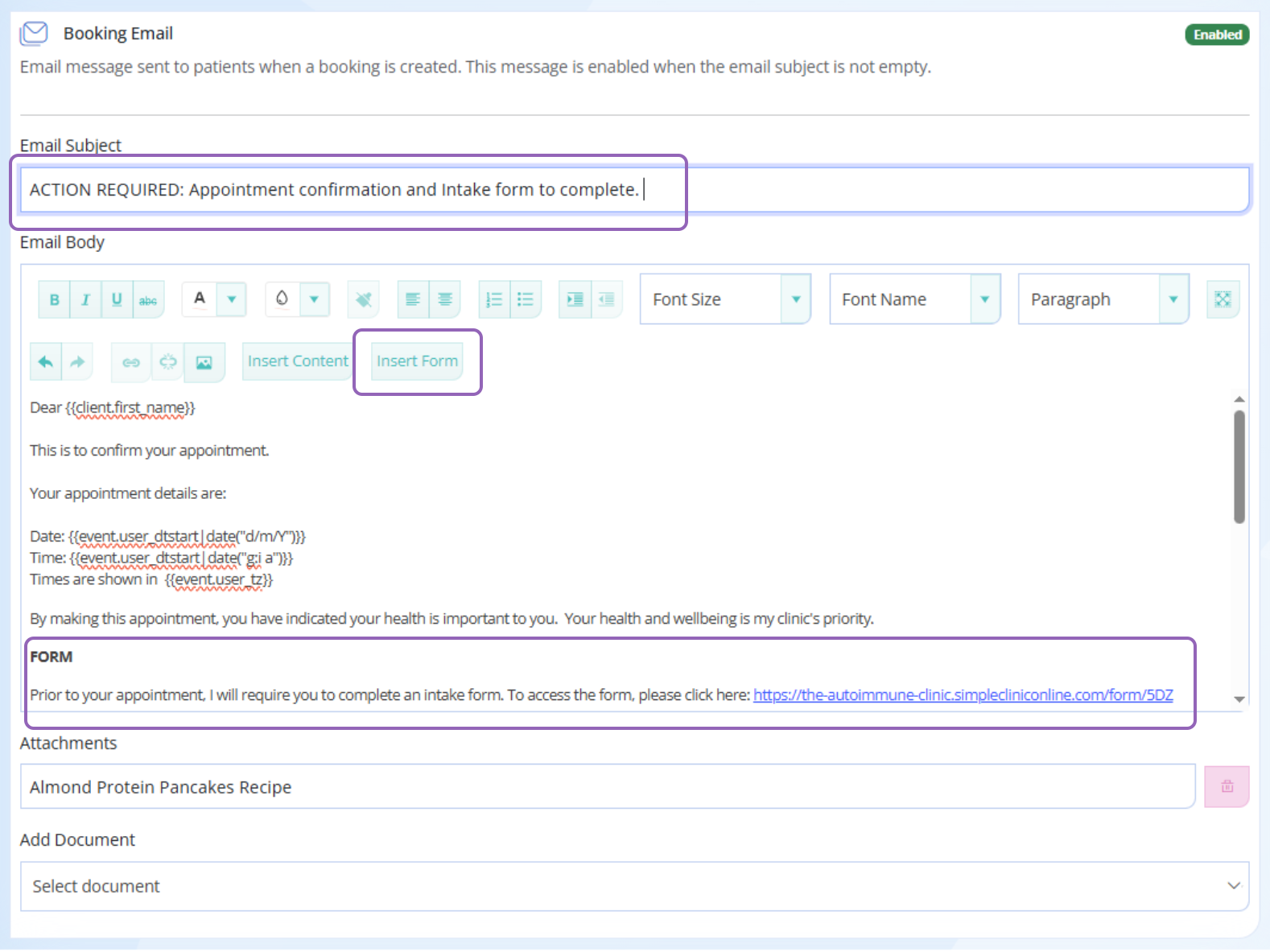
To Insert a new Form into your booking and reminder emails, please see the steps and screenshot below.
Option 1 - Add the Form URL
- Go to Business Setup -> Booking & Reminders
- Select 'Edit' next to the Service Category --> Scroll to the Booking email
- Click into the email body where you would like the form link to be, e.g. after some text requesting the form to be completed (as below screenshot)
- Select the INSERT FORM button --> select the form you wish to link --> OK
- Click SAVE
- Repeat for your Reminder email and any other service categories as needed.
To improve the chance of the form being completed, modify the subject to include a call to action, e.g. 'ACTION REQUIRED: Appointment confirmation and Intake form to complete'
Option 2 - Add the Form URL as a hyperlink
To add the Form URL as a Hyperlink
Note - You will first need to have the Form URL, either using the steps in Option 1 then cut and paste it, or see the following article to find the form URL under the Content --> Forms menu.
- Go to Business Setup -> Booking & Reminders
- Select 'Edit' next to the Service Category --> Scroll to the Booking email
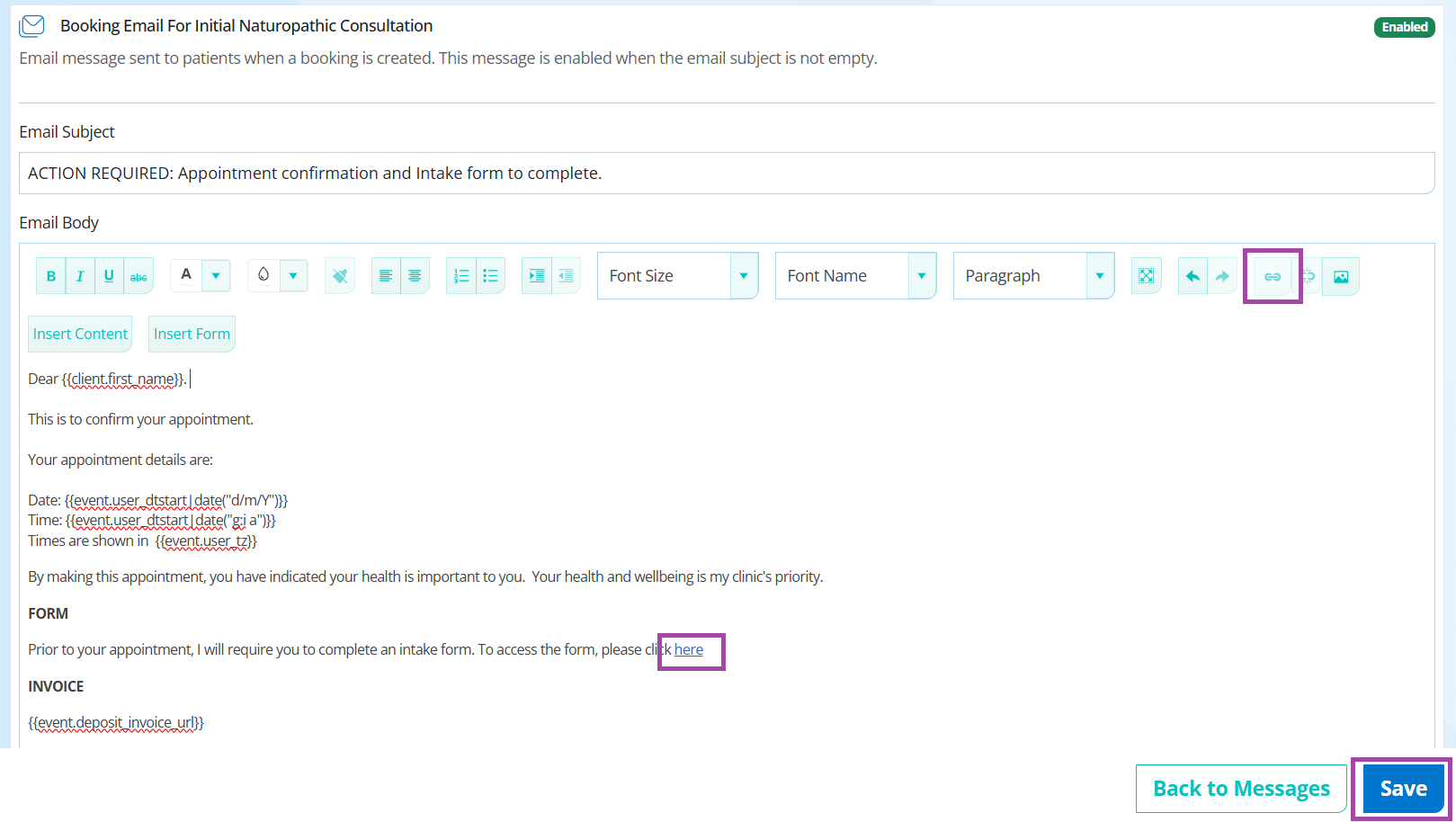
- Highlight the text you want to hyperlink, for the example below the word 'here'.
- Select the hyperlink icon --> paste the form URL into the Web address field --> Insert
- Click SAVE
- Repeat for your Reminder email and any other service categories as needed.
The video below outlines these steps, however the screens have been updated to what you see in the above screenshot.